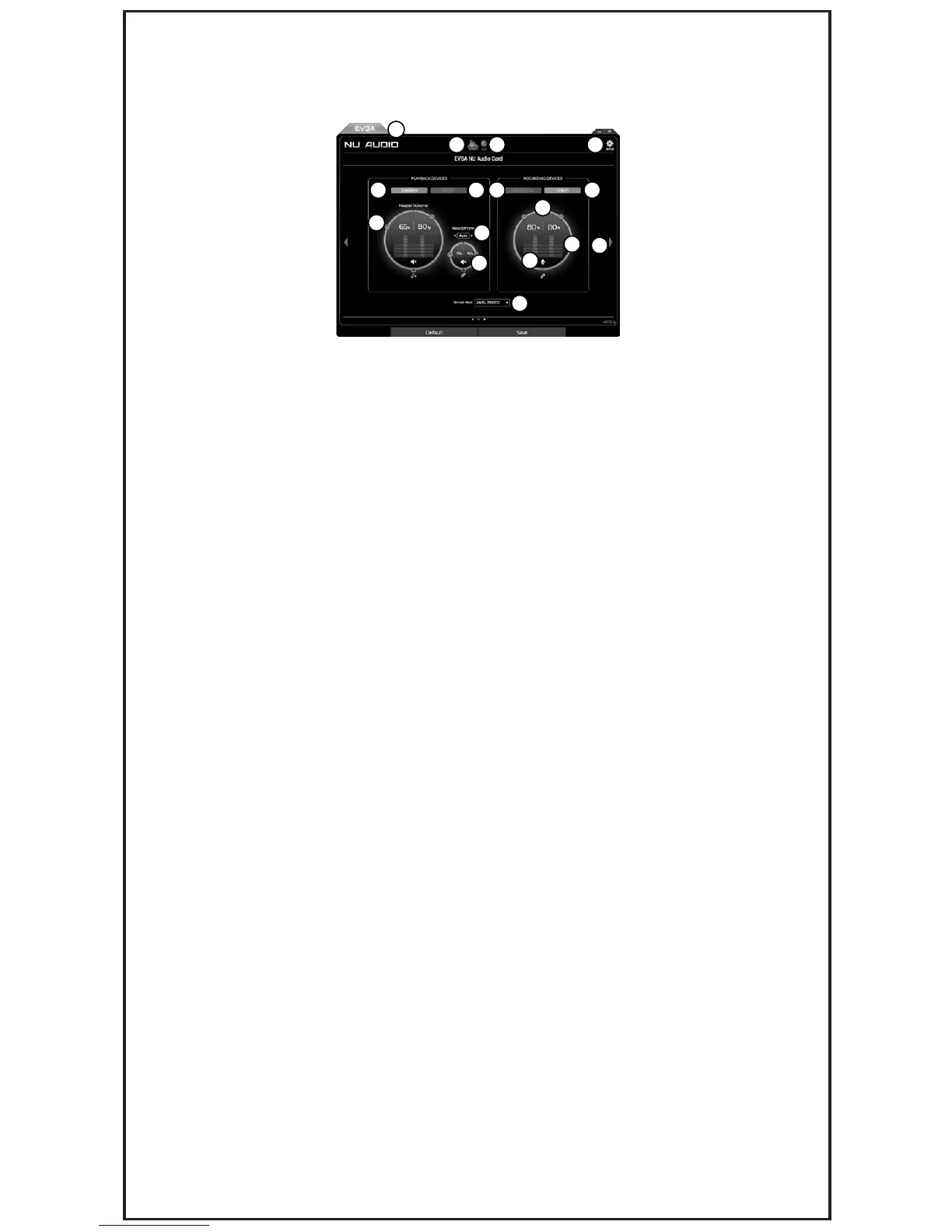
The NU Audio software offers you control over the volume, input/output ports, EQ options,
RGB LED lighting, and some basic settings.
A. EVGA.com Link – The EVGA tab links directly to our website at EVGA.com.
B. Sound Menu – Located at the top, the Sound Menu houses the Volume and EQ menus.
C. LED Menu – Located at the top, the LED menu houses the configurator for RGB Lighting.
D. Setup Menu – Located in the upper-right, the Setup menu allows you to choose your language
and select the frequency that the Software check for updates.
E. Speaker Select – Use this section when listening through either Speakers or Headphones.
F. S/PDIF Select – Use this section when listening through the S/PDIF pass through output.
G. Master Volume (Speakers) – These are the main volume sliders for output volume.
They are tied into Windows volume and will go up and down as the volume is increased or decreased.
The sliders can be unlinked to allow the listener to adjust left and right audio separately.
Master Volume for S/PDIF behaves similarly.
H. Headphone Auto/Back/Front Select – This box allows you to specify if your Headphones are
plugged into the audio card directly (Back) or a front-panel audio port (Front).
I. Volume Control for Headphones – This slider independently controls the volume through the analog
headphone amp. Although the Master Volume controls the output level for the system (i.e. volume in
OS), the Volume Control for Headphones increases and decreases the power to the headphone
OP-AMP.
(a) This setting is similar to a Headphone Gain selector. At 100% the headphone volume is set for
600ohm impedance. At approximately 42%, the headphone volume is set for 250ohm impedance.
At approximately 5%, the headphone volume is set for 32ohm.
(b) For best practices, we suggest that you manually set the Headphone volume to the rated
impedance of your headphones and adjust the volume through the Master Volume.
(c) If you do not know the rated impedance of your headphones, begin by taking off your
headphones, turn the Master Volume to 100%, and the Headphone Volume to 0%. Play some
audio to make sure that you can hear audio, and put your headphones on only if the audio is too
low or at a comfortable level. Continue listening and slowly raise the Headphone Volume until the
audio is at your optimal listening volume. Please be careful when setting the Headphone Volume;
setting the Headphone Volume too high for an extended period of time can damage headphones
rated for a lower impedance. Always lower the Headphone Volume when trying a different pair of
headphones.
EVGA NU Audio Software
A
B
E F J L
K
N
O
M
P
G
H
I
C
D


 To Next Page
 Loading...