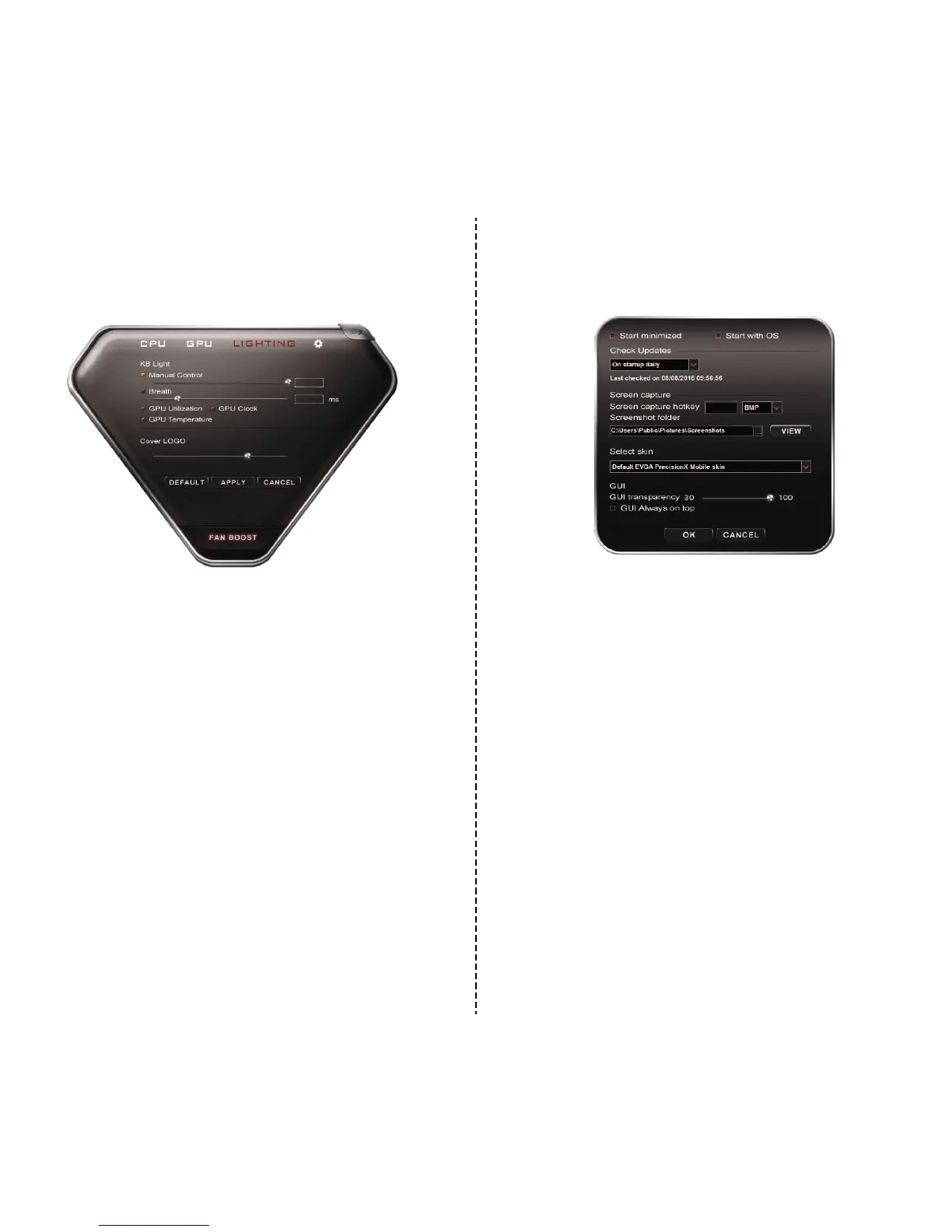
Lighng Tab:
This displays the current sengs for the backlight sengs on the keyboard.
Manual Control: This is a slider to control the brightness of the Keyboard
backlighng.
Breathe: This creates a breathing effect of the backlighng. In essence it
slowing increases and decreases the backlight, oscillang indefinitely.
GPU Ulizaon: This is the percentage of the GPU being used across all
applicaons cumulavely.
GPU Clock: This displays the current speed in MHz that the GPU is running.
GPU Temp: This displays the current temperature, in Celsius, of the GPU.
Cover Logo: This toggles the cover logo LED has 10 levels of brightness controlled
by the slider bar.
Opons Tab:
Sengs for controlling PrecisionX Mobile’s features outside of hardware.
Start Minimized: When the EVGA SC17 Notebook boots, it launches the PrecisionX
applicaon, but starts it minimized.
Start with OS: This enables PrecisionX Mobile to be launched with the operang
system.
Check Updates: This is where you check for updates for your PrecisionX Soware,
and schedule when to check it automacally.
Screen Capture Hotkey: This designates a key to be pressed to capture a screen
image.
Screenshot Format: This allows you to select the file type the screenshots are
saved in.
Screenshot Folder: This designates a locaon to store the screenshots taken with
above step. Browse and View buons help you to select and verify the proper
locaon.
1312


 To Next Page