Video Out:
1x HDMI 2.0b
2x mDP
WebCam:
LiteOn FHD 1920x1080 3mm thickness
Integrated Digital Mic
Touchpad:
SynapcsClickpad 1.5
Keyboard:
Full sized white backlit with SunrexNumberpad.
EVGA Font
Keyboard Key Funcons:
F1/F2: LCD Backlight Brightness
F3/F4: Keyboard Backlight Brightness
F5: External Mode (output on HDMI port)
F6: LCD close
F7: Touchpad off
F8: Windows Key off
F9/F10/F11: Volume Adjust
F12: Flight mode (WiFi/Bluetooth off)
Home/pg up/pgdn/end: Music Track
Geng Started
First, connect your EVGA SC17 to the charger to get the baery charging. First plug
the power cable into the charger and plug that into the wall outlet, and connect the
charger to the le side of the Notebook.
Press the power buon to start the EVGA SC17.
The first me you run your EVGA SC17 have it plugged in for at least 3 hours to allow
it to fully charge.
Configuring PrecisionX Mobile for the
EVGA SC17
PrecisionX Mobile is designed to be your monitoring and tuning suite for your
EVGA SC17 Notebook. This will cover monitoring in the upper secon as well
as specific controls for CPU, Motherboard, Graphics card, lighng, and general
non-performance/appearance opons.
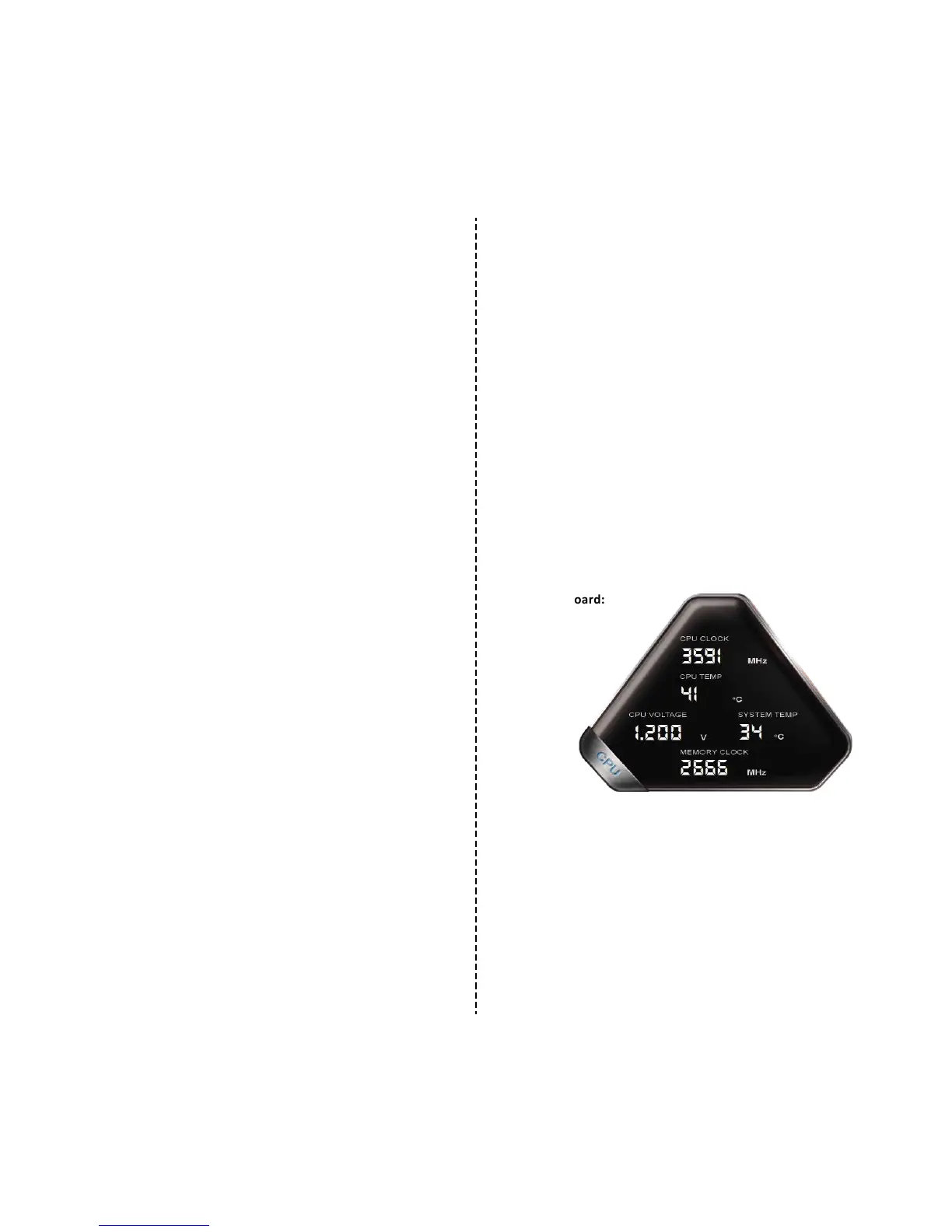
CPU Dashboard:
CPU Clock: This will show the frequency your CPU is currently running at. This
will vary based on load, background applicaons, etc. It is common, without
overclocking, to see this specific model of CPU fluctuate between 800 MHz and
3800 MHz (3.8 GHz). Overclocking will change the values listed here but the
clocks will sll vary.
CPU Temp: This displays the temperature in Celsius of the CPU socket which the
probe is aached to, the individual Core temp will vary from this as well and
depending on ambient temps and load level can vary from below 20
℃
up to 90
℃
.
76


 To Next Page