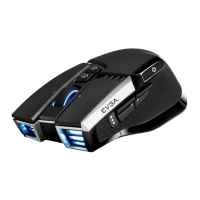
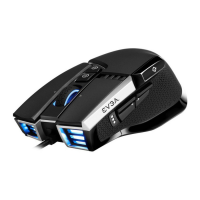
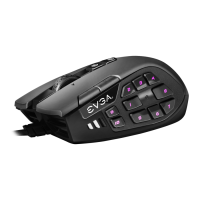
SETTING UP YOUR X20 GAMING MOUSE
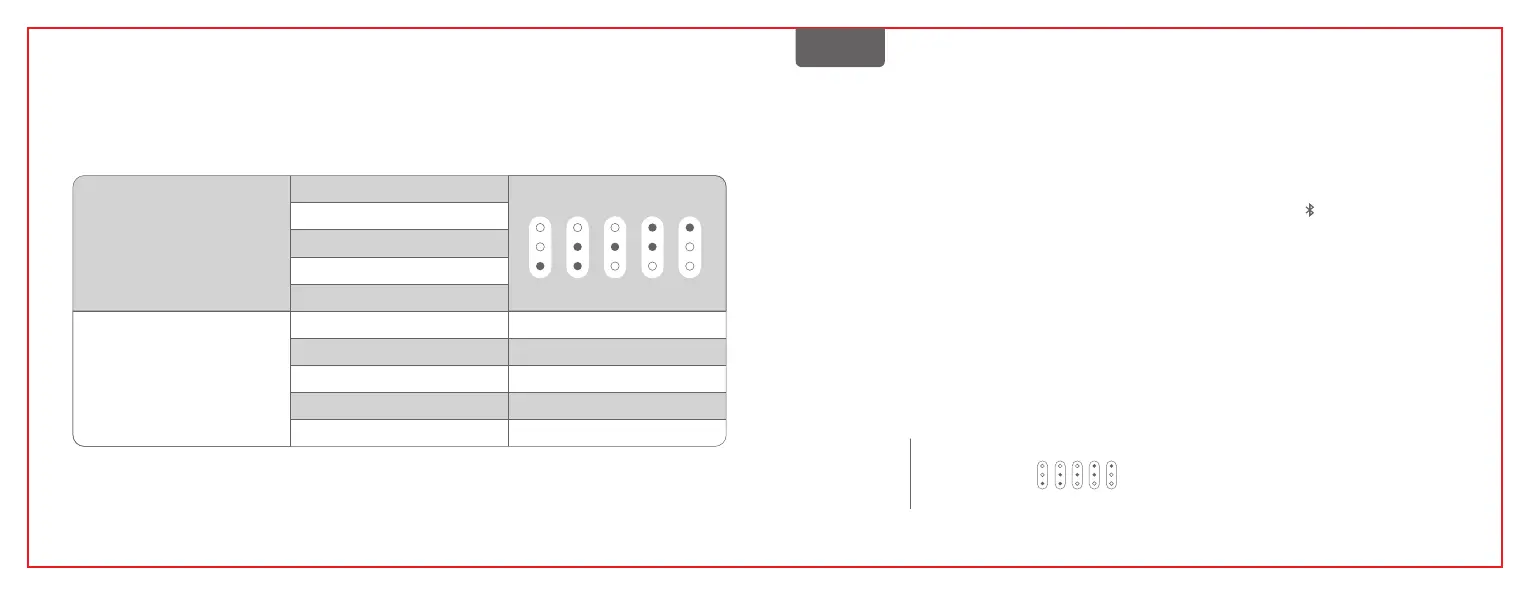
LED Indicator :
DPI Status
Stage 2 - 1600 DPI
Stage 1 - 800 DPI
DPI LED Indicator
#1 #2 #3 #4 #5
Stage 3 - 3200 DPI
Stage 4 - 6400 DPI
Stage 5 - 16000 DPI
Profile 2
Profile 1
Profile 3
Profile 4
Profile 5
LED - Orange
LED - Red
LED - Yellow
LED - Green
LED - Blue
Profile Status
A Taste für Linksklick
B Taste für Rechtsklick
C Taste für Mittelklick
D Linksklick-Tastenrad
E Rechtsklick-Tastenrad
F Profil-Umschalttaste
G DPI-Umschalttaste
H DPI-Anzeige
I Vordere seitliche Taste
J Hintere seitliche Taste
K Scharfschützen-Taste
L Micro-USB-Port
M Abhebedistanz-Sensor 2
N Abhebedistanz-Sensor 1
O Pixart 3335 optischer Sensor
P Verbindungsschalter
Q Kopplungs-LED
R Kopplungsknopf
S USB Lade- unbd Datenkabel
T Erweiterungsadapter
U USB Empfänger
DEUTSCHE
Einrichten der X20 Gaming-Maus
Batterie kritisch Scrollrad-LED - Rotes Blinken
Batterie lädt Scrollrad-LED - Grün
2.4GHz wird gekoppelt Kopplungs-LED - Grünes Blinkes
2.4GHz ist gekoppelt Kopplungs-LED - Grün
2.4GHz Koppeln fehlgeschlagen Kopplungs-LED - Grünes Pulsieren
Bluetooth wird gekoppelt Kopplungs-LED - Grünes Blinkes
Bluetooth ist gekoppelt Kopplungs-LED - Grün
Bluetooth Koppeln fehlgeschlagen Kopplungs-LED - Grünes Pulsieren
LED Anzeige
Stage 2 - 1600 DPI
Stage 1 - 800 DPI
DPI LED Indicator
#1
#2 #3 #4 #5
Stage 3 - 3200 DPI
Stage 4 - 6400 DPI
Stage 5 - 16000 DPI
Profil 2 LED - Orange
Profil 1 LED - Rot
Profil 3 LED - Gelb
Profil 4 LED - Grün
Profil 5 LED - Blau
2.4GHz Wireless Mode:
a. Plug the USB charging/data cable to computer.
b. Use extension adapter to connect USB receiver and USB
charging/data cable .
c. Turn the connection switch to “ 2.4G” position.
d. The Pairing LED on mouse will turn solid green while connected.
Bluetooth Wireless Mode:
a. Turn on Bluetooth enabled computer and initiate Bluetooth pairing
mode.
b. Turn the connection switch to “ ” position.
c. Press pairing button on mouse for 5 seconds and the pairing LED
on mouse will start blinking green.
d. The Pairing LED on mouse will turn solid green while connected.
Sniper Button:
It allows you to change DPI to 400 (Default value) while held done.
LOD Sensors:
X20 Mouse is equipped with two LOD sensors. You can calibrate each
LOD sensor with EVGA Unleash Software.
7 8


 To Next Page