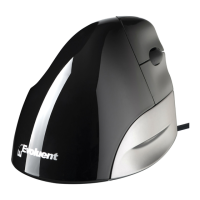
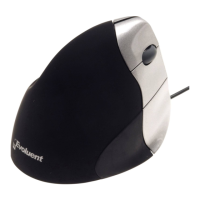
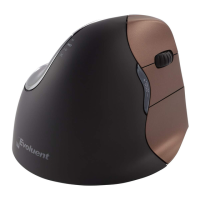
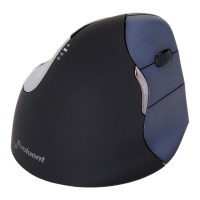
1
Quick Start Guide
Enhance your VerticalMouse with “Evoluent Mouse Manager” to enable the mouse buttons to
perform many useful functions, such as Copy, Paste, Undo, Double Click and many more.
Recommended Grip
Put your fingertips on the buttons, make sure your mouse fits perfectly in the palm of your hand. If
the mouse is too big or too small, you might be squeezing too much to hold to it. This may cause
physical complaints.
Windows Install
1. Before connecting VerticalMouse, go to Control Panel to open Mouse properties.
A. In de Buttons tab, uncheck Switch Primary and Secondary Buttons.
B. In de Pointer Options tab, uncheck Enhance Pointer Precision and set the pointer
speed slider to the middle position.
2. Connect VerticalMouse by inserting the cable plug or receiver in a USB port of your
laptop/pc. If your model is wireless, insert the battery and slide the power switch to the
green position.
3. Press the pointer speed button on the side of the mouse to activate three lights. The VM3
model has as speed button on the bottom. These are the default button functions, when the
Evoluent driver is not installed:

 Need help?

 To Next Page
 General