Need help?
Do you have a question about the Evoluent VM3 and is the answer not in the manual?
Set pointer speed to middle and enable Enhance Pointer Precision in Control Panel Mouse settings.
Use a non-reflective mouse pad to avoid pointer drift caused by reflective surfaces.
Set up wheel button for middle click, either via driver settings or AutoCAD commands like mbuttonpan.
Locate xtop.exe in Pro E Program Files for customization settings related to middle click panning.
Use the Evoluent driver to assign 'None' function to any button for disabling.
Use a non-reflective surface, like a cotton mouse pad, to resolve pointer jumping issues.
Ensure a completely non-reflective and flat surface for proper mouse tracking.
Adjust pointer precision/acceleration via Control Panel or the driver's built-in options.
Connect each mouse to a USB port and install driver updates for both.
Click 'Continue Anyway' for warnings; consider System Restore for safety before installation.
If prompted, locate Windows installation files on the hard disk, e.g., C:\i386.
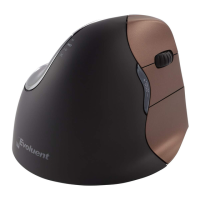
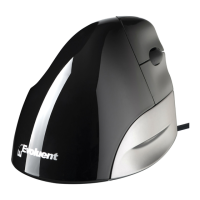
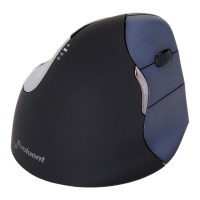
The Evoluent VM3 is a specialized mouse designed to enhance user comfort and productivity, particularly for individuals who experience discomfort with traditional mice or who engage in intensive computer-aided design (CAD) work. Its design focuses on ergonomic principles to minimize strain and improve control, offering a range of customizable features to suit individual preferences and application-specific needs.
The primary function of the Evoluent VM3 is to provide an alternative to conventional mouse designs, aiming to reduce wrist pronation and promote a more natural hand and arm posture. This is achieved through its unique vertical orientation, which positions the hand in a handshake-like grip, thereby alleviating pressure on the wrist and forearm. Beyond its ergonomic design, the VM3 offers precise cursor control and a suite of programmable buttons, making it suitable for general computing tasks as well as specialized applications that require intricate navigation and frequent command execution.
The Evoluent VM3 is designed with several features to optimize its usability and adaptability across different computing environments and user requirements.
For users experiencing difficulty controlling the pointer or requiring excessive arm movement, the device offers solutions to fine-tune its responsiveness. Users can adjust the pointer speed through the operating system's Control Panel, specifically within the Mouse settings, by moving the pointer speed slider to a comfortable middle position. Additionally, enabling the "Enhance Pointer Precision" option in Windows can further refine cursor movement, providing a more intuitive and accurate experience. When the Evoluent driver is not installed, these system-level settings are crucial for optimizing performance. However, with the driver installed, the device offers its own built-in controls for pointer precision and acceleration, allowing for more granular customization.
A common issue with optical mice is unintended pointer movement, often referred to as "pointer drift." The Evoluent VM3 addresses this by recommending the use of a non-reflective surface. Reflective surfaces can interfere with the mouse's optical sensor, leading to erratic or unwanted cursor movements. Placing the VerticalMouse on a fabric mouse pad or a similar non-reflective surface can effectively resolve this problem, ensuring stable and predictable cursor control. Similarly, if the pointer appears sluggish or moves randomly, the underlying cause is often a reflective surface. A cotton mouse pad is specifically recommended to ensure consistent tracking. If the mouse tracks correctly on plain white printer paper, it indicates that the mouse itself is functioning properly, and the issue lies with the surface it's being used on. It's also important to ensure the mouse surface is completely flat for optimal tracking.
For professionals working with CAD software, the middle click often serves a critical function for panning, allowing users to navigate large designs efficiently. The Evoluent VM3 is designed to support this functionality, with specific considerations for both driver-installed and driver-uninstalled scenarios.
mbuttonpan and set its value to 1 to enable panning. If mbuttonpan is set to 0, pressing the wheel button will instead bring up a pop-up menu, which may not be the desired behavior for panning.For users of Pro/ENGINEER (Pro E), the Evoluent driver offers advanced customization options to optimize the middle click for panning. Within the "Customizing Programming for Different Applications" section of the Evoluent driver interface, users should locate xtop.exe within their Pro E installation folder. For instance, in Pro E Wildfire 2.0, the default path is typically C:\Program Files\proeWildfire 2.0\i486_nt\obj\xtop.exe. By configuring the driver to recognize this executable, users can ensure that the middle click functionality is correctly mapped for panning within Pro E, enhancing their design workflow.
The Evoluent VM3 provides the flexibility to disable any of its buttons if they are not needed or if they interfere with specific tasks. This is achieved by installing the Evoluent driver and then selecting the "None" function from the top of the pull-down menu within the button configuration settings. This feature allows users to simplify the mouse's functionality, preventing accidental clicks or streamlining its use for particular applications.
For users who require both right and left-handed VerticalMouses, the Evoluent VM3 supports simultaneous operation, provided both devices are connected to USB ports. The setup process involves:
The Evoluent VM3 is designed for straightforward maintenance, primarily focusing on ensuring optimal tracking performance and driver integrity.
Similar to pointer drift, if the pointer frequently jumps to the screen edge, it is a strong indicator that the mouse is being used on a reflective surface. The recommended solution is to place the mouse on a completely non-reflective surface, such as a cotton mouse pad. This simple maintenance step ensures consistent and accurate cursor tracking, preventing frustrating and disruptive pointer behavior.
During the installation of the Evoluent driver, users might encounter warning messages indicating that the driver has not passed Windows testing. In most cases, the driver functions perfectly well despite these warnings. Users are advised to click "Continue Anyway" to proceed with the installation. However, for maximum safety and to mitigate potential system issues, a precautionary measure is recommended:
Some computer systems, particularly those with preinstalled Windows, may prompt for a Windows CD during driver installation, even if no physical disc is available. This often occurs because the necessary Windows installation files are stored on the hard disk in a specific directory. Common paths for these files include C:\i386 or D:\i386. If these folders are hidden, users can manually type the path into the prompt to direct the installer to the correct location. This allows the installation to proceed without requiring a physical Windows CD, streamlining the setup process.
 General
| Buttons | 5 |
|---|---|
| Model | VM3 |
| Hand Orientation | Right-handed |
| Cable Length | 1.8 m |
| Type | Vertical |
| Connection | Wired (USB) |
| DPI | 2600 |
| Compatibility | Windows, Mac, Linux |

 To Next Page