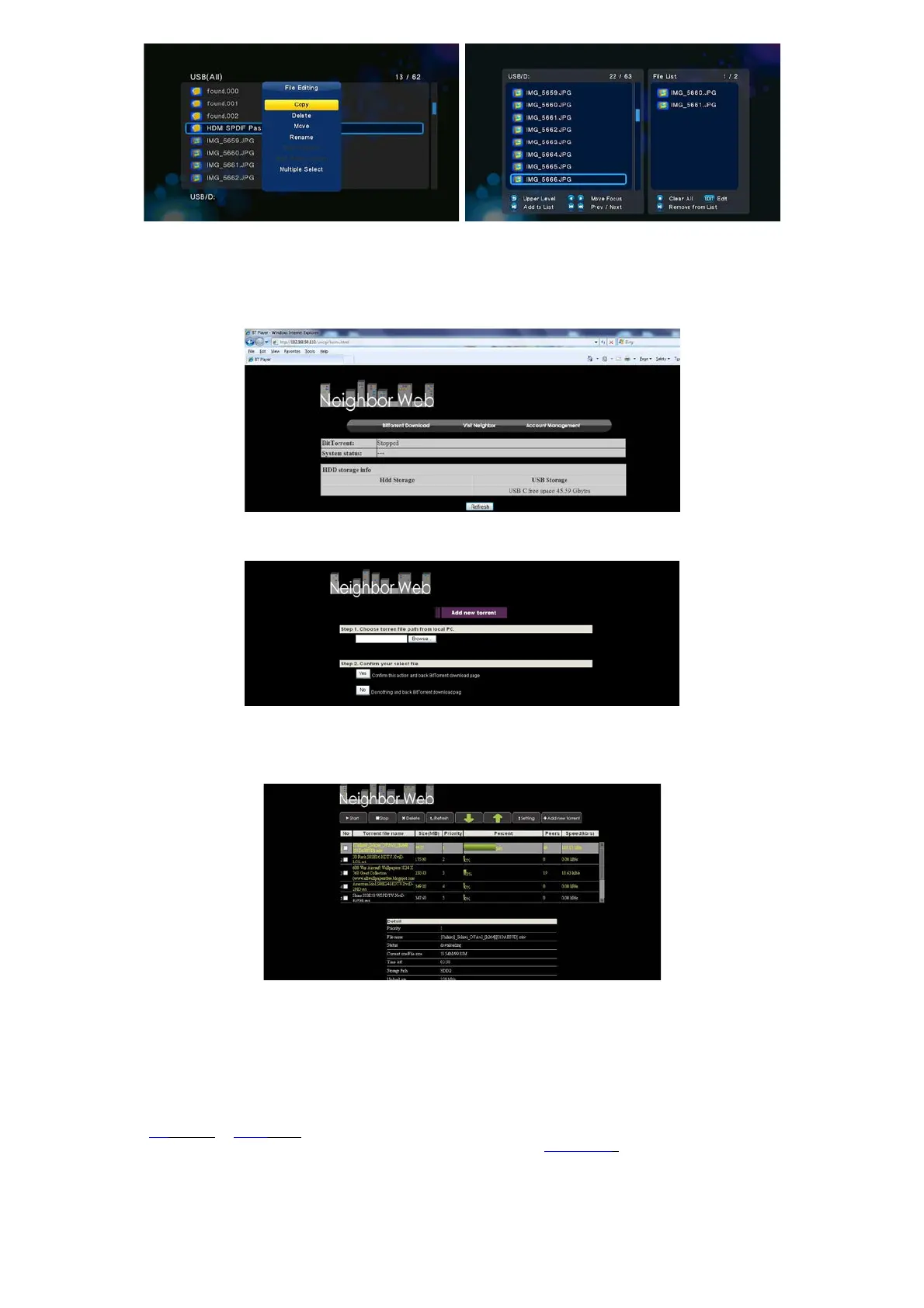
2.13 BT Download
To use BT download,
Step 1, Enter into SetupNetwork menu, connect your player to internet.
Step 2, Enter into SetupNetwork menu, turn on BT.
Step 3, On your PC, launch a web browser such as Internet Explorer, Firefox or Safari, and at the address bar, key in http://192.168.0.9/unicgi where
192.168.0.9 is the IP address of your product.
Click BitTorrent Download on the home page of Neighbor Web, then you will enter the BitTorrent Download page.
2.13.1 Add new torrent
- Click Add new torrent on the BitTorrent Download page.
- Click Browse to upload a torrent file, and click Yes to confirm.
2.13.2 Managing the downloads
The BitTorrent Download page also allows you to start, stop, delete torrents, and set priorities for torrents, as well as view the status of current
torrents.
Click Start to begin download / Click Stop to stop download / Click Delete to delete the selected torrent / Click Refresh to refresh the current status
/ Click Down arrow to decrease the priority for the selected torrent / Click Up arrow to increase the priority for the selected torrent
2.14 NAS function
EVOLVE Infinity has functions as a NAS (Network Attached Storage) device when it is attached to the home network. This feature allows users to store
and retrieve large amounts of data from their own local network.
Step 1, Enter into SetupNetwork menu, connect your player to home network.
Step 2, Enter into SetupNetwork menu, turn on Samba process.
Step 3,
On Win XP, key in \\IP
Address or \\Host name in the Run window (click Run in the start menu) or in the address bar of a web browser, for example
Internet Explorer on your PC (if the IP address of the product is 192.168.0.9, please key in
\\192.168.0.9), and click OK or press the Enter button on the
keyboard.


 To Next Page