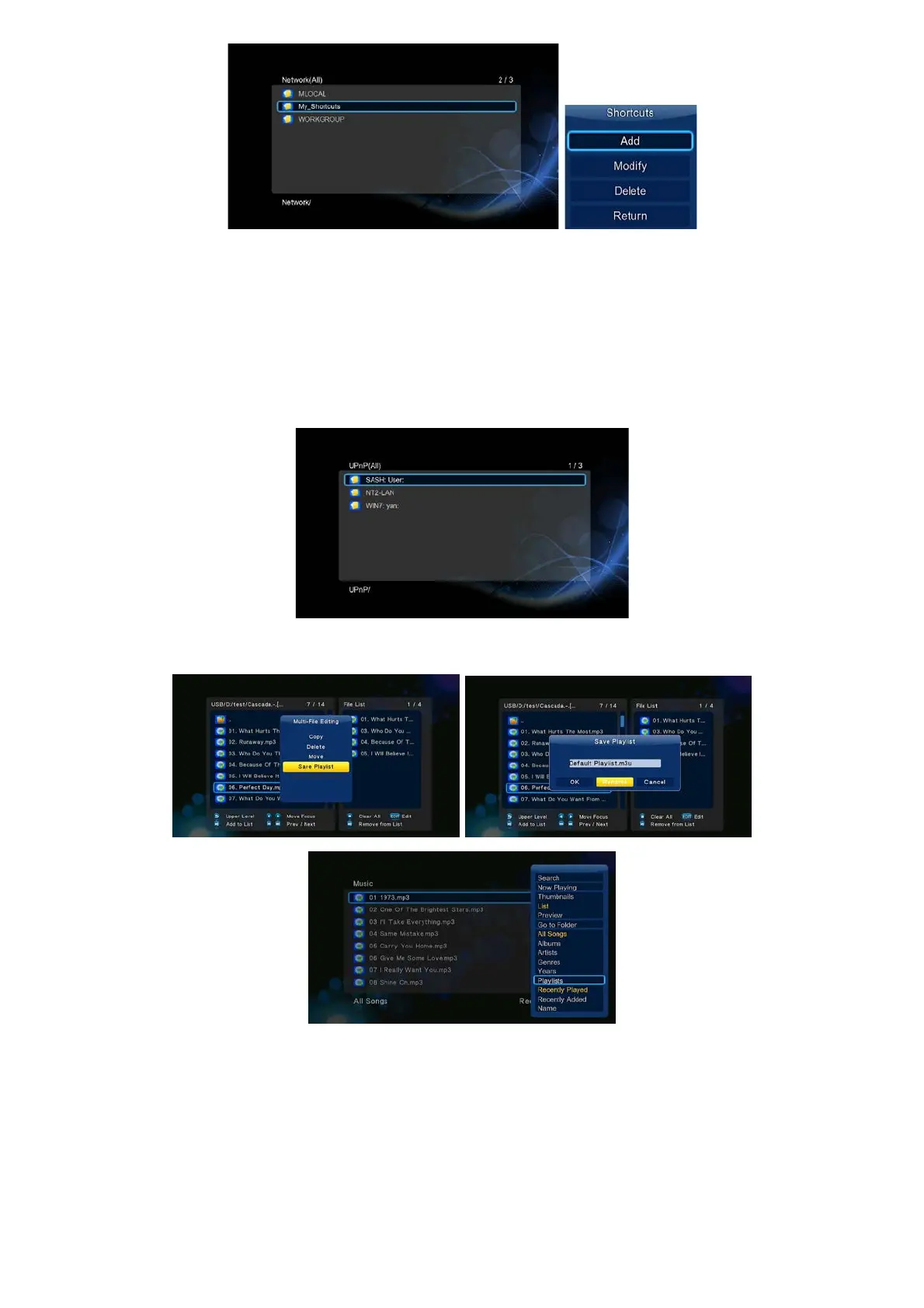
Due to different network conditions, sometimes the workgroup might not be accessed or shown in the list. You can set ‘Specific File Server IP’ and
access it from ‘My_Shortcuts’.
Press the Red button and a popup menu appears. Select Add to open a popup menu where you can input Label, Net User ID, Net Password, Domain,
Host Name, and Specific File Server IP.
2.10 A/V Streaming via UPnP-server
A built-in UPnP (Universal Plug and Play) client has been integrated on the system, which enables the player to auto-detect UPnP Media Servers on the
network to browse and stream media files from them. There’re a lot of free and commercial UPnP Media Server software, such as Windows Media
Connect, Windows Media Player 11, XBMC Media Center (Linux/Mac/Windows), MediaTomb (Linux), etc. Please install one of them on your computer,
and share the media files though it.
To stream your media files shared though a UPnP server,
Step 1, Enter into SetupNetwork menu, connect your player to the home network.
Step 2, Visit Files ManagerUPnP menu on the player, select the UPnP-server, then you can browse the media library shared by UPnP server.
2.11 Music playlist & Photo Album management
Step 1, Enter into Music/Photo interface.
Step 2, Press Copy button to enter file selecting menu, follow the on-screen information to finish creating music playlist or photo album.
Step 3, Enter Music/Photo interface, press Menu button and choose Playlists/ Albums to view your music playlists/ photo albums.
2.12 File Copy/Delete/Move/Rename
Step 1, Enter into File Manager.
Step 2, Locate the file or folder which you want to copy/delete/move/rename.
Step 3, Press Edit button to enter file editing menu, or press Copy button to enter file selecting menu, then follow the on-screen information to finish
file copy/delete/move/rename.


 To Next Page