> On the Home screen, select the Smartphones or Cards tile.
> Alternatively select Media & persons → Media in the main
menu.
> Select the medium from the overview list that you would like
to reactivate.
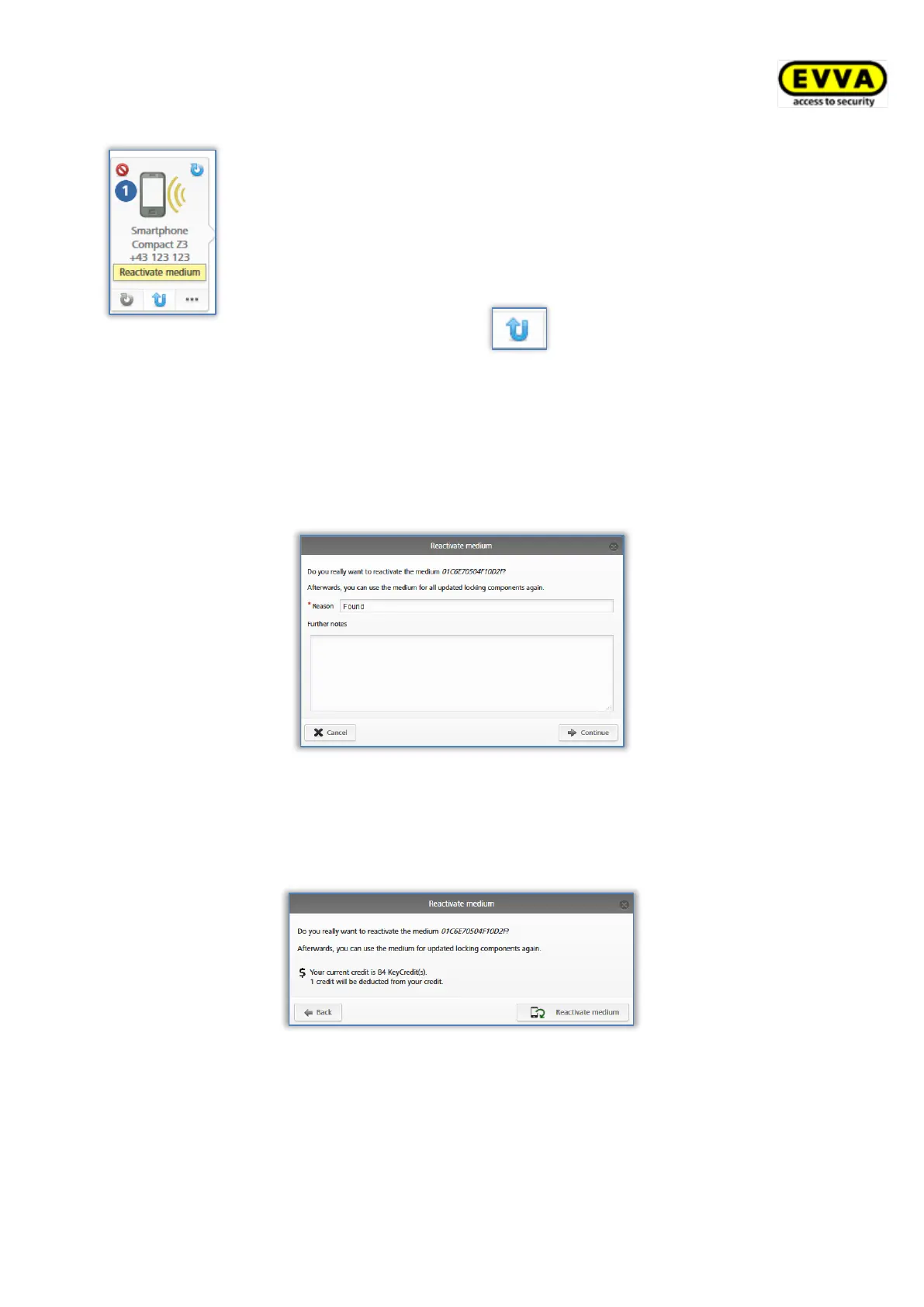
> Click Reactivate medium below the media icon.
Figure 187: Reactivating media
> Enter the reason for reactivation (at maximum 50 characters) and decide as to
whether you would like to reactivate authorisations valid prior to deactivation.
If necessary, enter additional information (at maximum 500 characters) in "Additional
comments". The additional information will be documented in the event log entry.
Figure 188: Reactivating media
> Click Continue.
> Click Reactivate medium and confirm both security prompts (depending on whether
you would like to restore authorisations).
Figure 189: Reactivating media – including restoring authorisations
A confirmation prompt completes successful deactivation.
Maintenance tasks are once again created for these locking components, providing there are
blacklist entries on the locking component for this particular reactivated medium.


 To Next Page
 Loading...