AirKey system manual version 2.7 |
06/03/2024 | Subject to technical changes and misprints
dialogue window and click the locking component you would like to
replace.
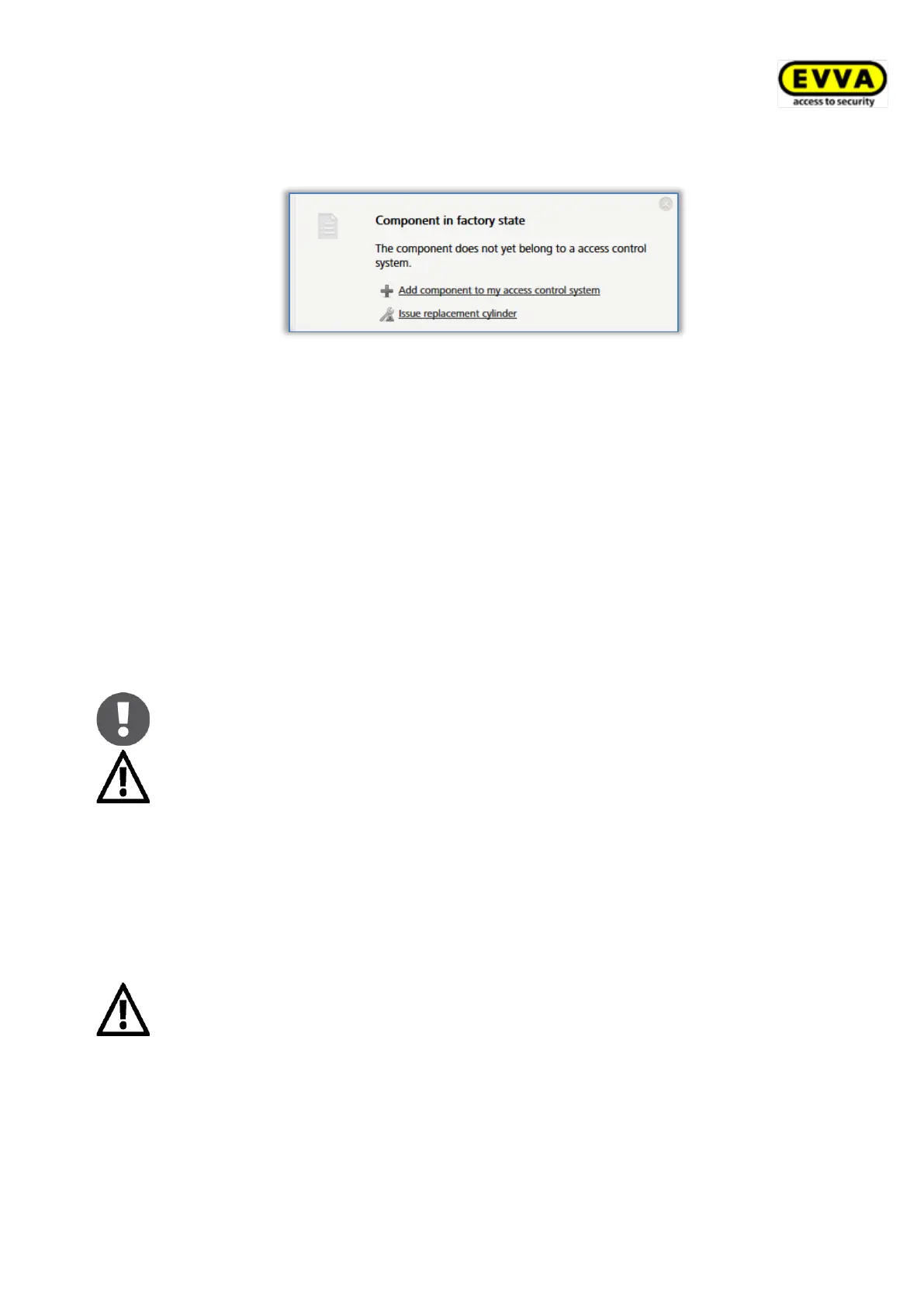
Figure 291: Component in factory state – issuing replacement cylinders
> Click Continue.
> Position the replacement locking component in factory state on the
coding station.
> Only remove the replacement locking component once the
corresponding confirmation prompt appears.
> Specify whether you would like to add a maintenance tasks for later
installation.
> Click Install later to cancel the process, providing you must still
install the locking component at the door or select Complete if the
component has already been fitted to the door.
> Update the locking component after having installed it in the door.
This process also involves a firmware update if the replacement locking
component still features an old firmware version.
You are no longer able to use the replaced locking component following this
process. For this reason, exclusively use this function if the locking
component is actually faulty and you no longer require it.
8.8.2 Removing locking components without replacements and
highlighting them as "faulty"
If it is not necessary to replace a faulty locking component, but it must no longer appear in
the access control system, you can remove it without replacements in the repair options.
It will subsequently no longer be able to update the locking component and
it is hence rendered useless.
> On the Home screen, select the Cylinders or Wall readers tile.
> Alternatively, select Access control system → Locking components in the main
menu.
> Click the locking component you would like to edit in the overview.


 To Next Page
 Loading...