The character encoding of the CSV file must be UTF-8 so that language-
specific letters (Ä, ß, ç, Ñ, č, etc.) are displayed correctly. The process to
create a CSV file in UTF-8 format is explained in detail further down.
Creating a CSV file in UTF-8 format
The following description refers to Windows 10™ using Microsoft Excel™ auxiliary programs
that are already available in Windows 10™. The process to create CSV files in UTF-8 format
is similar for other Windows versions or operating systems. Required steps:
> An Excel file featuring the data of persons you would like to import is assumed as the
initial basis for this description.
> Make sure that the seventh column (Telephone number) has been formatted as text
in the Excel sheet. If this column were formatted as digits, leading characters, such
as "+" and "0" (zero) would be lost during the conversion. However, spaces within
the telephone number are permitted as they boost the legibility in the AirKey Online
Administration.
> Use the Excel search function to verify the sheet does not contain the following
characters:
• " (double, straight quotation marks)
• ; (semicolon = separator in the CSV file for importing to AirKey Online
Administration)
> Excel is unable to directly save the data in UTF-8 format. Consequently, it is possible
to initially save it in Unicode format.
> For this purpose, open the File → Save as menu item in Excel (or press the F12
key).
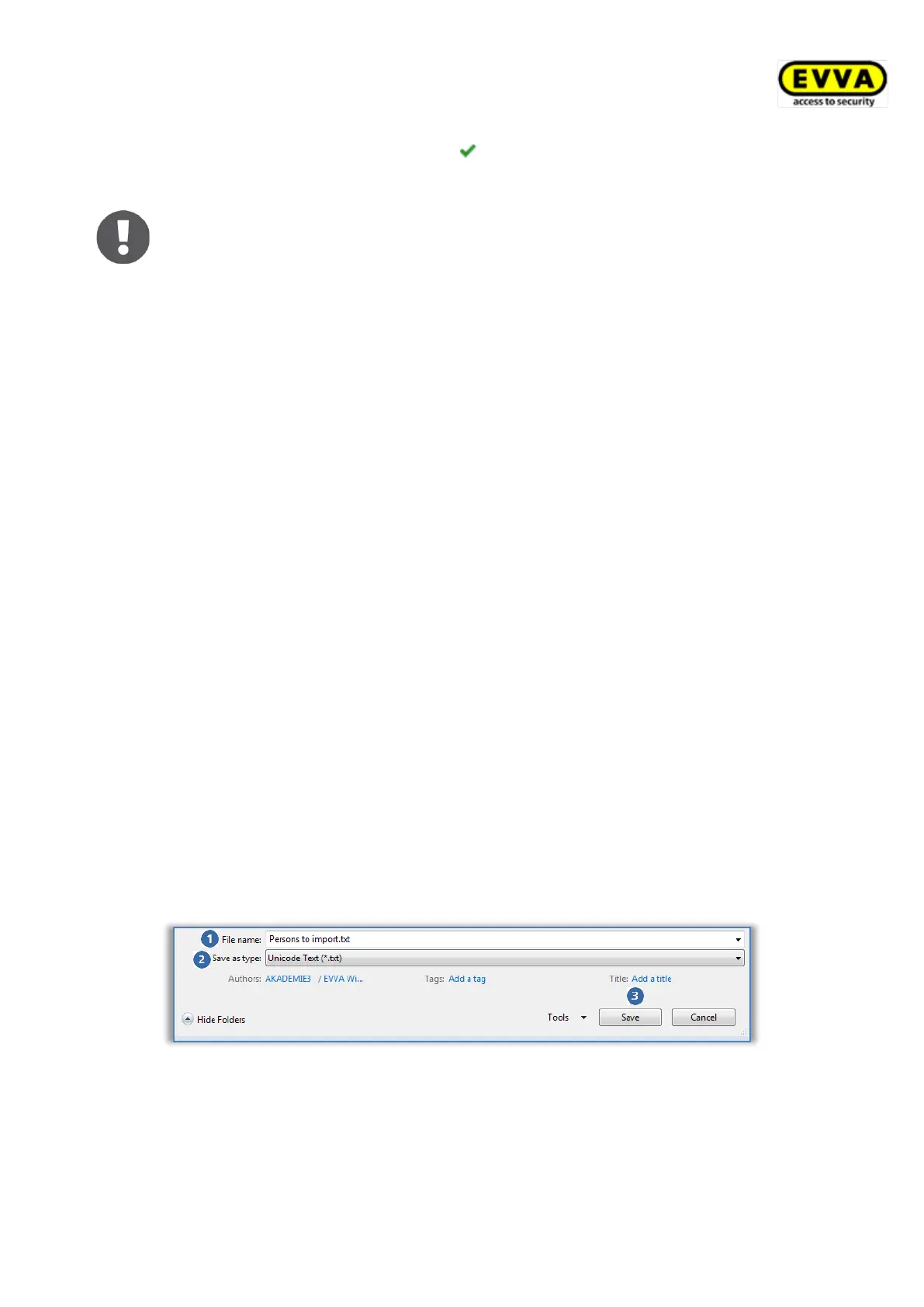
> Enter the desired file name in the following "Save as" dialogue window .
> In the File type drop-down menu select Unicode Text (*.txt) format.
> Click Save .
Figure 32: Excel – Save as – "Unicode Text (*.txt)"
> Then confirm the subsequent Excel prompt referring to "Unicode Text" with Yes.


 To Next Page
 Loading...