5.5.7 Assigning locking components to areas
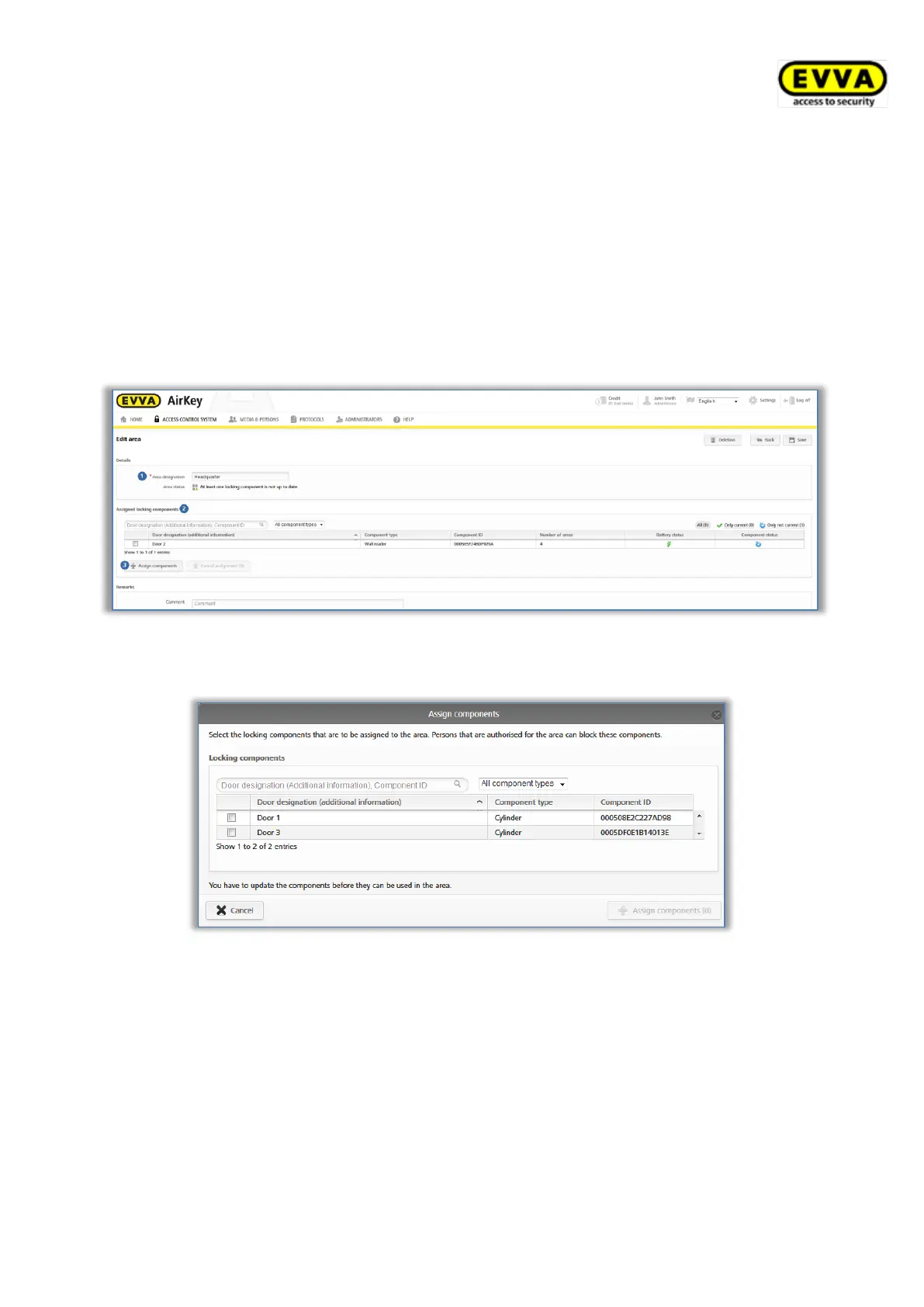
> On the Home screen select the Areas tile or click Access control system → Areas
in the main menu.
> Select the area from the list to which you would like to add locking components.
> The details of the selected area appear. Area status indicates whether all locking
components within the area are up to date. The Assigned locking component
list lists all locking components assigned to the area.
> Click Assign component to add a locking component to the area.
Figure 150: Editing areas
A list of all locking components that have not yet been assigned to this area appears.
Figure 151: Assigning components
> Select the desired locking components (multiple locking component selections (also
different types) are possible).
> Click Assign components to assign the locking components to the area.
> Click Save to confirm the changes.
Maintenance tasks are created for the affected locking components that are deleted from the
list by updating the corresponding locking components using a smartphone or coding
station. You have completed assigning locking components to areas after having updated.


 To Next Page
 Loading...