2
Hardware Overview
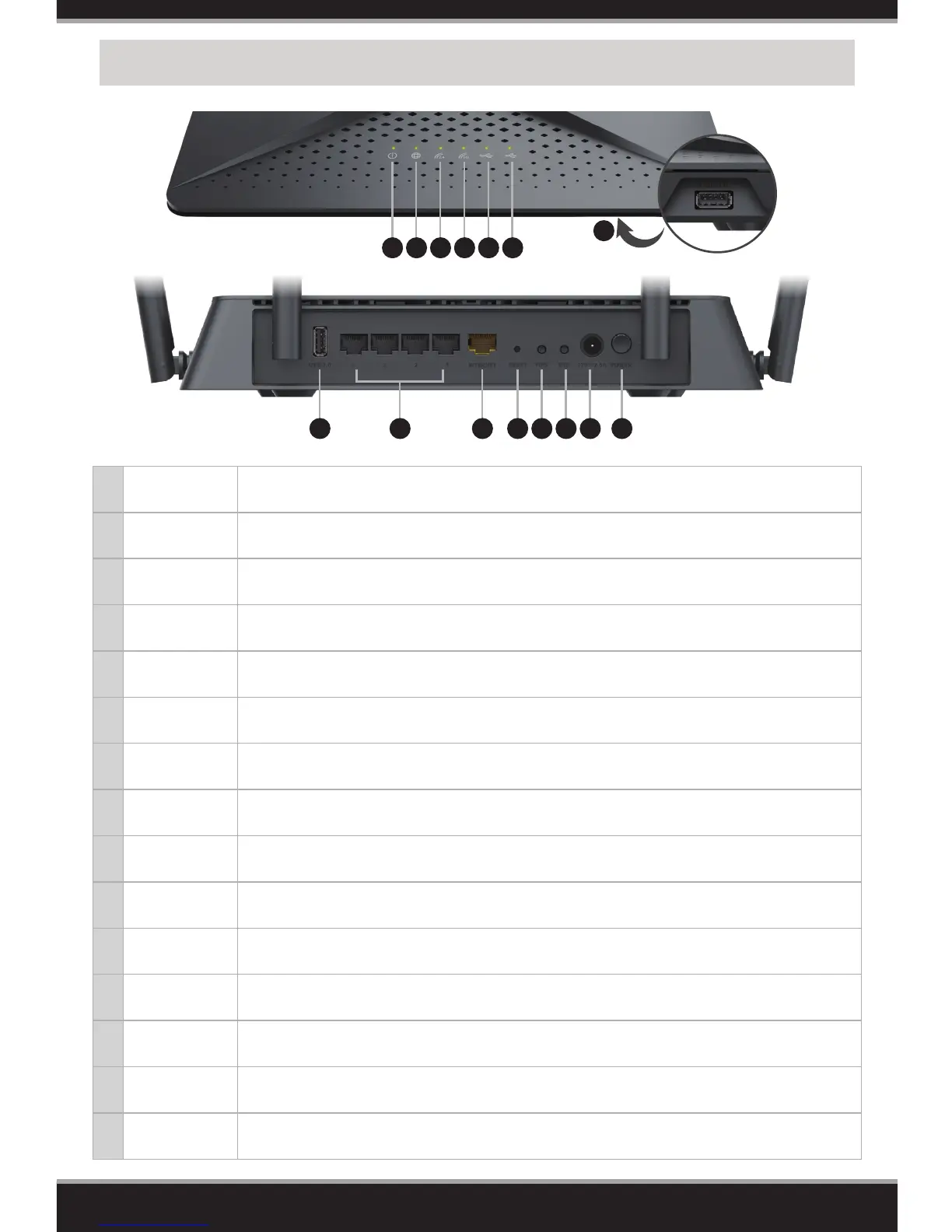
1 Power LED
A solid light indicates a proper connection to the power supply. The light will be a solid orange
during boot up.
2 Internet LED
A solid light indicates connection on the Internet port. If the LED is orange, the router cannot
connect to the Internet.
3
Wireless
(2.4 GHz) LED
A solid light indicates that the 2.4 GHz wireless band is enabled.
4
Wireless
(5 GHz) LED
A solid light indicates that the 5 GHz wireless band is enabled.
5 USB 3.0 LED A solid white light indicates a USB 3.0 device is connected.
6 USB LED A solid white light indicates a USB 2.0 device is connected.
7 USB 3.0 Port
Connect a USB ash drive to share content throughout your network. Supports USB 3.0 and
USB 2.0 devices.
8 USB 2.0 Port Connect a USB ash drive to share content throughout your network. Supports USB 2.0 devices.
9
Gigabit LAN
Ports (1-4)
Connect Ethernet devices such as computers, switches, storage (NAS) devices and game
consoles.
10
Gigabit
Internet Port
Connect a broadband modem or gateway to this port using an Ethernet cable.
11 Reset Button
Insert a paperclip in the hole, wait for 10 seconds, and release to reset the router to default
settings.
12 WPS Button Press to start the WPS process and automatically create a secure connection to a WPS client.
13 WiFi Button Press this button to turn on or o the wireless networks.
14
Power
Connector
Connect the supplied power adapter.
15 Power Button Press to power the router on or o.
1
8 9 10 11 12 13 14 15
2 3 4 5 6
7


 To Next Page