2
DMP128 • Setup Guide (Continued)
DSPCongurator Software Installation
There are no hardware controls for the DMP128. All conguration and control is done using the DSPCongurator software. Install
DSP Congurator on a PC running Microsoft
®
Windows
®
2000 or later. For full details about computer requirements, see the
DSP128 User Guide on the Extron website at www.extron.com.
Insert the provided disc into the computer disc drive. If the setup program does not start automatically, run Launch.exe from the
DVD ROM. When the program opens, select the Software tab, locate the program, and click Install.
DSP Congurator can also be downloaded from the Extron website home page by clicking on the Download tab, selecting
Software from the list at the left, and locating the program. Click on Install and follow the on-screen instructions.
NOTE: On the first installation of DSP Configurator, the USB driver automatically loads. Follow the on-screen instructions.
Once the USB driver has loaded, the DSP Configurator software continues to load.
By default, the program is installed in the folder C:\Program Files\Extron\DSP Congurator and an icon may be placed
on the desktop.
f
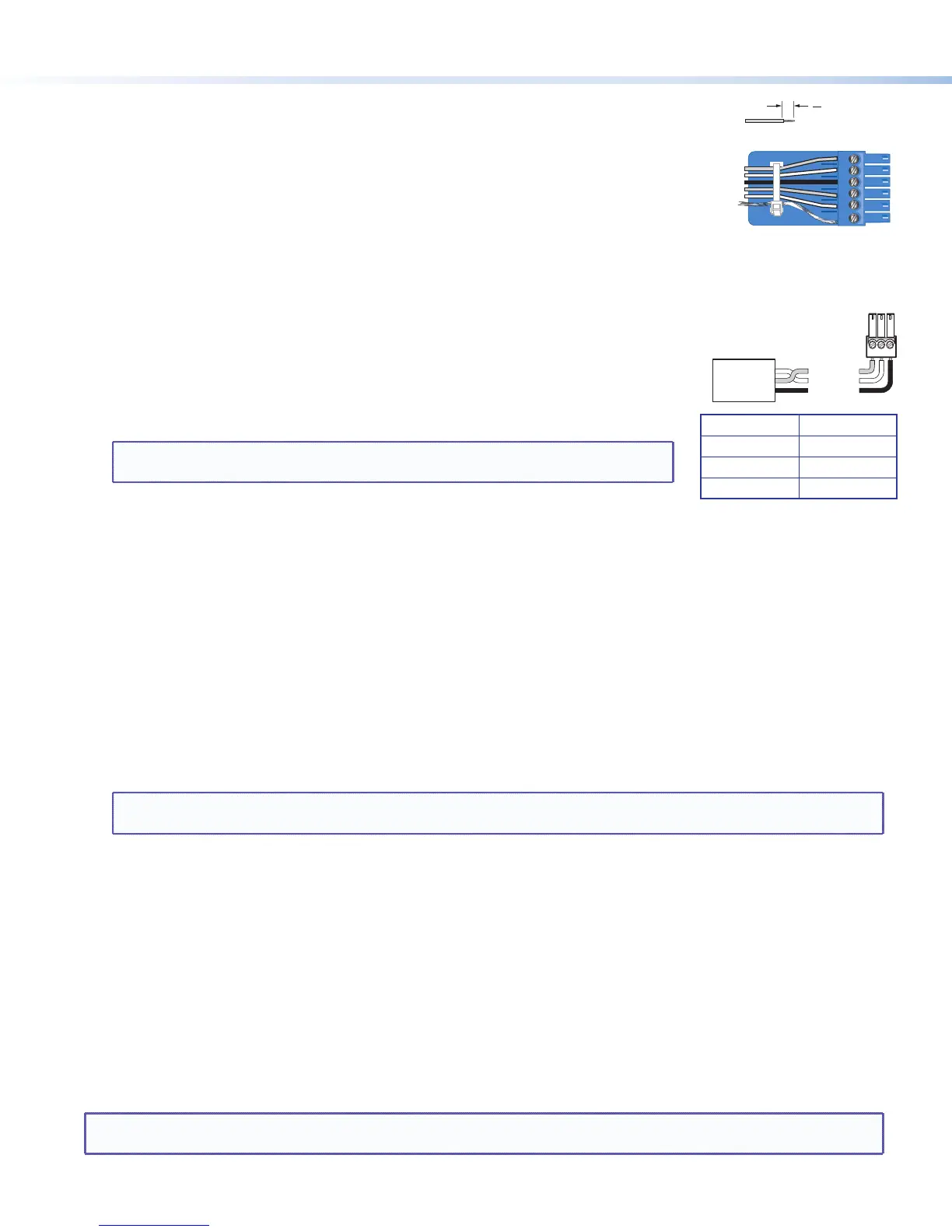
Digital I/O connectors — Connect up to four 6-pole 3.5 mm captive screw connectors. Each
connector provides ve congurable digital input or output ports allowing connection of up to
twenty various devices such as motion detectors, alarms, lights, LEDs, buttons, photo (light)
sensors, temperature sensors, and more.
Digital I/O ports are used to monitor or drive TTL level digital signals. The inputs can be congured
to operate in one of two modes: digital input or digital output. In output mode, the device can
source up to 250mA at +5 V. In input mode, voltages greater than 1 V indicate a logic ‘high’ signal
while voltages less than 1 V indicate a logic 'low'.
All digital I/O ports are tied to a common ground (one common ground for each 6-pole connector).
g
Connect a control system — There are three options to connect a control system to the DMP128: LAN, RS-232, and USB
(front panel only). Extron recommends using the LAN port for conguration and remote control of the DMP128.
RS-232 — Connect the host RS-232 cable to the rear panel of the switcher (
å
) using the
provided 3-pole captive screw connector for bi-directional RS-232 (±5V) serial control. The
default baud rate is 38400. Use the wiring diagram at right.
LAN — Using a standard Ethernet cable, connect to a network via the LAN port (
ç
). The
table at right shows the default network settings. The control system and DMP128 must be
connected on the same network.
NOTE: To connect the DMP128 directly to a computer Ethernet port, use a
crossover Ethernet cable.
USB — Connect the host USB port to the front panel conguration port, (notshown), using
a USB A to mini-B cable. The USB connection should be used only for conguration. Use the RS-232 or LAN port for remote
control of the DMP128.
h
EXP port connector — One RJ-45 jack for digital audio connection to an additional DMP128 using the Extron proprietary
protocol. Use the included one foot long shielded CAT6 cable to connect two DMP128s to form a larger matrix system. The
expansion bus supports 16bi-directionalchannels of audio; eight assignable channels that can be mixed from any of the
input and virtual paths, and eight channels directly connected to the virtual return path outputs. See the DMP128 User Guide
for operation details.
i
Reset button and LED indicator — The reset button returns the DMP128 to different tiers of default states and places the
unit into an event recording mode for troubleshooting. The LED ashes to signify the different tiers
(see “DMP128 Hardware Reset Modes” in the DMP128 User Guide).
j
AT ports (AT models only) — Four RJ-45 jacks form a 4-port Gigabit switch that interfaces with the ATbus. The
ATexpansion bus uses the Dante™ protocol for digital media networking allowing connection of multiple DMP128AT
models to form a larger matrix. See the DMP128 User Guide for operation details.
NOTE: The Dante Controller software is required for configuration of the AT expansion bus (see “Dante Controller
Software Installation” on the next page).
k
Telephone ports (P models only) — Two RJ-11 jacks for incoming line (LINE) and telephone (PHONE) connection.
The telephone interface follows all applicable US and International standards. A phone dialer is available in the
DSPCongurator control software to assist with setup and testing.
When all connections have been made, power up the input and output devices, then apply power to the DMP128.
Receive (Rx)
Transmit (Tx)
Ground ( )
Bidirectional
RS-232
Device
Ground ( )
Receive (Rx)
Transmit (Tx)
RxTx G
G G
IP Address: 192.168.254.254
Subnet Mask: 255.255.0.0
Default Gateway: 0.0.0.0
DHCP: OFF
Do not tin the wires!
(5 mm) MAX.
16
1
2
3
4
5
G
Digital I/O Wiring


 To Next Page
 Loading...