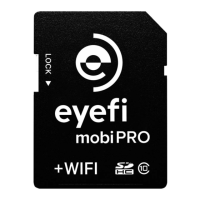
Pro X2 wireless memory card user guide
Welcome
EyeFi’s Pro X2 wireless memory card adds the power of WiFi to the camera you already own. Use this guide to learn how the Pro X2
card can streamline your photography workflow by putting photos where you want them, quickly.
Setup instructions
Before your Pro X2 card can transfer photos over WiFi, you need to set up the card using a Windows or Mac computer.
Note: ProX2 cards do not come with a 10-digit activation code. Only Mobi cards have the activation code.
1. Download and install our free Eye-Fi Center software onto your supported Windows or Mac computer from
http://support.eye.fi/downloads/, then launch Eye-Fi Center software.
2. Insert the Pro X2 card into the USB card reader included in the box, then insert the USB card reader into your computer.
3. After a few moments, Eye-Fi Center will open a dialog instructing you to activate your card. Start by creating your Eye-Fi account,
then follow the on-screen instructions for setting up your Eye-Fi card to deliver photos to your computer.
For additional help with activation and set up go to http://support.eye.fi/x2/ and click on Get started.
Pro Tip: Be sure to leave the Pro X2 card plugged into the USB card reader for the entire activation process until
you are instructed to remove it.
Pro Tip: Configuring your Pro X2 card for this type of setup requires a computer running Eye-Fi Center
software and a supported smartphone or tablet running the iOS or Android Eye-Fi app. Be sure to configure
this setup before you leave your house or office. Visit http://support.eye.fi/downloads/ to download all the
necessary software to your supported devices.
Your Eye-Fi Pro X2 card can help ensure that you’ve gotten the right shot by allowing you to quickly review your photos
on your iOS device (iPhone®, iPad®, iPad mini®, iPod touch®), Android™ smartphone or tablet, or Kindle Fire..
This setup takes advantage of Eye-Fi’s brilliance and relies on the Pro X2 card to create its own WiFi network that the
Eye-Fi app on your iOS, Android, or Kindle Fire device connects to.
Preview photos on your smartphone or tablet as you take them.
continued...

 Need help?
 General

 To Next Page