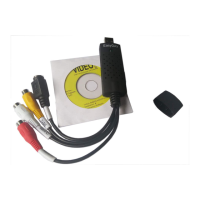
USB Video Grabber
If you have connected the video device with the output device and your computer correctly, you can start to
watch video and record it. Before you begin recording video, according to your want, you can select the output
file format from drop down menu, and recording video type, and quality, and recording duration time, also you
can select output folder for recorded video file.
Then click red record key to start recording video, at recording video status, if you select “commercial cutting”,
you can cut the part of the video you don’t want to save, when you want to finish, click the white stop icon, you
should see the icon of the recorded file on the top right of the window.
If you select “recording and burning” and click red record key, it will starts burning process right after recording for
the designated time.
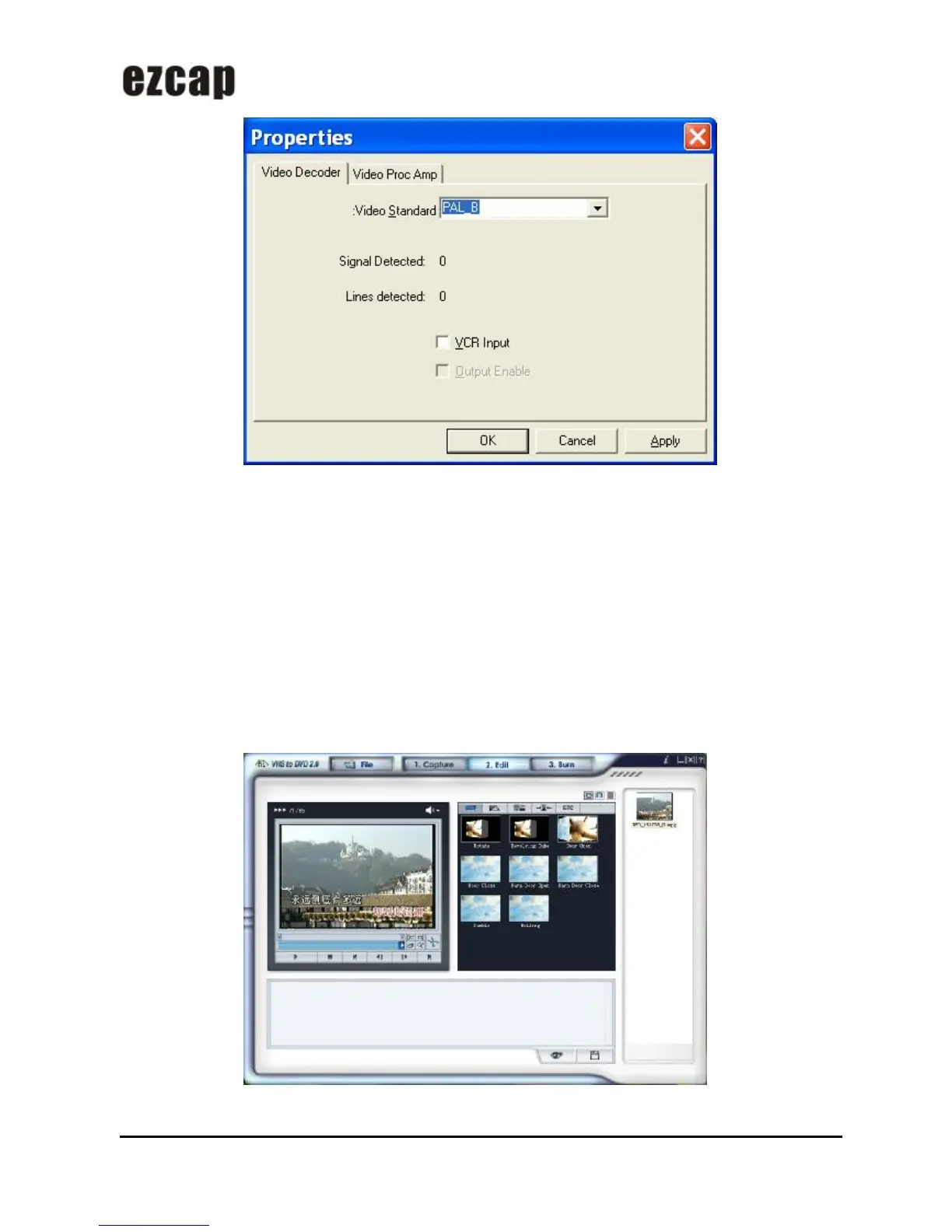
If you want to edit the recorded video file, please select “Edit” to enter the following window, the first, double- click
the icon of the recorded file you will edit or drag the file into player panel, the file will play.
During the edit phase, you can trim out scene from your recorded video. You can also cut your movies into


 To Next Page