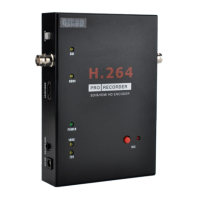
5 SOURCE—Switch button to choose the video source between SDI and HDMI.
6 SD—SD slot, for plug SD card(only support FAT32 format) to save video files.
7 LINE OUT—Audio line out.
8 HOST—USB host, for plug USB flash or HDD to save video files.
9 PC—To connect to PC.
10HDMI OUTPUT—By pass the input video source (for both SDI and HDMI) to monitor.
11 SDI OUTPUT—Loops out the input SDI (not for HDMI) to monitor.
12 IR—For connect the IR expand cable for IR remote.
13 REC—Press to record, press again to stop recording.
LEDS:
SDI(yellow)—Will be on when power on. Will be off if switched to HDMI input.
HDMI(yellow)—Will be on when switched to HDMI input.
POWER(green)—Will be on when power on.
720(yellow)—Will be on when under 720P recording mode (set by remote controller).
1080(yellow)—Will be on when under 1080P recording mode (set by remote controller).
REC(red)—Will be on when recording video, will be flash 1 time when capture image.
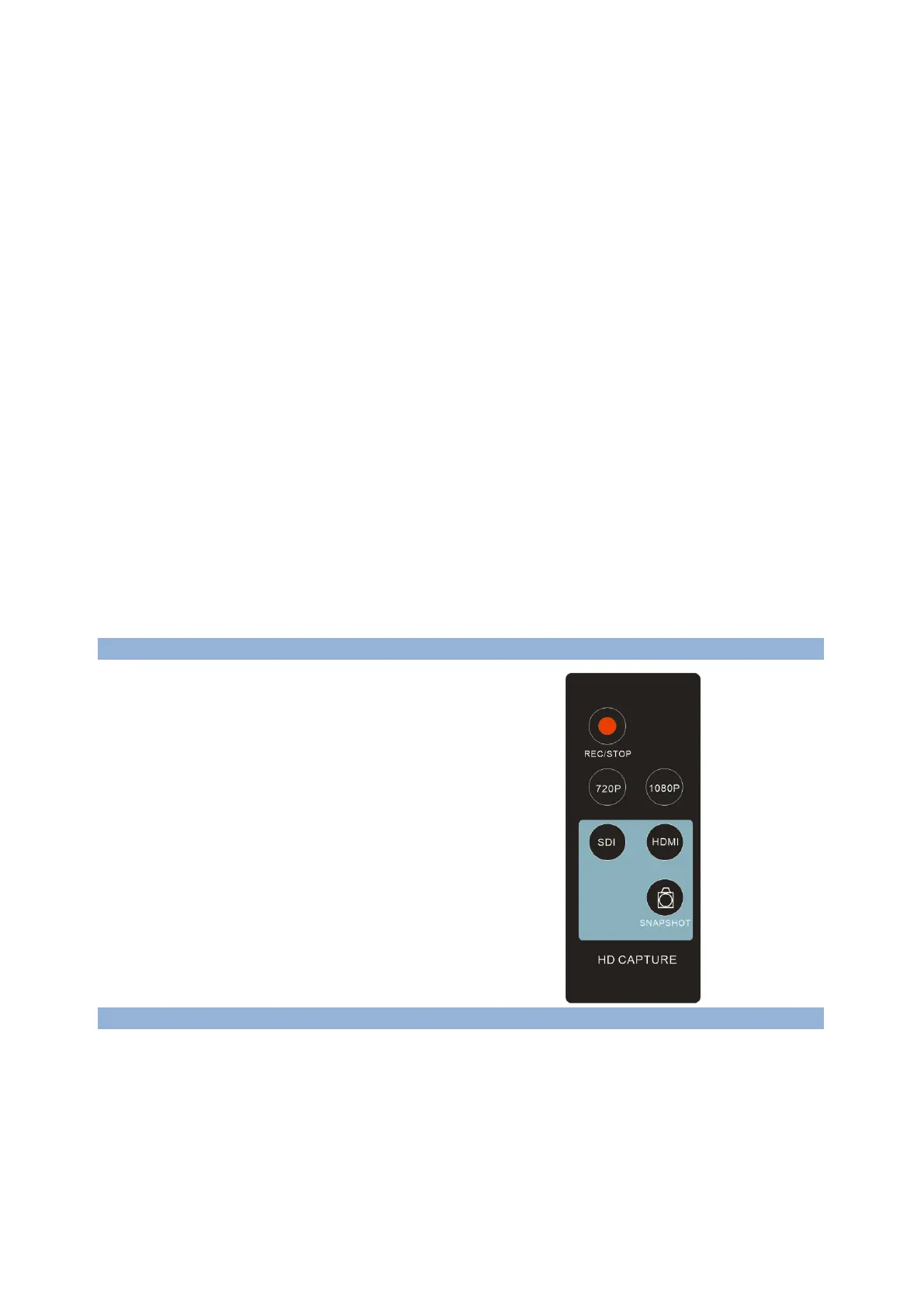
Remote controller:
REC/STOP—Start and stop recording.
720P—Change record quality to 720P, only effect when
Input source is more than 720P
1080P—Change record quality to 1080P, only effect
when input source is 1080P
SDI/HDMI—Select input source.
SNAPSHOT—To capture one still image with one press
Won’t work during recording.
Connections:
Ezcap286 have 2 input modes: HDMI, SDI . The default source is SDI. You need press “SOURCE”
button to switch to HDMI if you are connecting a HDMI source.


 To Next Page