3
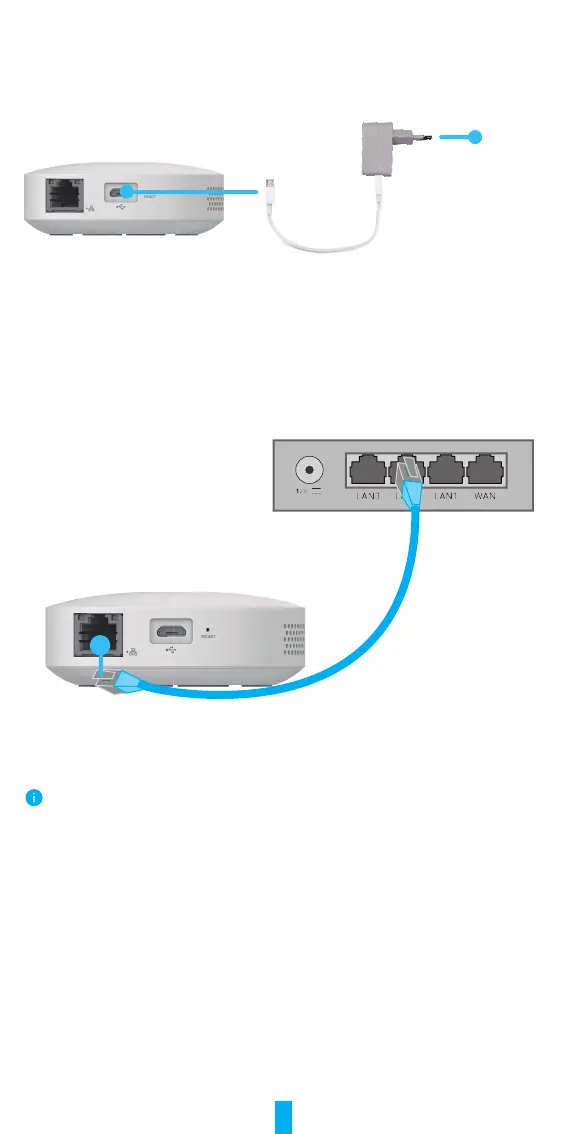
Connect to Power Source
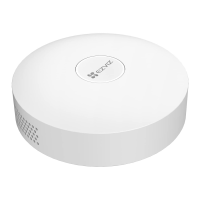
Plugthegatewayin.Whenstartupthegatewayforthersttime,theLEDindicator
ringturnsfromsolidorangetofast-ashingwhite,whichmeansthatthegateway
hasenterednetworkconguringmode.
Power Adapter
Outlet
Connect to Network
• Wired network is recommended. You need to connect the gateway to the LAN
port of the router with network cable (purchase separately) as displayed in the
gurebelow.
Router
• You can also use wireless network. Scan the QR code at the bottom of the
gateway with the EZVIZ app, and then connect the gateway to Wi-Fi by following
the on-screen instructions.
If Wi-Fi connection failed, or you want to connect the gateway to another Wi-Fi, you need to
makethegatewayoinerst.Pressandholdthefunctionkeyforover4secondsuntilyou
hear the voice prompt, and then connect the gateway to Wi-Fi by following the on-screen
instructions.
Add Device
1� Add Gateway
1. Log in to your account through EZVIZ app, tap the device adding icon and
then the QR code scanning interface will be displayed.


 To Next Page
 Loading...