Chapter Five: Using FSMS Utilities
164 FedEx Ship Manager
®
Server User Guide, Version 7.6
NOTE:
Items that are downloaded for the Master meter only are system level components and are
not meter specific.
NOTE:
Tracking numbers and URSA tables are downloaded for FedEx Express shipping only.
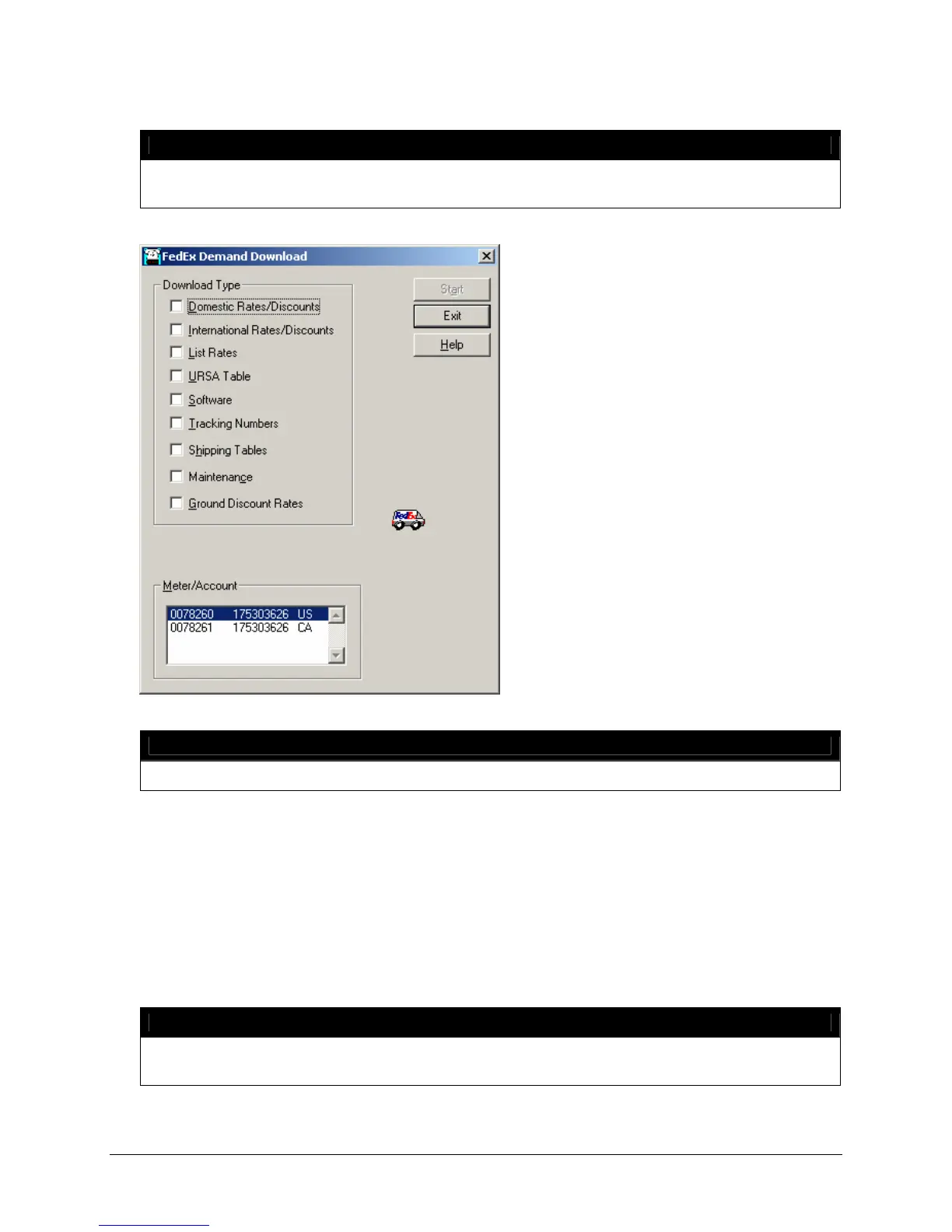
3. In the Meter/Account list at the bottom of the Demand Download Utility, you may also select the
meter for which you want to activate a download. URSA, Software Updates, Shipping Tables, and
Maintenance items are loaded for the Master meter only. You may choose to download Express rates
and tracking numbers if necessary for each individual meter in your list (both Master and Child).
4. Click Start to begin the download process. FSMS displays a Download Status window so that you
may monitor the progress of your download.
5. When the download is completed, the Download Status window closes automatically. To exit the
FSMS Demand Download Utility, click the Exit button on the utility window.
NOTE:
Implementation of the data you downloaded does not take effect until the Demand
Download utility window is exited.


 To Next Page
 Loading...