Chapter One: Setting Up FSMS
50 FedEx Ship Manager
®
Server User Guide, Version 7.6
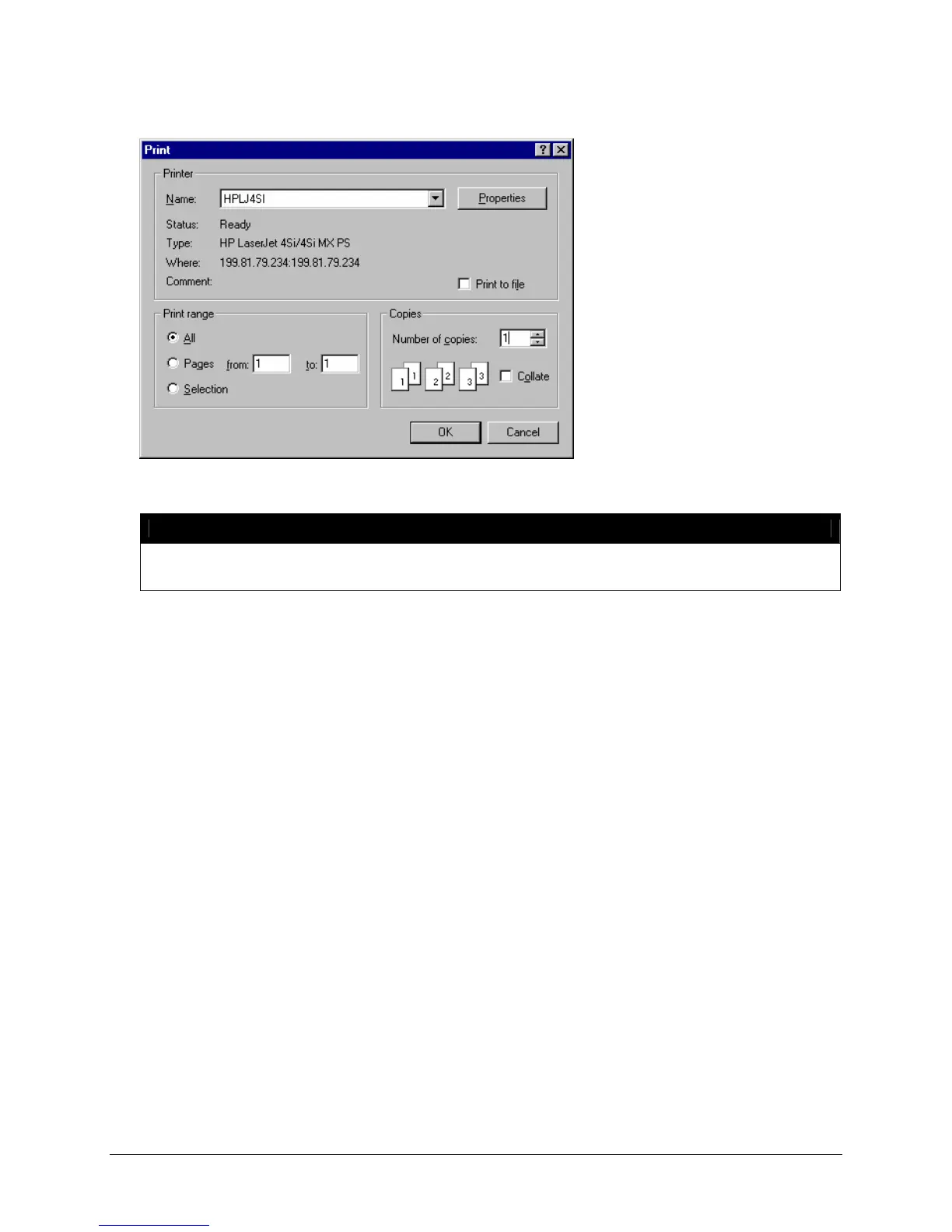
3. Click the Printer icon button in the Printer field. The Printer Selection window is displayed:
4. Choose the printer you have previously installed by choosing it from the Name drop-down list.
NOTE:
You must have the printer(s) you want to select for printing FSMS reports configured as
part of your operating system before making any selection in the Report Settings window.
5. Click OK to save the printer selection. You are returned to the Printer Settings window, and the
printer you chose is displayed in the Printer field.
To Select a Report Directory:
1. Click on the + (plus) indicator next to the report type (Express, International, Ground, etc.) to expand
the report list.
2. Highlight the report for which you want to select a directory.
3. Click the Directory icon button in the Directory field. The Directory Selection window is displayed:


 To Next Page
 Loading...