Chapter One: Setting Up FSMS
FedEx Ship Manager
®
Server User Guide, Version 7.6 75
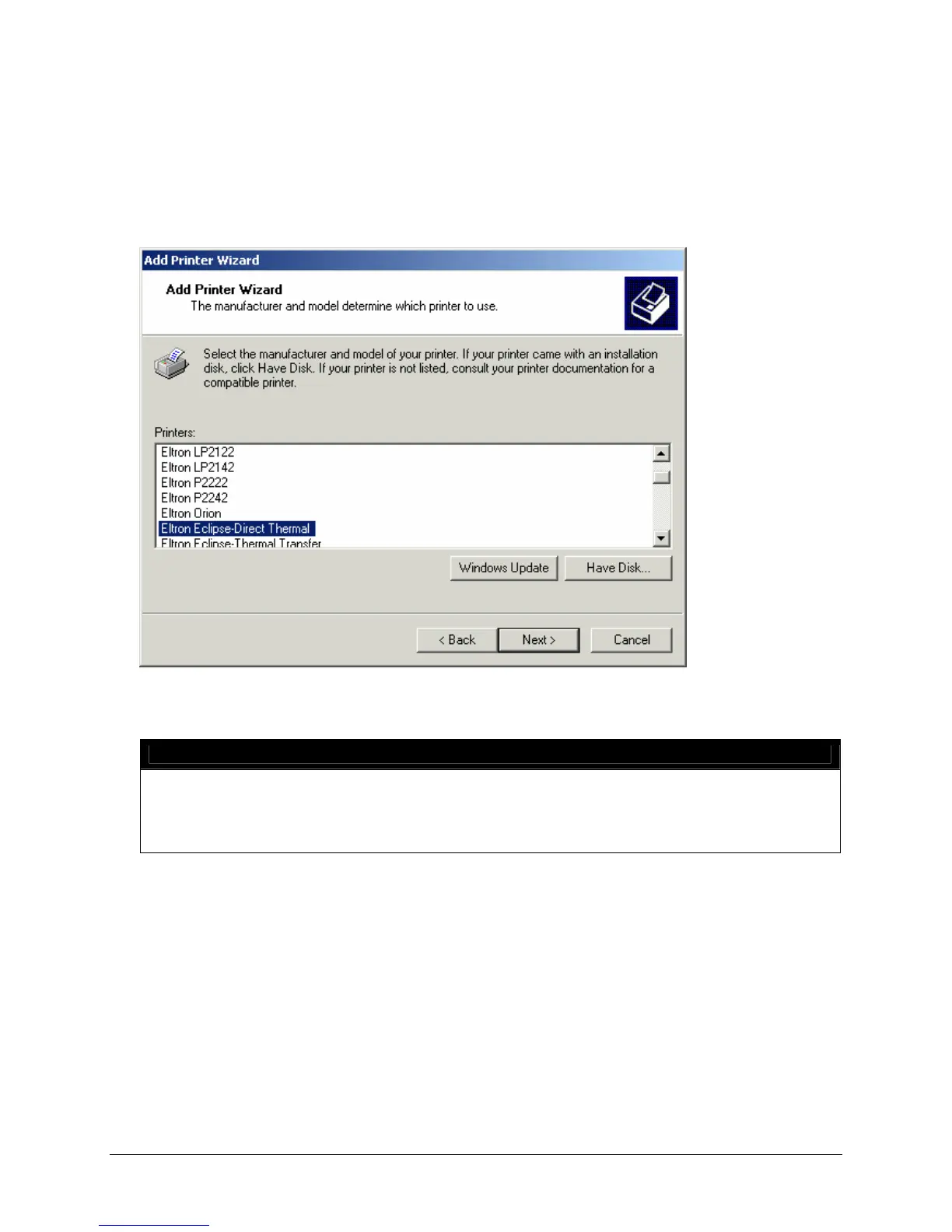
5. Highlight the appropriate printer and click Have Disk to install the printer driver for this printer
provided on the FSMS Installation CD. The Install From Disk window is displayed.
6. In the Install From Disk window, click Browse to locate the printer driver on the FSMS Installation
CD. After you have selected the driver, click OK to start installation.
7. Because FSMS includes printer drivers for a variety of supported printers, the Select Printer Model
window is displayed to allow you to choose the appropriate printer.
8. Highlight your printer from the Printers list in the Select Printer Model window. Click Next to
continue. The Name Your Printer window is displayed.
NOTE:
If the printer you are installing has already been installed on your server, and you are
attempting to reinstall the printer, a window may be displayed which asks if you want to use
the new driver or retain the existing driver. Always select Use New Driver. This entry
ensures that you are loading the most recent driver provided by FSMS.


 To Next Page
 Loading...