Android Devices
1. Push the Menu button on the mobile phone.
2. Select Settings.
3. Select Connections.
4. Turn “Show Notifications” to on.
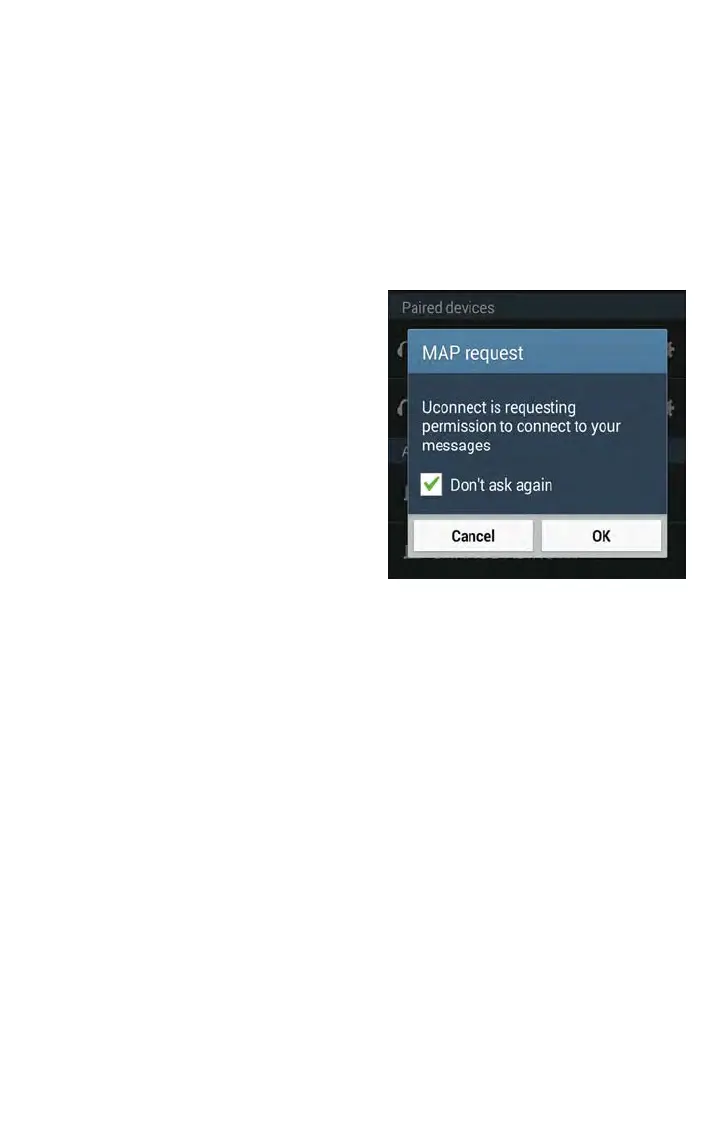
• A pop up will appear asking you to accept a request for permission to connect to
your messages. Select “Don’t ask again” and press OK.
NOTE:
All incoming text messages received during
the current ignition cycle will be deleted
from the Uconnect system when the igni-
tion is turned to the OFF position.
Voice Text Reply (Not Compatible With iPhone)
NOTE:
Voice texting reply and voice texting features require a compatible mobile device enabled
with Bluetooth Message Access Profile (MAP). iPhone, and some other smartphones, may
not entirely support Bluetooth MAP. Visit UconnectPhone .com for the latest system and
device compatibility.
• Due to the extremely large number of mobile phone manufacturers, your mobile de-
vice may not be listed. For further assist ance, contact Uconnect Customer Care
at1-877-855-8400 for U.S. residents or, 1-800-465-2001 (English) / 1-800-387-9983
(French) for Canadian residents.
Once your Uconnect system is paired with a compatible mobile device, the system can
announce a new incoming text message, and read it to you over the vehicle audio sys-
tem. You can reply to the message using Voice Recognition by selecting, or saying, one of
the 18 pre-defined messages.
Enable Android Device Incoming Text
Messages
ELECTRONICS
91


 To Next Page