TRINITY EASY SETUP GUIDE
10
Next, run test transaction
Enter a test transaction amount of $1.00 then follow the “Sale
Simple” instructions from Table 1 (next page) to complete the
transaction.
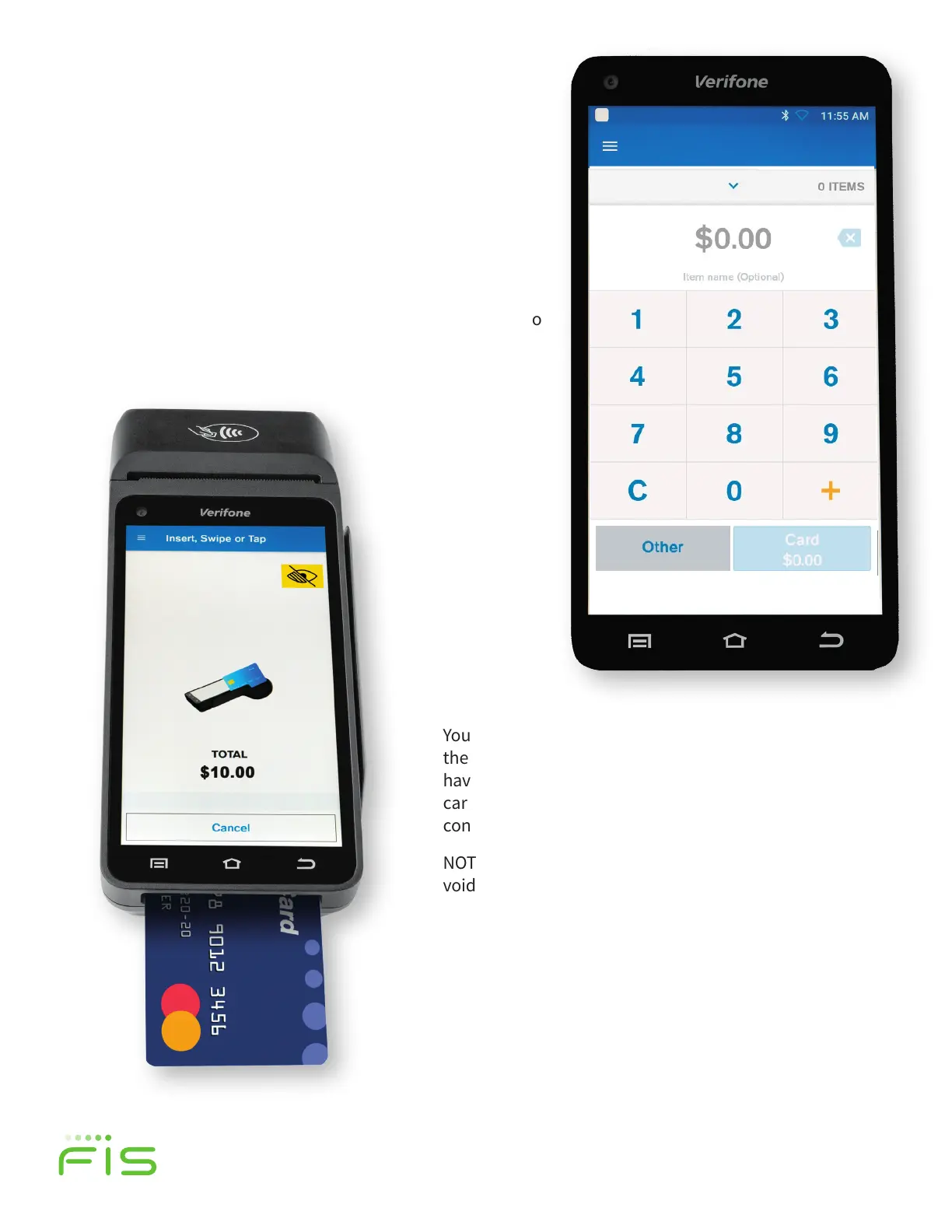
Figure 15 shows a $0.00 sale, but you can use $1.00 for this
test. Use the instructions in the right-hand column of Table 1 to
perform the test transaction.
You can either insert card (figure 16) into the slot at
the bottom of the screen, swipe the card if it does not
have a chip, or for a contactless transaction place the
card over the top of the screen if the card is enabled for
contactless payments.
NOTE: Please test with an active credit/debit card, then
void the transaction so that the charge does not settle.
STEP 5 (continued)
TRINITY OUT-OF-BOX EASY SETUP GUIDE
New Feature Now Available! Many merchants have
requested the ability for a terminal to calculate the total
sale including sales tax prior to authorization—The
Trinity T650c has this capability.
When you see the "Setup Tax Input" screen, as seen in
figure 13, enter your local sales tax rate to be added to
each sale. For example, if your local sales tax rate is
7.5%, enter 7.50. You only need to do this once during
your initial setup after which the tax rate will be
calculated and added to each transaction. You can
change this rate later in the Settings screen.
Press Skip if you do not want the terminal to calculate
sales tax.
Next, run test transaction
•
Enter a test transaction amount of $1.00 following
the “Sale Simple” instructions as seen in Table 1.
•
Figure 14 shows a $0.00 sale, but you can use
$1.00 for this test. Use the instructions in the right-
hand column of Table 1 to perform the test
transaction.
Figure 15
Figure 16
When completed, the Test Sale returns you to the sale
screen.
IMPORTANT: Aer the receipt has been printed, verify to
ensure that the DBA Name, Phone # and date and time
are all correct. If the information displayed is incorrect,
please contact the support phone number on your
terminal sticker.


 To Next Page
 Loading...