TRINITY EASY SETUP GUIDE
8
Update to Latest Software!
STEP 4:
Software Updates and Installation
TRINITY OUT-OF-BOX EASY SETUP GUIDE
(Section 4)
Update to Latest Software!
STEP 4: Software Updates and Installation
Once connected, the terminal will automatically begin searching for software and
firmware updates.
NOTE: Please be patient. Depending on the required
software updates, the Trinity T650c terminal may
automatically reboot multiple times.
•
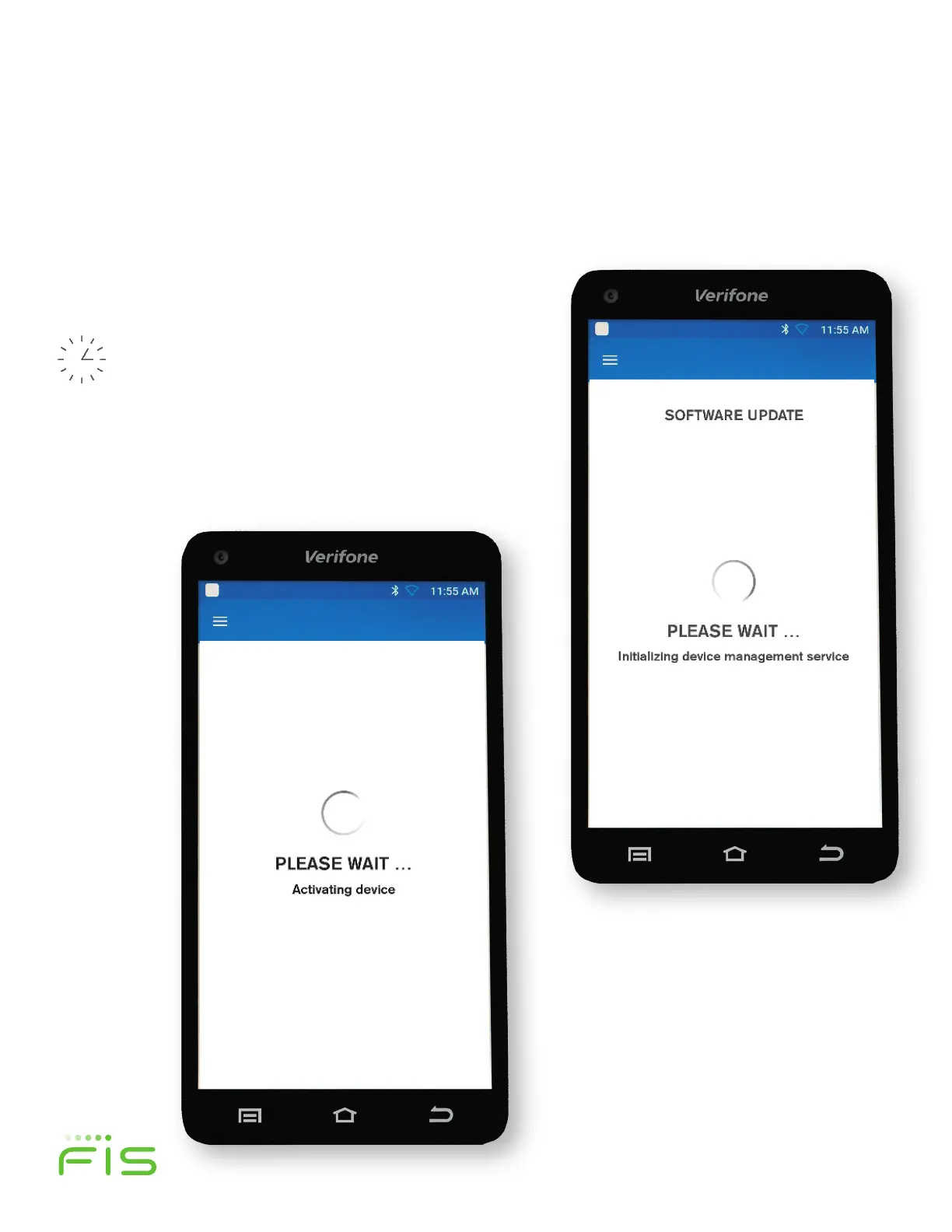
During this process, you may see several Software Update
“PLEASE WAIT” screen prompts (figure 10) as the device
checks for and then downloads the new updates from the
Verifone network.
TRINITY OUT-OF-BOX EASY SETUP GUIDE
(Section 4)
Update to Latest Software!
STEP 4: Software Updates and Installation
Once connected, the terminal will automatically begin searching for software and
firmware updates.
NOTE: Please be patient. Depending on the required
software updates, the Trinity T650c terminal may
automatically reboot multiple times.
• During this process, you may see several Software Update
“PLEASE WAIT” screen prompts (figure 10) as the device
checks for and then downloads the new updates from the
Verifone network.
TRINITY OUT-OF-BOX EASY SETUP GUIDE
• The software installation will automatically begin once
downloaded and show an in-progress update screen as
the software is installed. (figure 11)
(Section 5)
Now Let’s Run A Test!
STEP 5: Running a Test Transaction
You will see a prompt (figure 12) confirming that your
terminal is ready to use, so let’s run a test transaction. Click
the blue, OK Button to begin.
The soware installation will automatically
begin once downloaded and show an in-
progress update screen as the soware is
installed. (figure 12)
Figure 11
Once connected, the terminal will automatically
begin searching for soware and firmware updates.
NOTE: Please be patient. Depending on the
required soware updates, the Trinity T650c
terminal may automatically reboot multiple times.
During this process, you may see several Soware
Update “PLEASE WAIT” screen prompts (figure 11)
as the device checks for and then downloads the
new updates from the Verifone network.
Figure 12


 To Next Page
 Loading...