TRINITY EASY SETUP GUIDE
7
3b. Setting up Static IP Connection:
Utilize these steps only if your company requires the use
of a specific IP address and connection for your terminal.
• If the Ethernet cord was properly connected to the ETH
port in Step 1, you will see the Ethernet option above the
Next button as shown in Figure 8. Select the Ethernet
option and it will take you to the Ethernet configuration
screen.
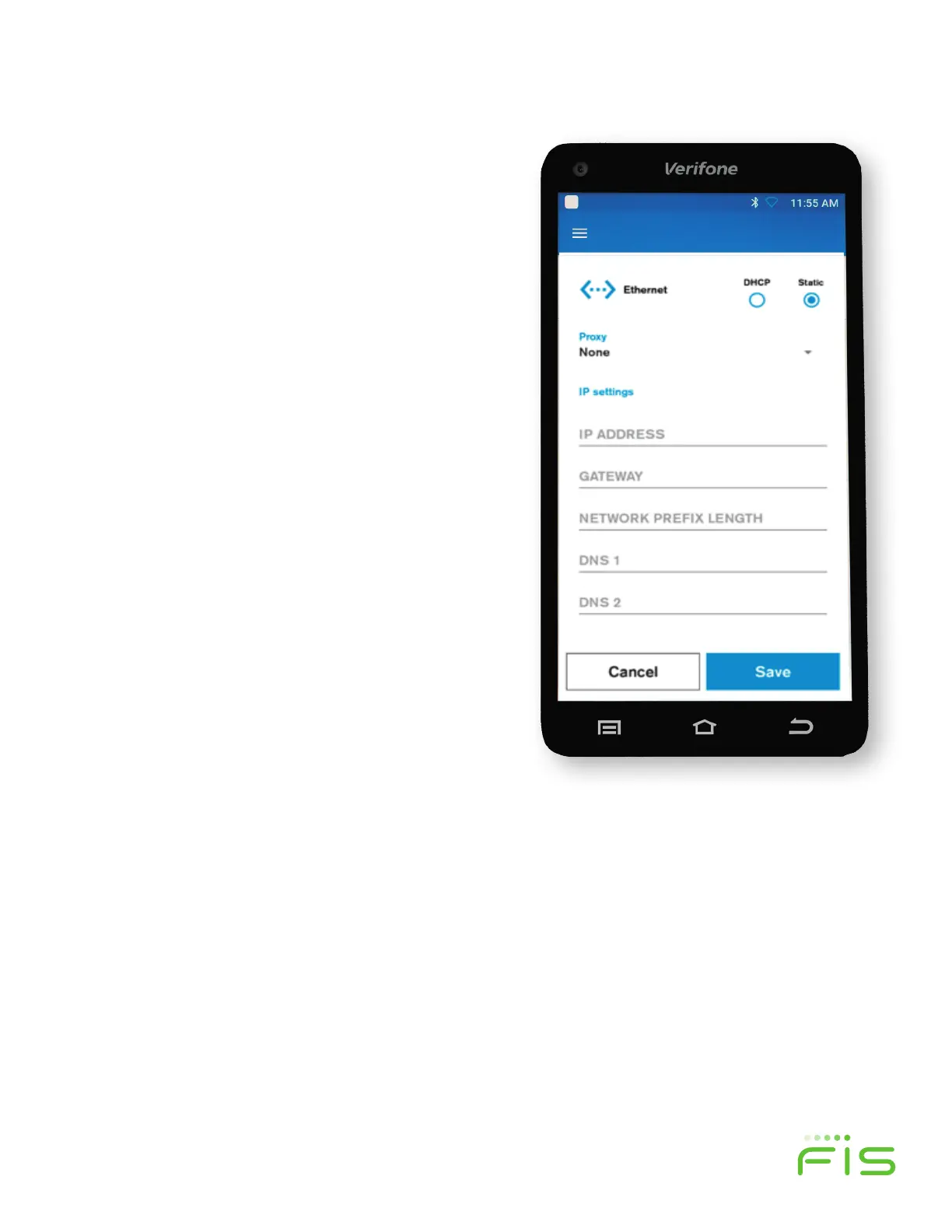
• Select Static radio button as shown in Figure 10 and
enter all 5 IP Settings in the corresponding fields and
Press the blue Save button to proceed. If you do not
know these settings, please contact your internet service
provider or your company IT support team.
• Once the Network Connection is established (figure
9), the T650c will automatically configure the date
and time. A screen prompt will confirm the internet
connection, date and time and link to the VHQ data
(Verifone Headquarters Network).
• Proceed to Step 4.
3c. Setting up a Wi-Fi Connection:
Wi-Fi gives you untethered payment processing, allowing
you the freedom for easier terminal placement. If you
wish to connect via an Ethernet cord, return to Step 1.
On the next screen (figure 8), the Trinity T650c will
scan for available Wi-Fi Networks. This may take a few
moments.
• Select your Wi-Fi Network from the options listed by
selecting the corresponding radio button on the touch
screen. Press the blue, Next button. You will need a
secure Wi-Fi Network and will be prompted to enter your
password on the next screen.
• Once the network connection is established (figure 9),
the T650c will automatically configure the date and time.
A screen prompt will confirm the internet connection,
date and time and link to the VHQ data (Verifone
Headquarters Network).
• Proceed to Step 4.
Figure 10


 To Next Page
 Loading...