164 FISCHERSCOPE
®
X-RAY
Measurement Data Export
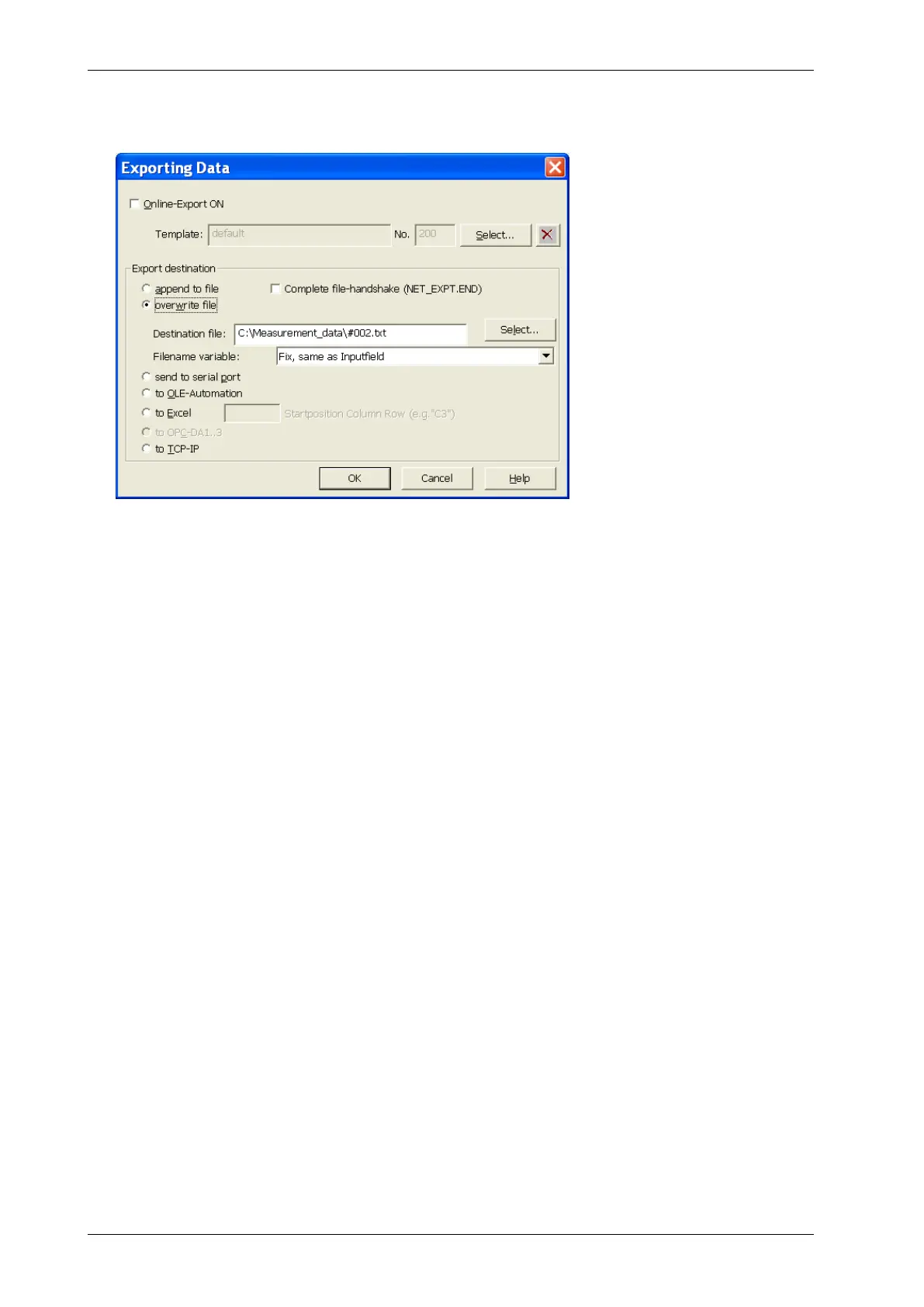
2. In the window Exporting data select the following options:
a Do not check Online-Export ON.
b Press the button Select…, which is located besides the fields Template: and No.. Select the
export template, e. g. default.
c Click overwrite file.
d Press the button Select…, which is located besides the fields Destination file:. Enter a path
and a file name e. g. #002.exp.
e Click OK.
3. To start the data export, select in the WinFTM main menu Evaluation > Evaluate All Blocks….
The window Evaluation appears.
4. In the window Evaluation select the blocks, whose data shall be exported and click Export.
The data will be exported.
5. Click OK.
What you can do next
You can open the file with a spreadsheet tool and check, whether the data has been exported cor-
rectly.
20.2 Export Settings
Each product has its own data export settings, i. e., the export settings in this dialog window apply
only to the current Product.
► To open the window Exporting Data, select in the WinFTM main menu
Evaluation > Export > Export Setup….



 To Next Page