EasyManua.ls Logo

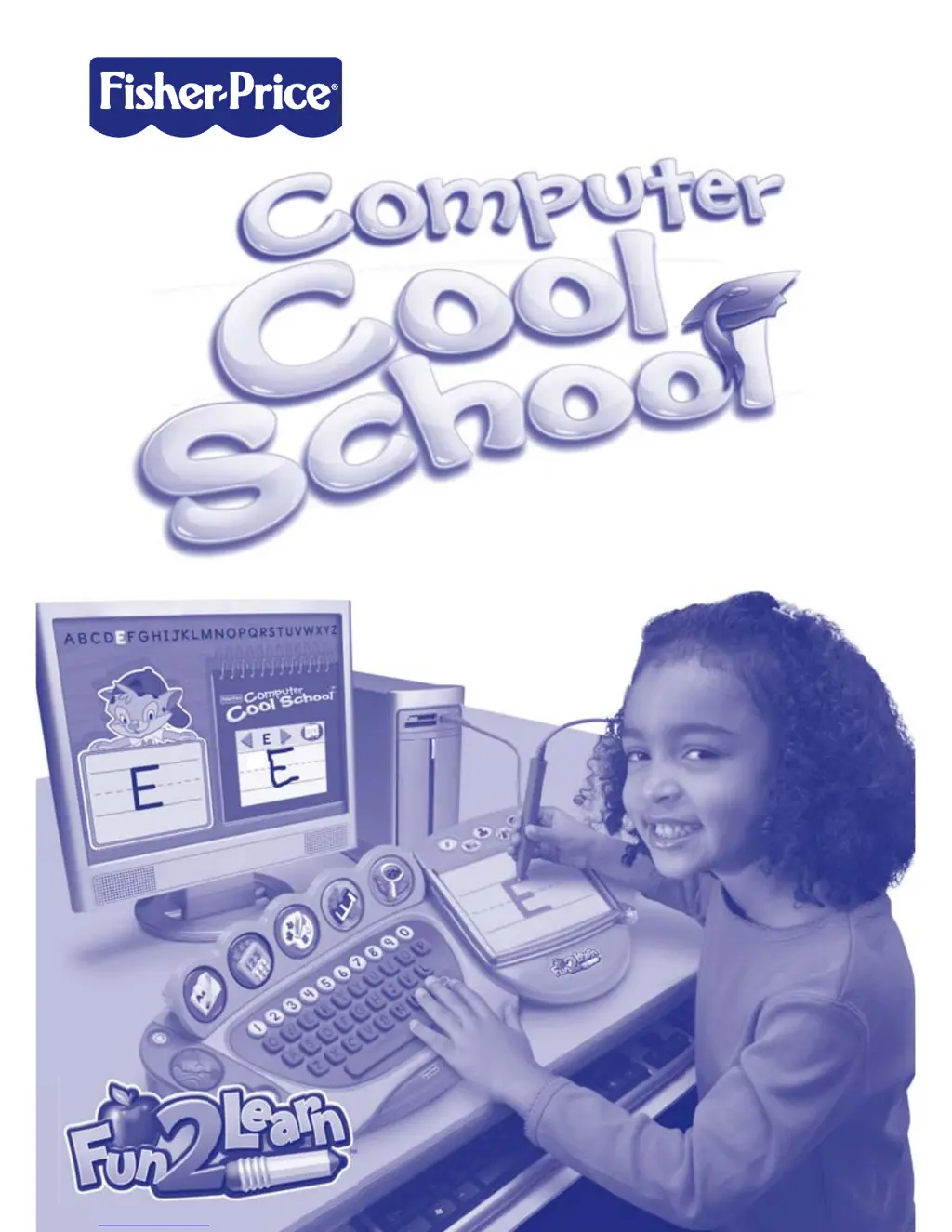
Fisher-Price Cool School - User Manual

Fisher-Price Cool School
24 pages
Print Icon
To Next Page IconTo Next Page
Loading...
www.fi sher-price.com

Other manuals for Fisher-Price Cool School

Questions and Answers

  • D
    Denise BlackJul 26, 2025
    How to fix no sound on Fisher-Price Cool School Desktop?
    • X
      xcampbellJul 27, 2025
      If there is no sound when using the Fisher-Price Desktop, first ensure your computer's audio driver is up-to-date by checking your computer manufacturer's website. Also, verify that your speaker volume is turned up and that the volume control is set correctly in the Parental Controls.
  • H
    Heidi HughesAug 4, 2025
    What to do if Fisher-Price Desktop program freezes (pen does not work)?
    • E
      edwardskevinAug 5, 2025
      If the Fisher-Price Desktop software freezes and the pen stops working, try pressing Control, Alt, and Delete keys simultaneously on your keyboard. Then, open Task Manager, select “FPCCS,” and click “End Task.” Restart the software. If that doesn't work, unplug the USB cord from your computer and then re-insert it.
  • R
    Richard BoyerAug 16, 2025
    Why I cannot print from Fisher-Price Cool School?
    • M
      Matthew BakerAug 16, 2025
      If you cannot print from the Fisher-Price Desktop, ensure that your printer is powered ON. Also, check the “Print Controls” by pressing the Print + Button on the keyboard, selecting “Parent Controls,” and then selecting “Printables.” Make sure the print limit is set to at least 1.

Summary

Consumer Information and Safety

Safety Warning

Crucial safety advice regarding potential strangulation hazards from cables.

Consumer Assistance and Maintenance

Consumer Assistance

Information on how to get technical help and contact customer relations.

Product Care and Storage

Guidelines for maintaining and storing the toy and its components safely.

Minimum System Requirements

One Year Limited Warranty

FCC and Canadian Compliance

Software Installation and Uninstallation

Connecting and Operating the Device

Set Parental Controls

Accessing Parental Controls

How to access and configure parental control settings via the icon and screen.

Managing Control Features

Details on managing background music, volume, printables, and system info.

User Sign-In Process

Sign-In and Software Selection

Steps for creating a user profile and navigating to the software selection screen.

Parent Tips Guide

Exploring Learning Centers

Computer Cool Learning Center Buttons

School Keyboard Interface Details

Classroom Navigation

Reading and Writing Center

Writing Center Activities

Math Center

Art Center Introduction

Art Center Customization Tools

Music Center

Science Center

Field Trip Activity

Troubleshooting Guide

Expand Learning with Additional Software

Fisher-Price Cool School Specifications

General IconGeneral
BrandFisher-Price
ModelCool School
CategoryDesktop
LanguageEnglish

Related product manuals