In addition to the default monophonic sequences, Parts 5-8 can be
formatted as four voice Chord or Drum sequencers. This can be done
on the 2nd GLOBALS page: Press Global, then Next, the page title will
be PARTS. Turn encoder 1 until you are viewing Part 5 or higher, turn
encoder 6 until it says CHORD or DRUM, then hold Shift and press
Clear to initiate the change. Press Next to confirm. All data that was in
that part will be erased and it will be reformatted into the new sequence
type.
CHORD PARTS
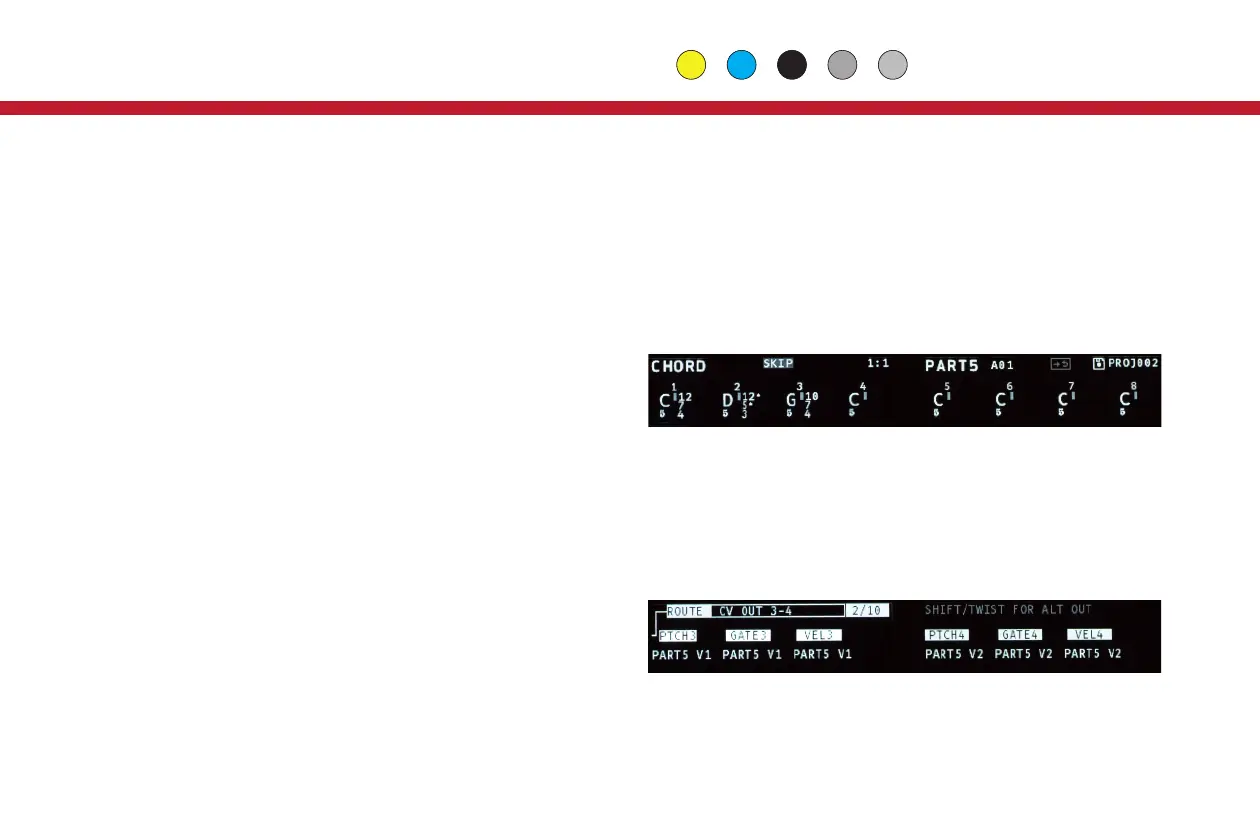
All the edit pages for a Chord Part are just like a Mono Part, except for
the PITCH page. Here Chord Parts display a base note for each step,
and either a single superscript indicator for the type of built-in chord, or
three semitone offsets for a custom chord. A small, vertical gray cursor
always appears to the left of one of these editable values. Use encoder
9 to move the cursor, which sets the value to be changed with any of
the 8 main encoders. Push encoder 9 to switch to selection mode to
edit all steps at once.
The base note is always the lowest note of the chord. By default, the
chord type is ‘unison’, which means one note only. To edit the chord
type, turn encoder 9 to move the cursor to the right of the base note,
and turn an encoder to pick one of the built in chords. These chords
progress through all dyads (two note chords) up to an octave,
represented by semitone values from 1 to 12, followed by triads (M:
major, m: minor, A: augmented, D: diminished, S2: sus2, S4: sus4),
then seventh chords (M7 : maj 7th, D7: dominant 7th, m7: min 7th,
15
h7: half-diminished, d7: fully diminished).
If you want to make a custom chord, which allows much greater flexibility
in both note selection and pitch range, hold the Edit button and push the
encoder for any sequence step, or push encoder 9 to convert all chords to
custom. Repeat the process to convert back to the built-in chord selection.
In a custom chord you can edit up to 3 semitone offset values for each
chord. Offsets greater than an octave (12 semitones) are indicated with
small arrows to the right of the semitone value. The maximum offset is 60
semitones.
To setup CV outputs for a Chord Part navigate to the 3rd page of
GLOBALS: Press the Global button, then Next twice, to the page titled
ROUTE. Turn encoder 9 to get to the appropriate sub-page, such as CV
OUT 3-4
or CV OUT 5-6. Turn the encoder for the desired output to pick a
Part. Then hold Shift and turn the encoder again to pick the Voice. The
base note for the chord is Voice 1, and, depending on the chord type, up
to 3 more Voices can be generated.
To setup a MIDI output for a Chord Part, use encoder 9 to scroll to one of
the MIDI outputs on the ROUTING page, then turn any encoder to select
the Part.
Global Part
Chord & Drum Parts


 To Next Page
 Loading...