In addition to its internal clock, the Vector can synchronize to DIN Sync,
MIDI Beat Clock, or an external clock pulse. If the clock source in your
modular can generate a run/stop CV and clock ticks at 24PPQN (parts
per quarter note), you can use the Run & Clock jacks for DIN Sync.
For all sync sources, the Vector will internally up-rez the signal to
480PPQN for accurate rendering of features like Pitch Glide, Groove
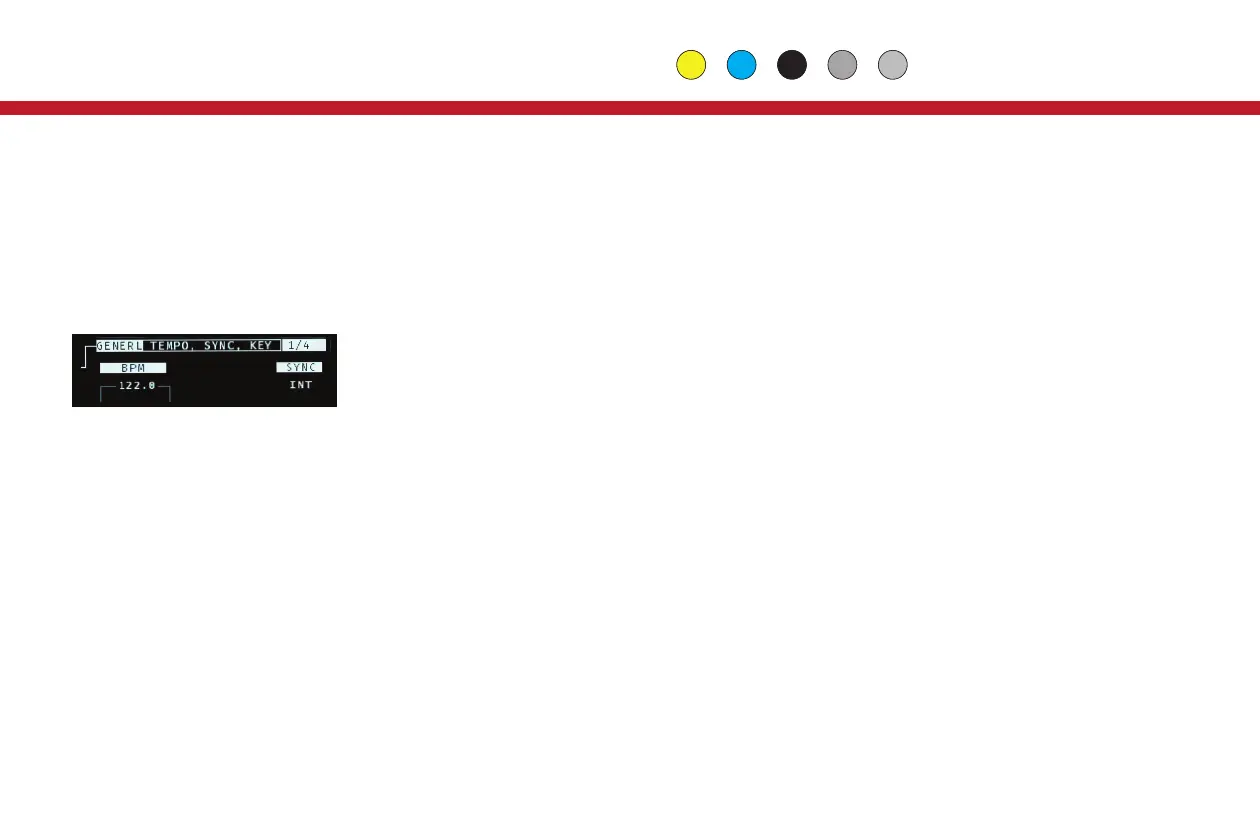
and Ratcheting. Sync settings are on the first page of GLOBALS.
DIN Sync:
1. Connect a DIN Sync source to the Vector through the Run & Clock
jacks, the STG Sync connector on the back panel, or the DIN IN Jack
on the Jack Expander module.
2. Select 'RC24' for sync via the Run & Clock jacks, 'STG' for sync via
the STG Sync connector on the back panel, or 'JxDIN' for DIN Sync via
the DIN input connector on the Jack Expander.
3. Start playback from your DIN Sync source per usual.
19
MIDI Beat Clock:
1. Connect a MIDI Clock source to the Vector via the USB A or B jacks on
the front panel, or use the 5-pin MIDI Input connector on the Jack
Expander.
2. In Globals, page 1, select 'USB-A' for sync via the USB ‘to device’
jack, 'USB-B' for sync via the USB ‘to host’ jack, or ‘JxMID’ for sync via
the MIDI Input on the Jack Expander.
3. Start playback from your MIDI Clock source.
External Clock Pulse:
1. Connect a clock pulse (gate or trigger) running at either 1 or 4 pulse(s)
per beat (PPQN) to the Clock jack on the Vector. Optionally connect a
reset pulse to the Reset jack.
2. Select ‘CR/1’ (for a 1 PPQN incoming clock) or ‘CR/4’ (for a 4 PPQN
clock) to use the Reset input as a global reset for all parts, or use ‘Cr/1’
or ‘Cr/4’ for optional reset. To set a part to reset in Cr/1 or Cr/4 sync
modes, on the Control page for that part, pick ‘EXT’ for Reset.
3. Start and stop the Vector using the Run button.
TIP: For primary sync, the Vector will track smooth tempo changes well,
but for random or ‘patterned’ triggering of sequences, see page 26,
External Resets & Triggers.
Global
External Sync


 To Next Page
 Loading...