PRESETS
.
Each Part on the Vector supports up to 20 Presets, depending on the
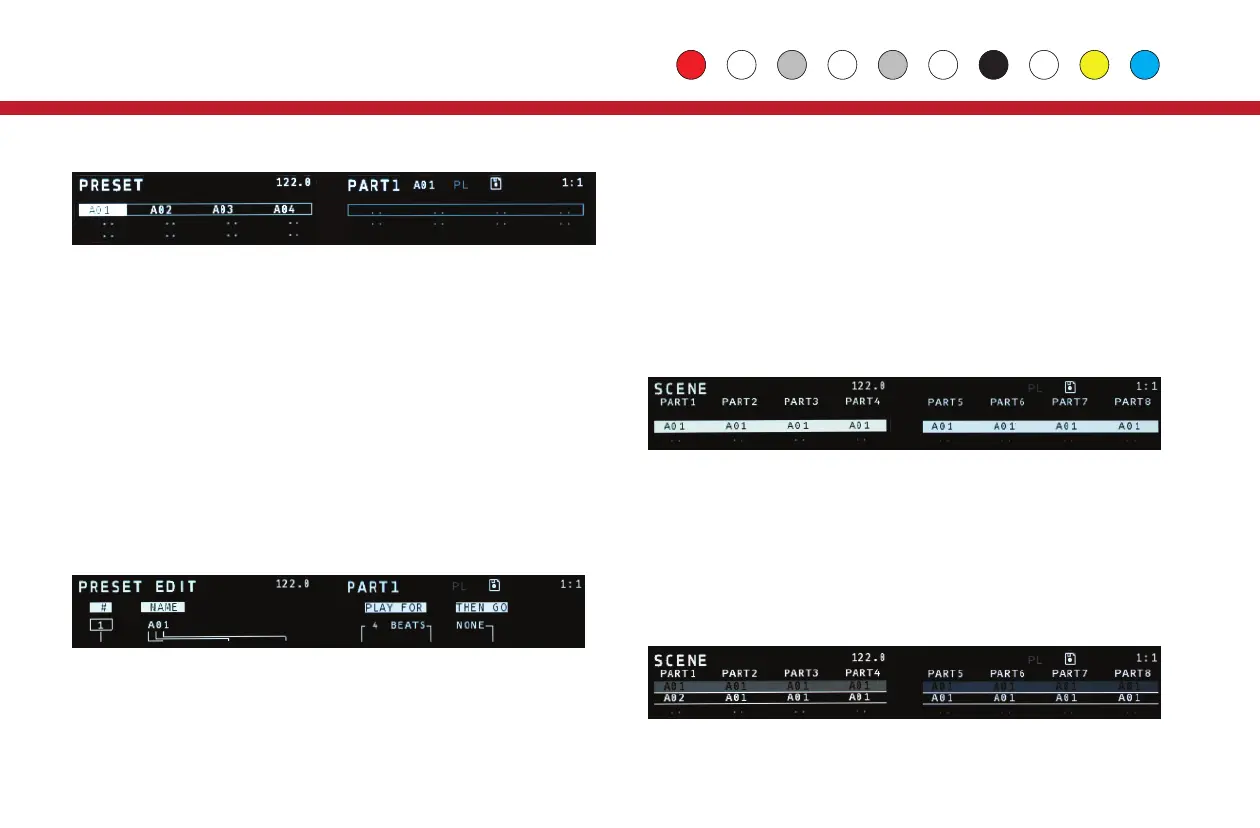
maximum length of the sequence. Press the Preset button to see all
the Presets for the current Part in a grid. Empty Presets are shown as
"..", non-empty Presets are shown by name. To select a new Preset on
the current row, use the white mini keyboard buttons. To change rows,
use encoder 9.
Use Shift+Preset to duplicate the current Preset into an empty Preset
'slot'. Use Shift+Clear to empty out a Preset. Preset changes are
quantized to bars by default. This setting, called PQNT (Preset
Quantize) can be changed on the 3rd Seq Ctl page for each Part.
PLAYLISTS
To edit the name and Playlist settings for a Preset, push Preset, then
Prev or Edit. Alternatively, use Prev/Next to move between Preset
Edit, Preset and Scene pages.
The Playlist is simple in concept, but very flexible. Each Preset can:
• Play forever (by default).
• Play for x beats/bars then go to a later Preset.
• Play for x beats/bars then go to an earlier Preset and repeat y times.
Use encoders 4-8 to edit the Playlist settings for a Preset. The master
on/off switch for all Playlists is on the first
GLOBALS page.
SCENES
The Scene page displays the current Presets for all 8 Parts. You can
directly set the Preset for a Part in the current Scene using the 8 main
encoders. Use encoder 9 to move between Scenes. To trigger a new
Scene, use the Cue button or push encoder 9. Scene changes are
always quantized to a bar. Dialing a Preset all the way left will generate a
rest symbol indicating no Preset will be played for that Part within this
Scene.
18
Preset/ScenePreset/Scene
Presets, Playlists & Scenes


 To Next Page