Continued on next page ›2/3
continued
Vision 2.0: FAQs
Quick Reference Card
6 My camera is recording incorrect GPS location.
In the event, the location shown in the trips section of
the Vision web application does not match where the
driver was, try the following options:
• Verify correct camera mounting, as shown in the
Vision 2.0 Installation Guide.
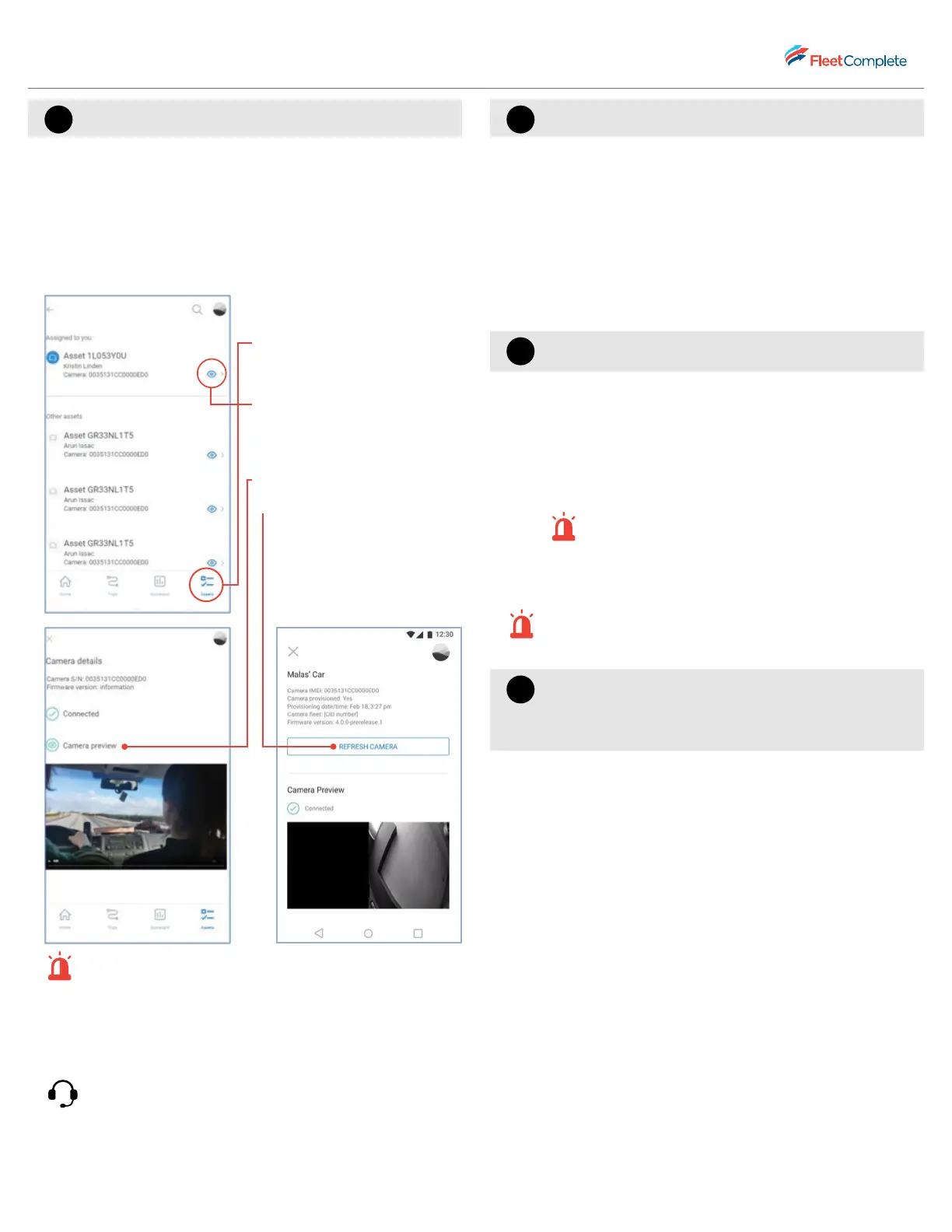
• From the Vision mobile app, perform the
following camera configuration steps:
a. Login to the Vision
mobile app.
b. Tap the Vehicles menu
item from the navigation
panel at the bottom.
c. Tap the eye icon next to
the vehicle name that is
reporting the incorrect
location.
d. Tap Camera Preview.
e. Tap Refresh Camera to
complete the
configuration.
Note: Note: You must be in the cabin when
attempting to connect and must ensure the
camera is turned on. You can also view the
camera’s IMEI, the fleet’s CID number, and the
status of provisioning and the last provisioning
date of the camera when previewing.
If the issue persists, call Fleet Complete Support
at 1-800-220-0779.
7 My camera audio feedback is not working.
• For a successful audio feedback, ensure the vehicle’s
camera volume and audio alerts are enabled on
Vision Web Settings menu.
• Review the quick reference guide on Vision Web
Settings to learn about how to enable audio alerts
and camera volume.
• Once enabled, a camera starter music indicator or a
“Trip Started” audio alert must be heard when
ignition is turned on.
8 Can I request a non-event video on demand?
• Yes, non-event video footage can be requested by
Fleet Administrators for any location covered in a
completed trip, directly from the Vision web
application.
• With an SD card (class-10 FAT32) installed in the
Vision camera, videos can be retrieved for up to
approximately 60 hours in the past.
Note: The number of event videos incurred will
decrease this window.
• In the event of an emergency, call your
administrator immediately to report the incident.
Note: Review the quick reference guide on how to
request a video at any location in a completed trip.
9 When the SD card storage is at full capacity,
does it stop storing videos? Can I unload the
videos from the SD card to my PC?
• The SD card will continue to store videos using a
“rollover” concept. The oldest footage will be
purged to make way for storing new footage as it
comes in. The content on the SD cards is
encrypted, so there is no manual way of moving
the videos elsewhere (i.e. locally on a PC or a
cloud-based storage solution) for viewing
purposes. This also means your videos are secure,
even if the cameras end up in the wrong hands.


 To Next Page
 Loading...
