2021.11.02-16:09
©2021 Complete Innovations Inc. All rights reserved. “Fleet Complete” and the FleetComplete logo are trademarks of Complete Innovations Inc.
3/3
continued
Vision 2.0: FAQs
Quick Reference Card
10 How do I remove/dismiss an event that was
incorrectly triggered?
• Yes, you can dismiss event videos that were
incorrectly triggered for a river, as necessary.
Note: Review the Vision Web App: Trips quick
reference guide to learn more about dismissing
events.
11 My night vision is not working.
This may occur when a trip starts between “day/night”
brightness.
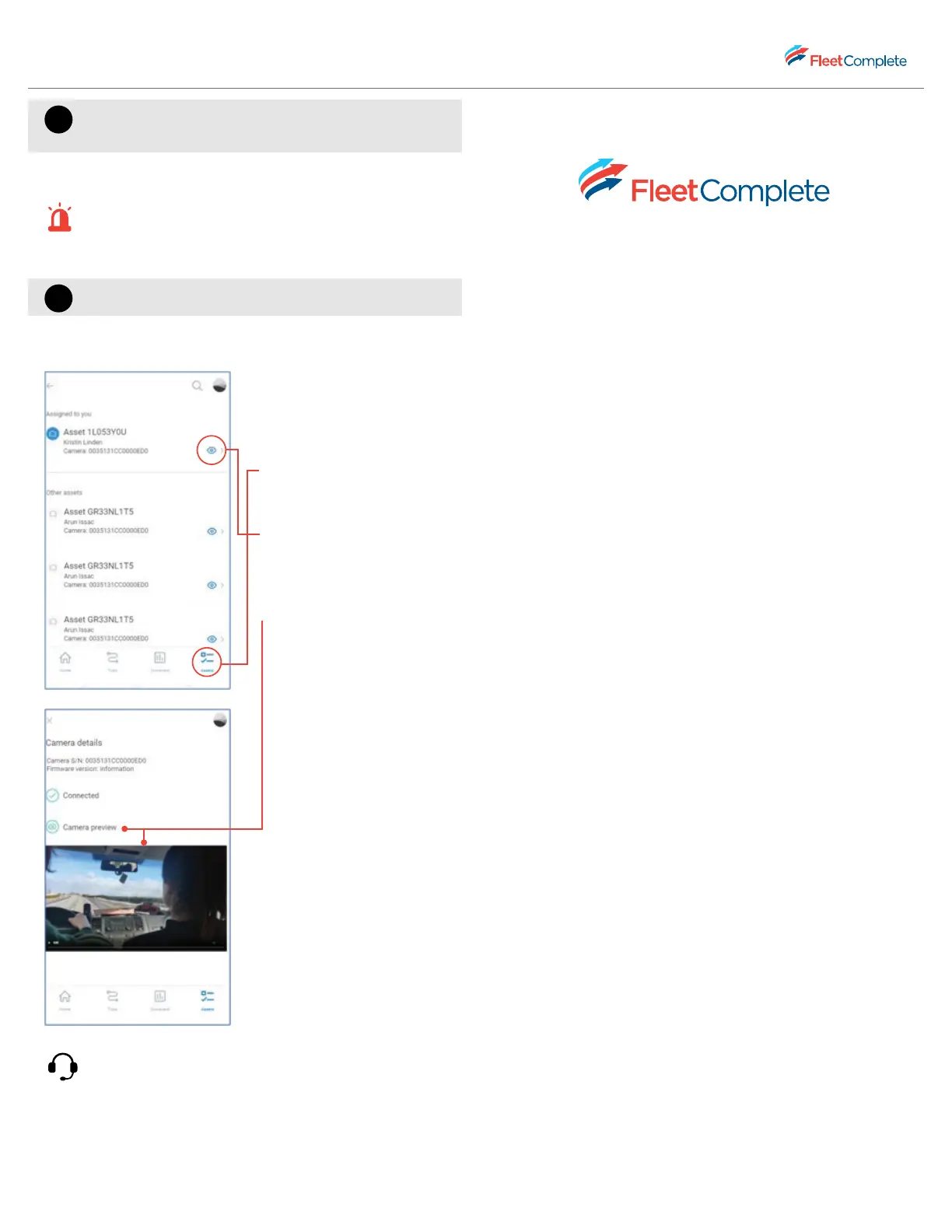
• Shut down and restart the
camera.
• Login to the Vision mobile
app.
• Tap the Vehicles menu
item from the navigation
panel at the bottom.
• Tap the eye icon next to
the vehicle which has the
camera without the night
vision.
• Tap Camera preview to
preview below what the
camera view looks like
with night vision.
If the issue persists, call Fleet Complete Support
at 1-800-220-0779.
fleetcomplete.com



 To Previous Page