2.3 Takeoff Tutorial
2.3.1 Set Landing Point
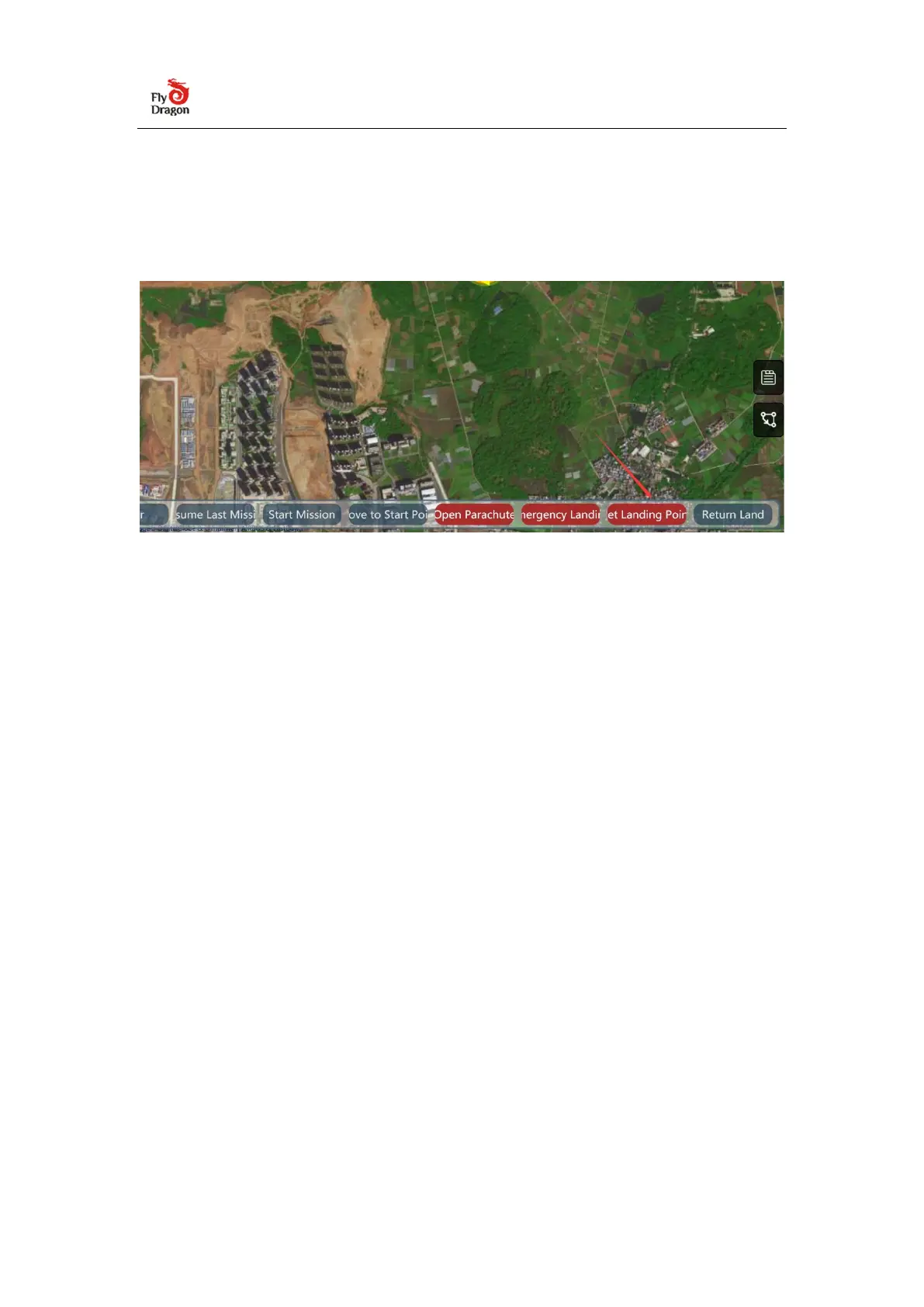
After completing the check, the "Check" button becomes "Set Landing Point"
Place the aircraft at the landing point (it must be far away from the propeller), click
"Set landing point", and click "OK" to complete the landing point setting;
2.3.2 Unlock
After completing the "Set Landing Point", the "Setting Landing Point" button
becomes the "Unlock" button;
Judge the status of the aircraft by the flight instrument display on the flight tab
on the right side of the ground station or the change of the indicator light of the
aircraft; when the status of the flight indicator flashes green slowly or the flight
instrument on the ground station displays "ready to unlock", you can click
"Unlock", when the navigation light flashes green quickly or the ground station
flight instrument area shows that the unlock is successful, you can take off; please
press the pop-up warning to check the drone. After confirming that the check is
completed, the ground station will pop up the task information preview window.


 To Next Page
 Loading...