24
25
disconnect the device or you pair another device to bitride.
3.7 Smart Ped registration (rst use)
!
NOTE: it is not mandatory to perform this action. Your Smart Ped is ready
to go with the default motor settings (see 4.6)
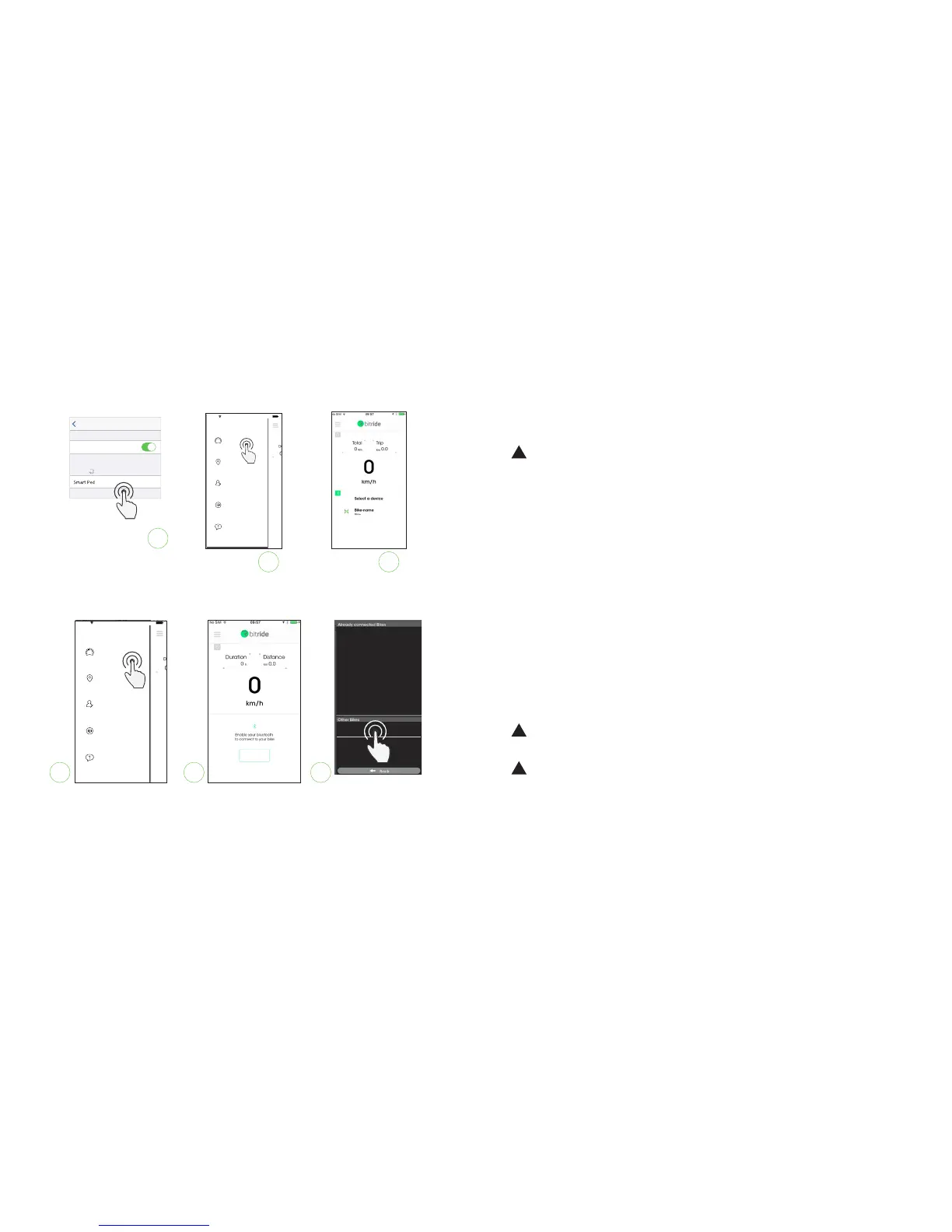
In order to use your Smart Ped together with bitride, you need to register it
using your bitride app. By registering to bitride you will be able to:
o change your Smart Ped name
o change your motor settings
o access to online fault diagnosis
o access to remote manteinance
o access to remote anti theft service: if you reported your Smart Ped as
“stolen” any attempt to connect to your Smart Ped will be reported
to our servers
To register your Smart Ped please fill in the registration form in the app
welcome screen by providing:
o a bike name for your Smart Ped
o a 4-digit PIN code that you set as security for your Smart Ped
!
NOTE: the bike name will change at the first reboot of the bike.
!
INTERNET CONNECTION NEEDED to perform the registration
I
BluetoothSettings
Bikep-3D25
ÜÖk á ÖÜí Ü~ïâ
Bluetooth
detectable as “iPhone ZEHUS”
DEVICES


 To Next Page