WI-FI Connection Steps
A. Turn on the camera
B.
Press and hold the reset button for 5 seconds to reset or restore factory until
you hear the sound of "Boogu"(mean resetting successfully);
C.
Run CloudPlus App, click "+"at the top right and select "Battery Camera".
According to the guide on APP, please ensure the camera was activated. (The LED
indicator light is turning red and flickering slowly);
D.
Choose 2.4GHz Wi-Fi SSID and enter the password, and then click the "next step";
E.
Click the "OK" to make sure the Wi-Fi information;
F.
After entering the following operation interface, please click "Next"and you will see the
"Scan QR Code"interface.
G.
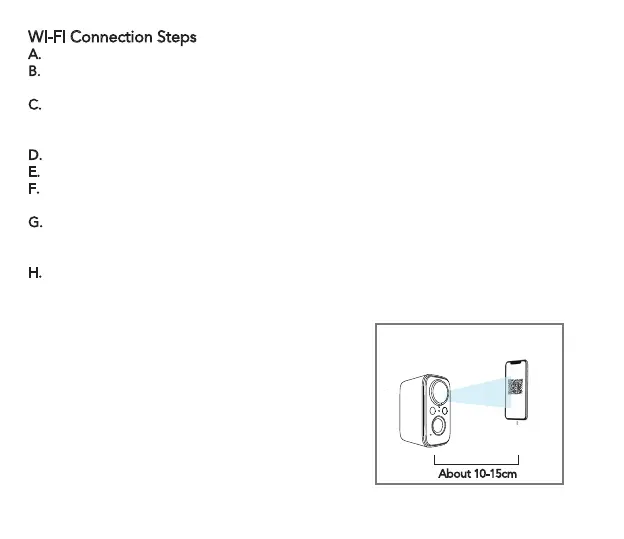
Put the QR code in front of the camera lens about 10-15cm. The device lens is aimed at
the QR code on the phone screen with a distance of 10-15cm. After the device recognizes
the QR code, the camera will make a sound Boogu. After heard it, please click ' next",
H.
Then, the camera will start connecting Wi-Fi. After the connection finished, it will skip to
' Device Found' page, you could edit the camera name and click ' Done' and then go to
your device list and start viewing videos.
6
About 10-15cm



 To Next Page