Forcepoint Next Generation Firewall 6.3 or higher | Quick Start Guide
c) Enter the name and Log Server information, then configure other options as needed.
5) Add two or more interfaces.
a) Select Interfaces, click Add, then select the type of interface (typically Physical).
b) Configure the interface properties, then click OK.
Note
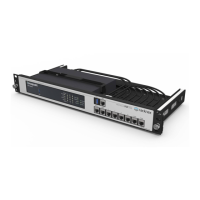
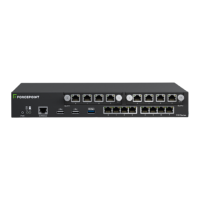
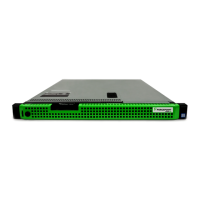
Depending on the NGFW appliance model, you might need to configure additional interfaces
such as wireless interfaces, modem interfaces, or an integrated switch. See the installation
guide and the hardware guide for your model.
6) Add an IP address for each non-wireless interface.
Note
You cannot add an IP address for modem interfaces. Modem interfaces use DHCP to retrieve
an IP address.
a) Right-click the interface, then select New > IPv4 Address or New > IPv6 Address.
b) Configure the IP address settings, then click OK.
c) Save your changes.
7) If your NGFW appliance has a wireless interface, add an IP address to the interface.
a) Right-click the wireless interface, then select New SSID Interface.
b) Configure the interface settings.
c) Right-click the SSID interface, then select New > IPv4 Address or New > IPv6 Address.
d) Configure the IP address settings, then click OK.
e) Save your changes.
8) If your NGFW appliance has an integrated switch, add an IP address to the port group interface.
a) Right-click the switch, then select New Port Group Interface.
b) Configure the interface settings.
c) Right-click the port group interface, then select New > IPv4 Address or New > IPv6 Address.
d) Configure the IP address settings, then click OK.
5


 To Next Page