QuickGuide | SYNC
®
2
Setting wallpaper
You can add a personal photo to save as the wallpaper
on your Home screen. Here’s how:
In order to set your wallpaper, you must first load photos
into the system before you can select the one you want,
or you can use the Default Photo (Ford logo):
1. To uc h Settings > Display > Wallpaper.
2. Touch Add and select your storage device.
3. Select the file you want when it shows up on the
screen (up to 32 photos can be saved).
4. To set the wallpaper, touch Settings > Display >
Edit Wallpaper, and then select either the
Default Photo or one of your photos from the
saved photos list.
5. Once you’ve selected the photo you want
displayed, touch Save. Make sure you have a
properly formatted photo on a USB or SD Card
inserted into the media hub:
- File formats: .jpg, .gif, .png, .bmp
- Maximum file size: 1.5MB
- Maximum number of photos: 32
- Recommended dimensions: 800 x 384 pixels
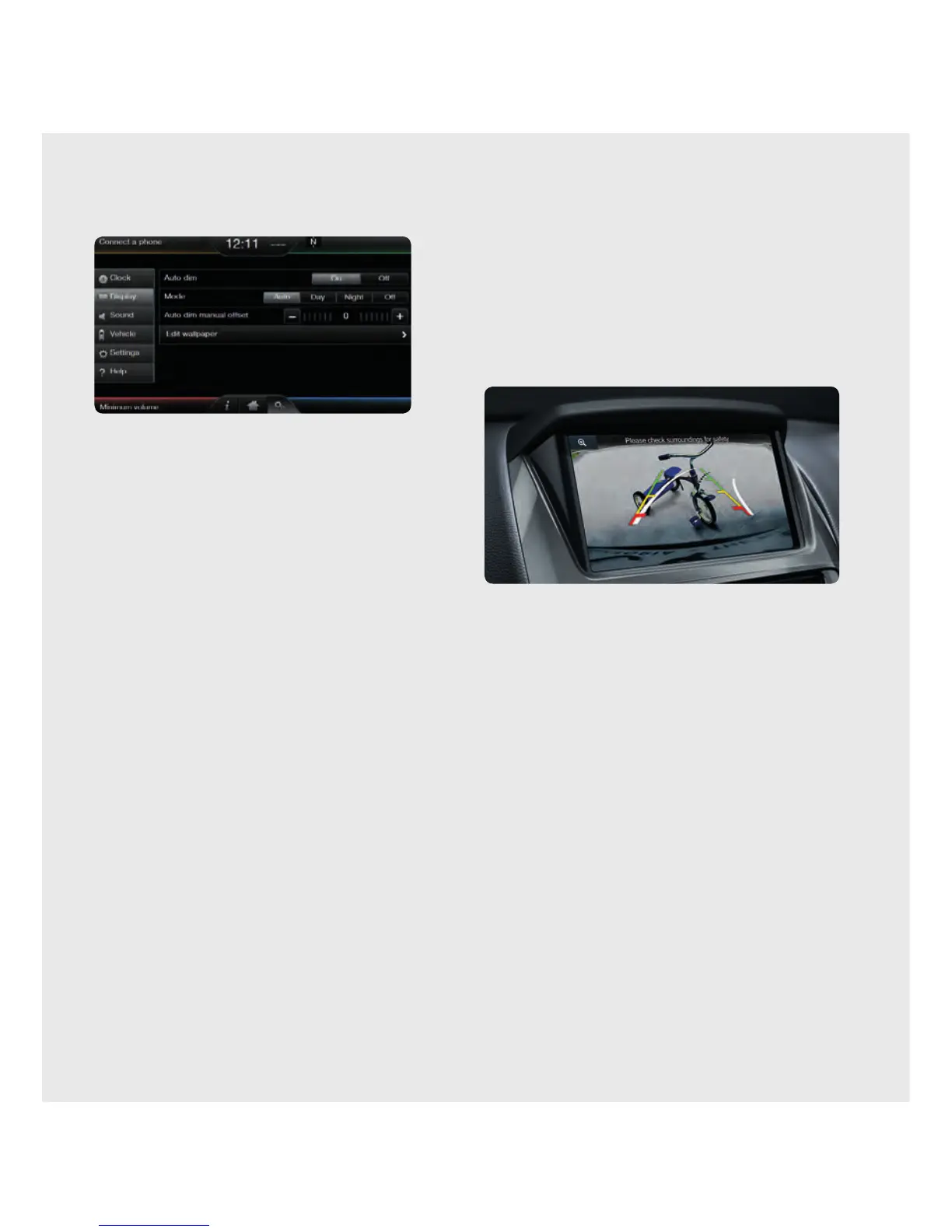
Setting display brightness
1. To uc h Settings > Display > Auto Dim O .
2. Adjust brightness.
Note: that minimum brightness will turn o
screen illumination.
Setting the rear view camera
Use the camera display as a supplemental aid when
backing up, parallel parking or even hitching a trailer.
You cannot cancel it when it’s on, but can confi gure the
delay feature, which keeps the rear view camera displayed
until you reach 10km/hr while driving forward.
1. To uc h Settings > Vehicle > Rear View Camera.
2. Select Rear Camera Delay On/O .



 To Next Page