12
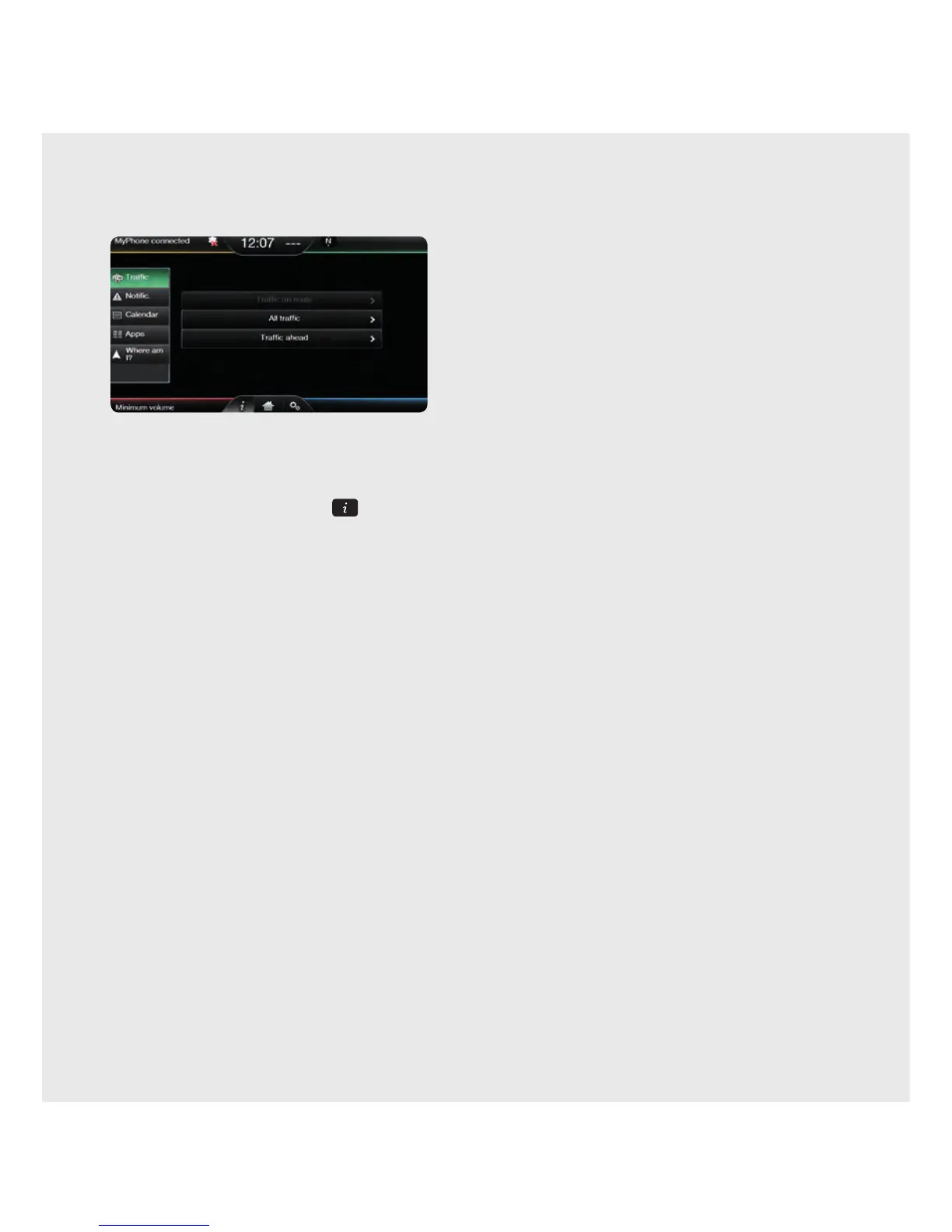
Information displays
The following displays can be selected from the
Information menu, by touching the Information
corner of the standard touch screen
(green area, upper right) or the
button at
the bottom of the touchscreen with Navigation.
• Notifi cation (SYNC
®
2 system messages).
• Calendar.
• Apps (to install or update Apps).
• Where am I? (displays current street or closest
street for vehicle equipped with SatNav and displays
longitude and latitude for non SatNav vehicles)
Reset to Factory default settings
If you want to clear all personal settings/data
from the SYNC
®
2 system, you can conduct a
full reset of the system.
Note: that this reset will delete all Favourites and
personalised settings/data.
Resetting the SYNC
®
2 system
1. Remove any USB, SD card or Line-In media device.
2. Ensure ignition is in the On position.
3. Touch the Settings icon at the bottom of the screen.
4. Select Settings from the le menu.
5. Select System > Master Reset > Yes
(confi rm Reset) > Yes (accept Warning message).
Note: It may take a few minutes to reset the
SYNC
®
2system.
Setting the clock
The clock is large and prominent at the top centre of
the touch screen. Changing the time is simple:
Manually
1. To uc h Settings > Clock.
2. Touch + or – to adjust.
3. Tou ch AM or PM.
4. Tou ch Time or Date for clock display.
5. Tou ch 12-hour or 24-hour for clock format.
Automatically (if equipped with Navigation)
1. To uc h Settings > Clock.
2. Tou ch Reset to set clock to GPS time.
INFORMATION SETTINGS



 To Next Page