32
w
w
w
w
w
w
w
w
w
w
w
w
w
w
w
w
ww.foscam.co
ww.foscam.co
ww.foscam.co
ww.foscam.co
ww.foscam.co
ww.foscam.co
ww.foscam.co
ww.foscam.co
m
m
m
m
m
m
m
m
Shenzhen
Shenzhen
Shenzhen
Shenzhen
Shenzhen
Shenzhen
Shenzhen
Shenzhen
Foscam
Foscam
Foscam
Foscam
Foscam
Foscam
Foscam
Foscam
Intelligent
Intelligent
Intelligent
Intelligent
Intelligent
Intelligent
Intelligent
Intelligent
Technology
Technology
Technology
Technology
Technology
Technology
Technology
Technology
Co.,
Co.,
Co.,
Co.,
Co.,
Co.,
Co.,
Co.,
Limited
Limited
Limited
Limited
Limited
Limited
Limited
Limited
Tel:
Tel:
Tel:
Tel:
Tel:
Tel:
Tel:
Tel:
86
86
86
86
86
86
86
86
755
755
755
755
755
755
755
755
2674
2674
2674
2674
2674
2674
2674
2674
5668
5668
5668
5668
5668
5668
5668
5668
Fax:
Fax:
Fax:
Fax:
Fax:
Fax:
Fax:
Fax:
86
86
86
86
86
86
86
86
755
755
755
755
755
755
755
755
2674
2674
2674
2674
2674
2674
2674
2674
5168
5168
5168
5168
5168
5168
5168
5168
32
32
32
32
Step
Step
Step
Step 01
01
01
01 )
)
)
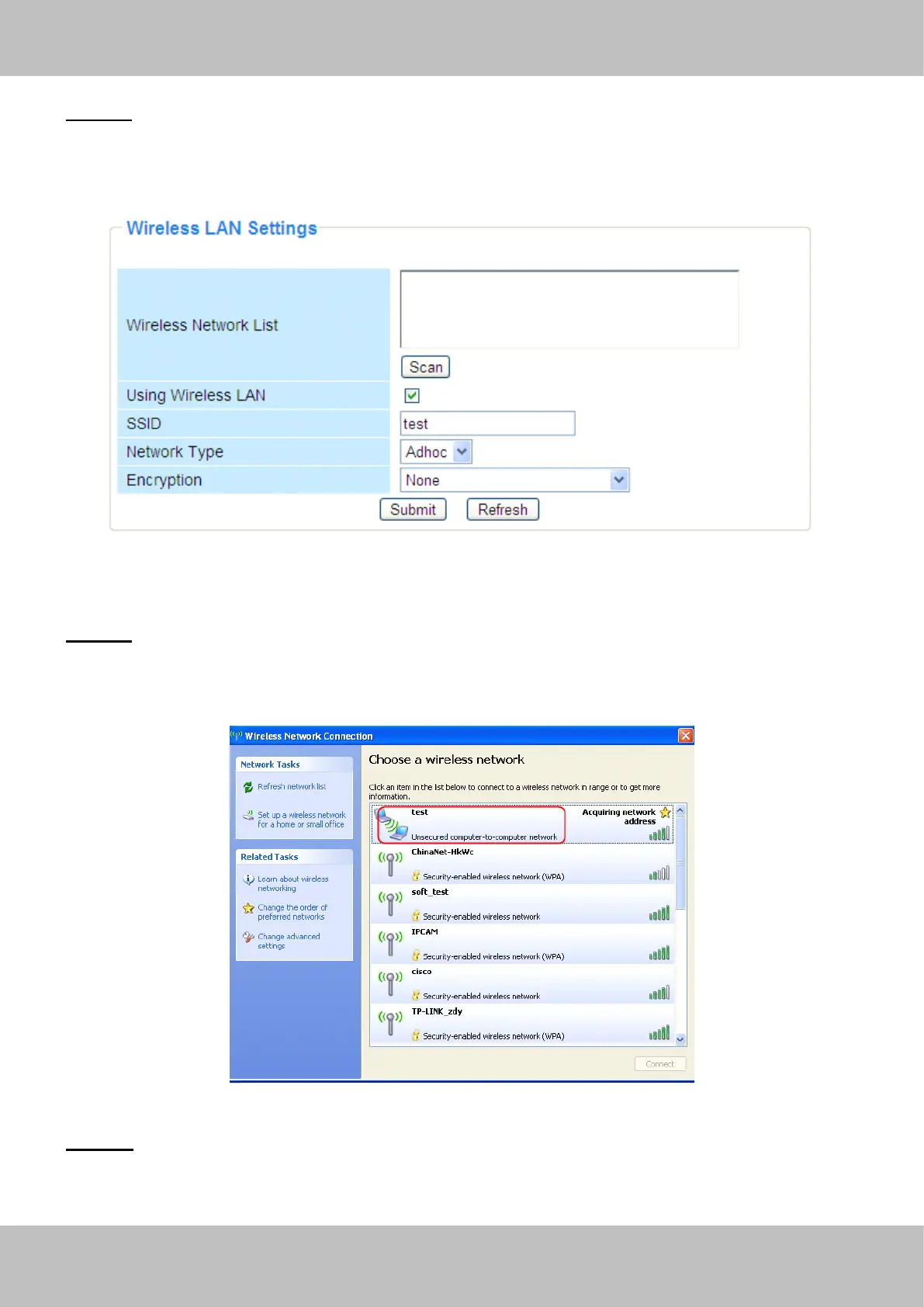
) Enable wireless and choose Adhoc mode.
F i ll in a SSID to identify the IPCAM and then set the security mode, you can choose none or
others. Click Apply.
Figure 3.21
Step
Step
Step
Step 02
02
02
02 )
)
)
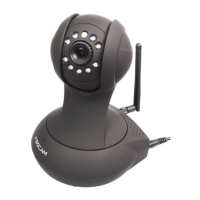
) Plug out the network cable and the camera will restart..
Open the wireless network card of PC and search the wireless network around the area. You can
find the SSID you filled for the camera (Figure 3.21).
Figure 3.22
Step
Step
Step
Step 03
03
03
03 )
)
)
) Disabled the wired connection of the PC. Select the SSID you filled at Figure3.21 for
your camera and enter the same key with your camera. Make sure PC and Camera share the



 To Next Page