EasyManua.ls Logo

Foscam FI8910W - Page 63

Foscam FI8910W
79 pages
Print Icon
To Next Page IconTo Next Page
To Previous Page IconTo Previous Page
Loading...
62
w
w
w
w
w
w
w
w
w
w
w
w
w
w
w
w
ww.foscam.co
ww.foscam.co
ww.foscam.co
ww.foscam.co
ww.foscam.co
ww.foscam.co
ww.foscam.co
ww.foscam.co
m
m
m
m
m
m
m
m
Shenzhen
Shenzhen
Shenzhen
Shenzhen
Shenzhen
Shenzhen
Shenzhen
Shenzhen
Foscam
Foscam
Foscam
Foscam
Foscam
Foscam
Foscam
Foscam
Intelligent
Intelligent
Intelligent
Intelligent
Intelligent
Intelligent
Intelligent
Intelligent
Technology
Technology
Technology
Technology
Technology
Technology
Technology
Technology
Co.,
Co.,
Co.,
Co.,
Co.,
Co.,
Co.,
Co.,
Limited
Limited
Limited
Limited
Limited
Limited
Limited
Limited
Tel:
Tel:
Tel:
Tel:
Tel:
Tel:
Tel:
Tel:
86
86
86
86
86
86
86
86
755
755
755
755
755
755
755
755
2674
2674
2674
2674
2674
2674
2674
2674
5668
5668
5668
5668
5668
5668
5668
5668
Fax:
Fax:
Fax:
Fax:
Fax:
Fax:
Fax:
Fax:
86
86
86
86
86
86
86
86
755
755
755
755
755
755
755
755
2674
2674
2674
2674
2674
2674
2674
2674
5168
5168
5168
5168
5168
5168
5168
5168
62
62
62
62
Section3
Section3
Section3
Section3 Add
Add
Add
Add device
device
device
device buttons
buttons
buttons
buttons
Add
Add
Add
Add device
device
device
device in
in
in
in LAN
LAN
LAN
LAN
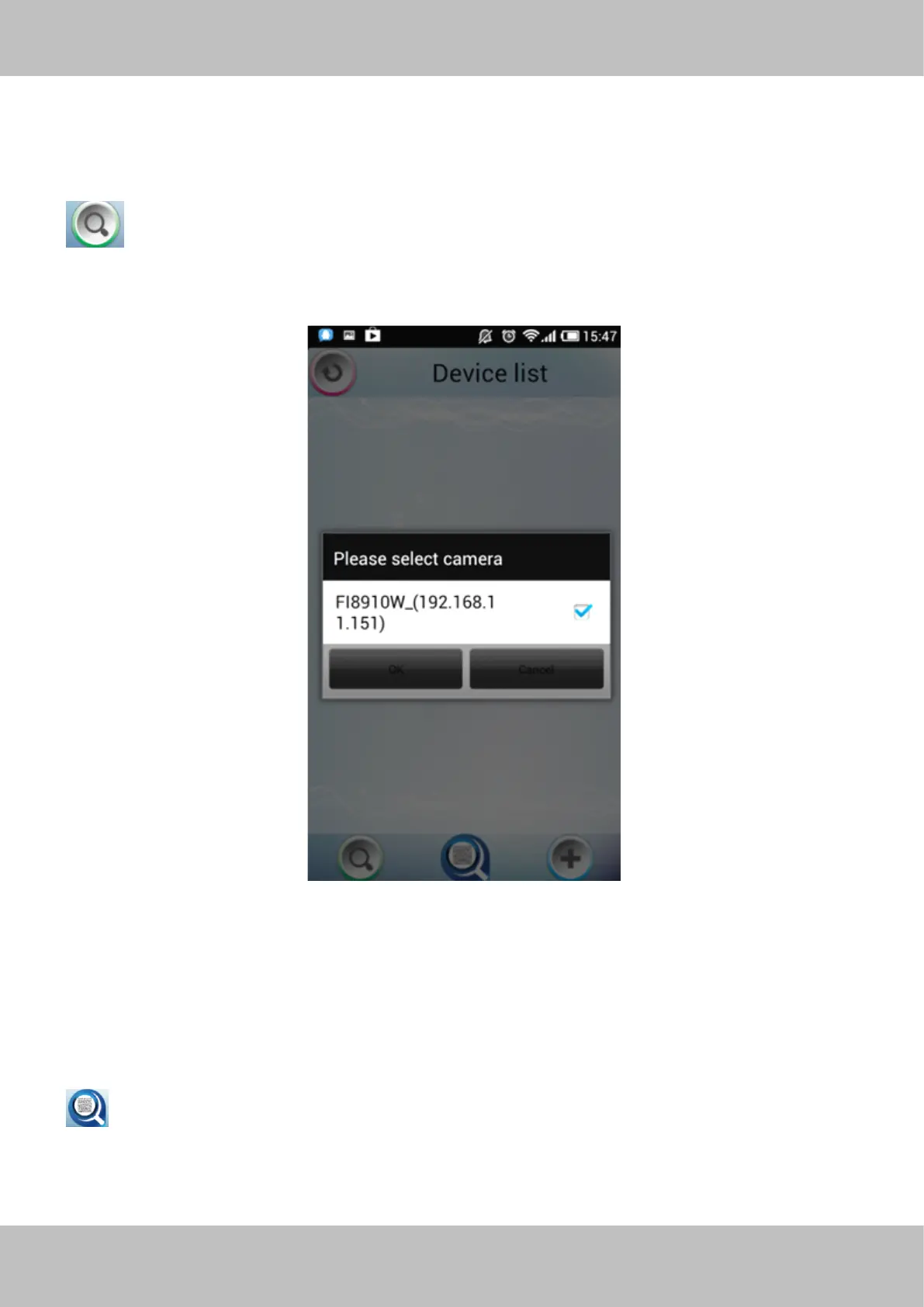
: Click this icon and the APP will search all cameras in LAN automatically. Such as the
following screen:
Figure 4.5
Select the camera IP and click OK to add cameras in LAN, then you can see the camera in the
Device List.
Add
Add
Add
Add device
device
device
device through
through
through
through scanning
scanning
scanning
scanning UID
UID
UID
UID (User
(User
(User
(User Identification
Identification
Identification
Identification )
)
)
) number
number
number
number
: UID
UID
UID
UID Scan.
Scan.
Scan.
Scan. Click this icon and scan the UID no. in the camera body, then the camera can
be added to the App.

Other manuals for Foscam FI8910W

Related product manuals