E-6
Computer settings
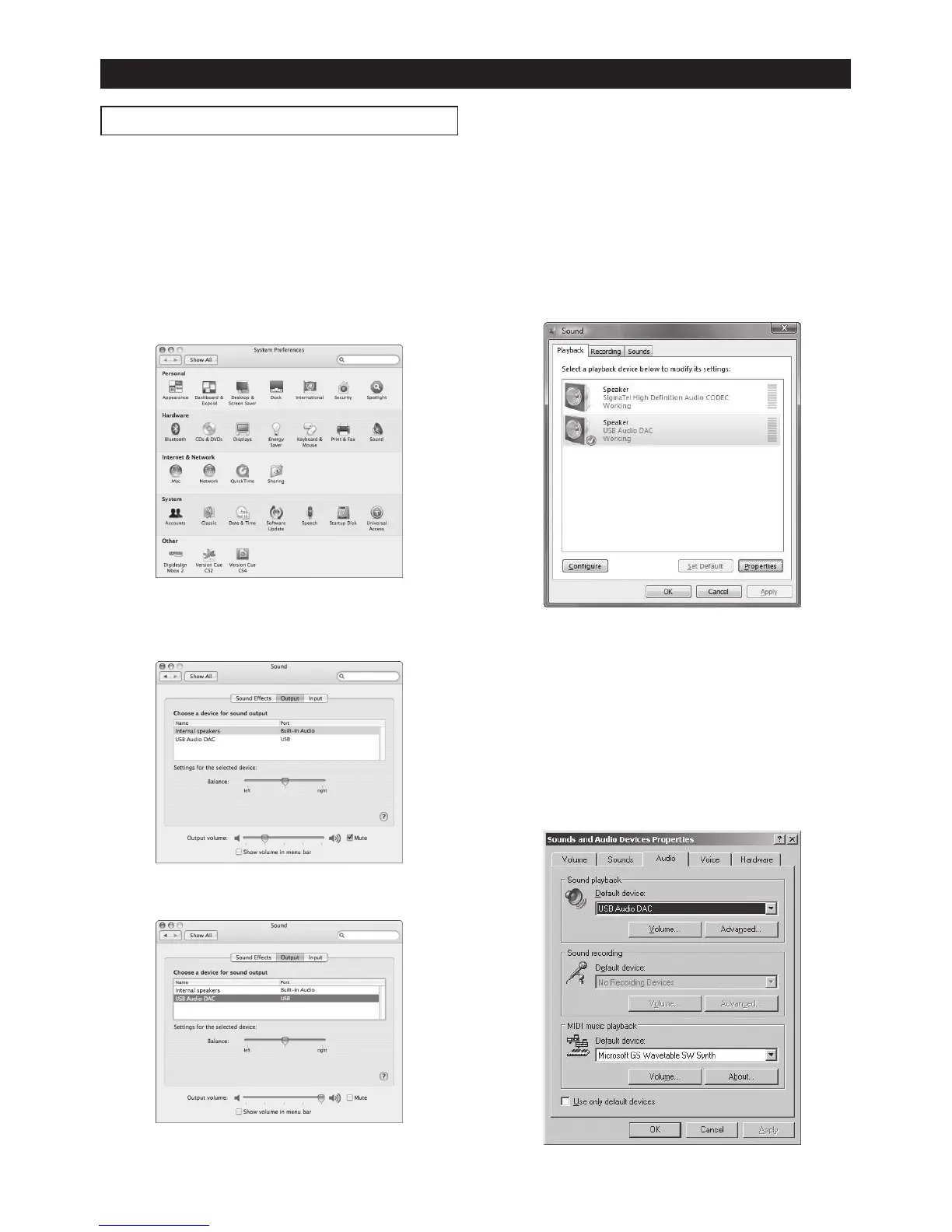
Output device setting
To receive a digital audio signal from your computer
via USB, you must make audio output setting of the
computer appropriately.
Th e fo l low i ng de s c ri b e s how to se l e ct th e
PC100USB as the sound output device of a com-
puter for each OS.
• Mac OS
1) Select “System preferences” from the Apple
drop-down menu.
2) Select “Sound” to open the “Sound” window
and select “Output” tab at the top of the window.
3) Select “USB Audio DAC” in the list box.
• Windows Vista/Windows 7
1) Select “Hardware and Sound” from the Control
panel.
2) Select “Sound” to open the “Sound” window.
3) Select “Playback” tab.
4) Select “USB Audio DAC” and click the “Set De-
fault” button, followed by the “OK” button.
• Windows XP
1) Select “Sound and Audio Device Properties”
from the Control panel.
2) Select “Audio” tab in the “Sound and Audio De-
vice Properties” window.
3) Select “USB Audio DAC” as the default device
for playback and click the “OK” button.



 To Next Page