NT201 OBDII/EOBD Code Reader User’s Guide_English Version_V1.00
3.2 Application Overview
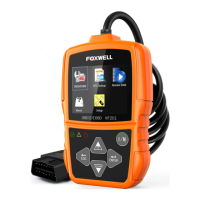
When the code reader boots up, the Home screen opens. This screen shows all applications
Following applications are preloaded into the code reader:
● OBDIIEOBD – leads to OBDII screens for all 7 generic OBD system tests.
● About – leads to screen that shows information about the code reader.
● Setup – leads to screens for adjusting default settings to meet your own preference when
Figure 3.1 Sample Home Screen
OBD-II/EOBD menu lets you access all OBD service modes. According to ISO 9141-2, ISO
14230-4, and SAE J1850 standards, the OBD application is divided into several sub programs,
called ‘Service $xx’. Below is a list of OBD diagnostic services:
● Service $01 - request current powertrain diagnostic data
● Service $02 - request powertrain freeze frame data
● Service $03 - request emission-related diagnostic trouble codes
● Service $04 - clear/reset emission-related diagnostic information
● Service $05 - request emission-related diagnostic trouble codes detected during current or
last completed driving cycle
● Service $06 - request Vehicle Information
When OBDIIEOBD application is selected from Home screen, the code reader starts to detect the
communication protocol automatically. Once the connection has established, a menu that lists all
of the tests available on the identified vehicle displays. Menu options typically include:
Not all function options listed above are applicable to all vehicles. Available options may vary by
the year, model, and make of the test vehicle. A “The selected mode is not supported!” message
displays if the option is not applicable to the vehicle under test. When the code reader links to
vehicle, it checks the status of I/M Monitors automatically, and gives a summary report on the
display as illustrated below.


 To Next Page