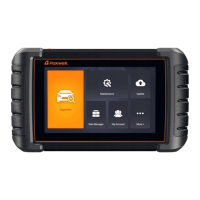
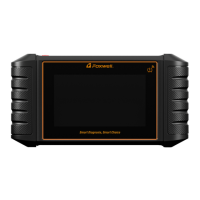
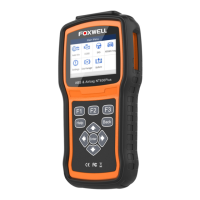
Automotive Diagnostic & TPMS Scanner NT809TS User's Manual V1.0
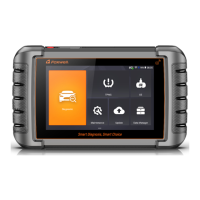
This section briefly introduces the applications that are preloaded into the
scanner:
● Diagnostic - leads to test screens for diagnostic trouble code information,
freeze frame, live data and ECU information.
● TPMS - leads to screens for TPMS function.
●
OE - leads to screens for OE number of tpms sensors.
●
Maintenance - leads to screens for common used special functions like
Oil light reset, EPB, BRT, and DPF etc.
● Update - leads to screens for Foxwell ID registration and updating the
scanner.
● Data Manager - leads to screens for saved screenshots, pictures and test
reports, and playing back live data, as well as debug logging data.
●
My Account - displays your Foxwell ID information like registered
products and personal information and allows for sending us feedbacks
about the scanner.
● Remote Control - leads to TeamViewer to get remote support from
Foxwell team or remote vehicle diagnostic.
●
Settings - leads to screens for adjusting default settings to meet your own
preference and view information about the scanner.
●
Functions - Query the functions of model supported by the scanner.
● VCI Manager - VCI firmware update.
3.3.2 Diagnostic Menu
Touch Diagnostic at the NT809TS application menu, and the Diagnostic
menu will display. The operations of the buttons of Diagnostic menu are
described in the below table.
Figure 3-3 Sample Diagnostic Menu Screen
Back to the previous screen.
Back to the Application Menu.


 To Next Page