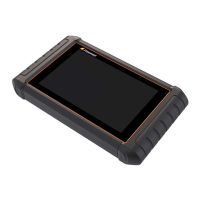
Automotive Diagnostic & TPMS Scanner NT809TS User's Manual V1.0
2. Select Automatic Update, then set automatic update notice enable.
10.2 Manual Update
To update the diagnostic application:
1. Press Update of NT809TS diagnostic application, and the update client
starts up automatically.
2. The available updates display. Click the check box(s) in front of the
software you wish to update and then click the Update button to
download.
3. When all the items are updated, an “Update Done” message displays.
NOTE
Please make sure your network works correctly and the tablet is fully charged
or connect to external power supply.
Figure 10-2 Sample Update Screen
11 VCI Manager
11.1 VCI Firmware Update
This application allows you to update the firmware of NT809TS.
To update the firmware:
1. Click the Update application on the NT809TS home screen.
2. Check and download the firmware package.
3. Click the VCI Manager application on the NT809TS home screen.
4. Click Update option to update the firmware.


 To Next Page
 Loading...