1. BASIC MODEL AND OPTIONS
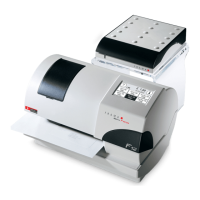
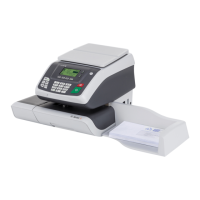
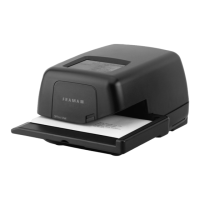
The Frama OfficeMail Franking System is
available in white-grey or anthracite-black
housings. It can be equipped with additional
software, hardware and peripheral options as
required. Depending on country-specific
postal regulations, credit loading can be car-
ried out using the electronic FramaLink re -
mote postage resetting system (see section
5.9.20).
1.1 Basic specifications
The basic model includes:
• Franking speeds up to 3000 letters per
hour
• Franking of letters of thickness up to 6 mm
• User interface touch screen
• Fully automatic date change
• Two password protected account numbers
• Printing account number details on data cards
• Nine programmable fixed values
• 10-key keypad
• Resettable / non-resettable item counters
• Programmable “High Value” block
1.2 Software options
• “Tariff Module” option T for automatic
postage calculation of inland and foreign
mail (section 5.2.4).
• “Account number Module” option C
for booking franked mail in, for example, 10
(Module C10), 20 (C20) or 50 (C50) ac-
count numbers (section 5.1).
• “Print Selection” option P (up to eight
additional print clichés). Depending on
country-specific regulations certain additio-
nal frankings belong to the basic equipment.
• “Ad Cliché” option A. Up to eight diffe-
rent ad clichés can be permanently stored in
the system using the ad cliché loading box
(section 6).
1.3 Hardware options
• “Scale Interface” option 10 for con -
necting a Frama Scale/Weighing platform
for automatic weight transmission (only pos-
sible in connection with the “Tariff Modu-
le” option T) (section 5.3.4).
• “PC Interface” option 20 for connecting
a PC/laptop (in connection with Tariff Mo-
dule T). This option is possible only for cer-
tain special applications and requires a spe-
cial factory-prepared model.
• “PC Interface” option 22 for connecting
a PC/laptop (without Tariff Module T). This
option is possible only for certain special ap-
plications and requires a special factory-pre-
pared model.
1.4 Peripheral options
• Frama Scales/Weighing platforms
• Tariff loading box
• Franking statistics software on-line, i.e. di-
rect connection to PC or laptop (requires a
special factory-prepared model)
• Statistics software off-line, i.e. no directly
connected PC or laptop (requires a special
factory-prepared model)
This document describes all functions and
options possible with the OfficeMail Franking
System (fully configured model). Described
functions not belonging to the basic equip-
ment are indicated with an “*” symbol in the
footnote meaning: If so equipped.
2. SAFETY INSTRUCTIONS /
ACCIDENT PROTECTION
• Please read through these operating in-
structions carefully and follow the directions
contained herein.
• Before operating your franking machine for
the first time, it must be properly licensed
with your postal authority and sealed under
the post lock cover (8). Please follow the in-
structions of your local Frama representa -
tive.
• Under no circumstances remove the seal
under the post lock cover (8)! Report any
damage to it to your local Frama represen-
tative immediately.
• In Germany buildings must have an over -
voltage protection installed on the mains line
where the franking system is connected.
• Check the cable and plug before each in-
stallation. Have any damage immediately re-
paired by a specialist.
• Always switch off the franking machine
(mains switch (3) on the rear of the unit) to
position “0” before connecting the mains
plug to the mains.
• Always position the mains cable behind the
machine and ensure that it cannot be dam -
aged or cause anyone to trip over it.
• Grip the plug to remove it. Never pull on the
cable to remove the plug.
• To avoid damage, never place foreign ob-
jects in the vicinity of the printing mecha-
nism (17).
• To avoid injury to your fingers, never place
2
229_Inha_OfficeMail:229_Inha_OfficeMail 30.4.2008 8:58 Uhr Seite 2


 To Next Page