Frama Matrix F12
27
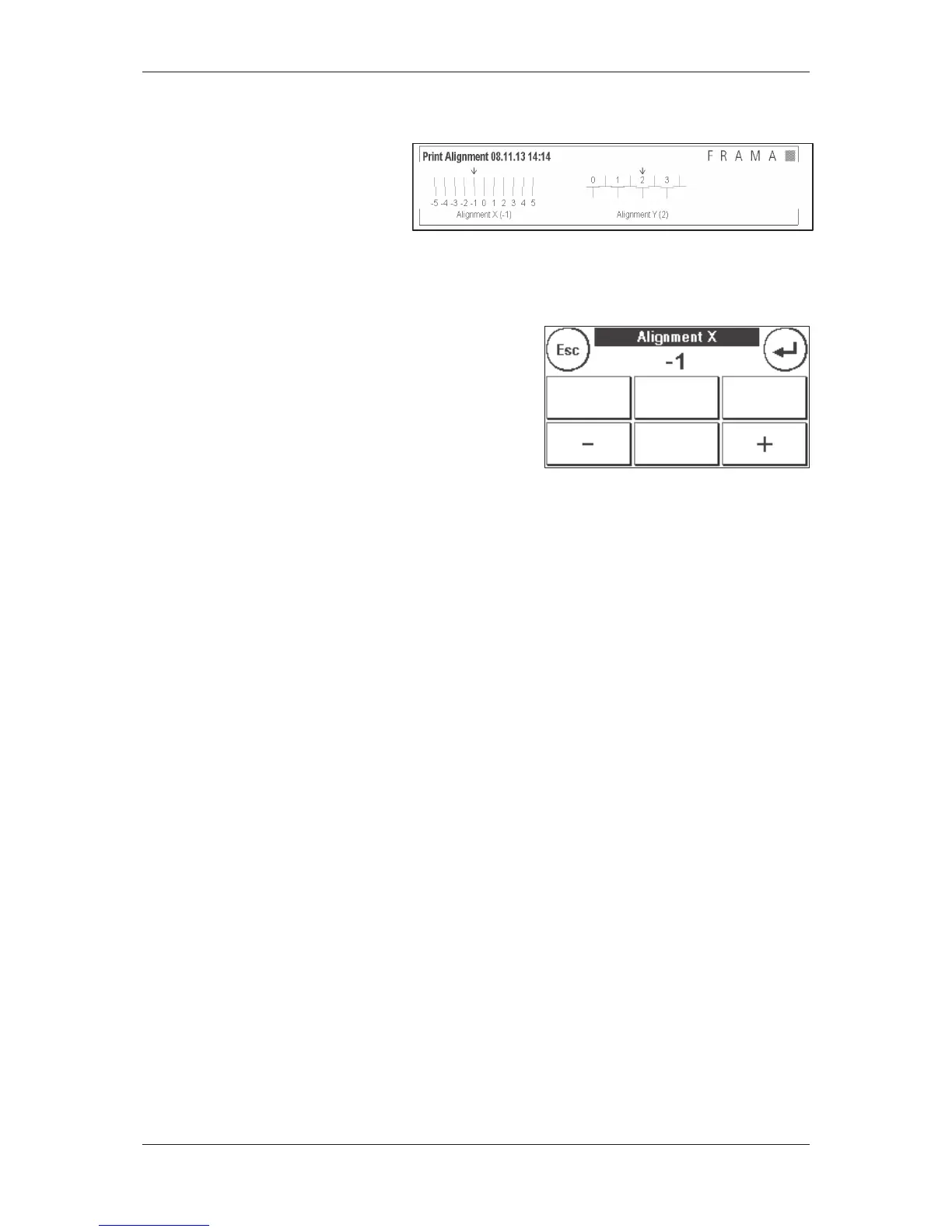
Example of a test print:
Alignment
X is shown on the left and
Alignment Y on the right. Valid align-
ments are indicated by an arrow. The
arrows should point to where the lines
appear straightest.
If this is already the case, you only need to confirm the following displays X and Y by pressing the ENTER
key. Sometimes, however, it is necessary for you to change the setting to optimize the results. Simply
carry out the additional instructions.
This is how you should proceed: Look for the line that ap-
pears to be straightest in the Alignment X area to the left of
the test mark. Note the number beneath it, e.g. -1.
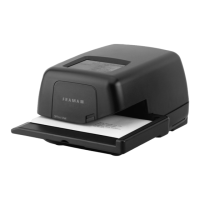
Use the + and - keys to select the right number in the display
and then press ENTER to go to the Y setting.
Again use the + and - keys to select the right number in the
display and then press ENTER.
Run a test print again when prompted to check your settings. The arrows will now point exactly to the
settings you made, i.e. right where the lines should be straightest.
If you are still not satisfied, you can reset again by answering the prompt with NO. Press YES to save the
alignment setting.


 To Next Page