7
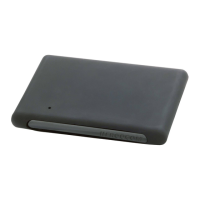
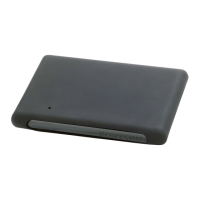
FREECOM MOBILE HARD DRIVE
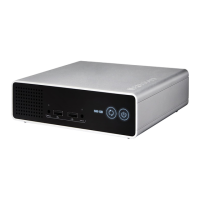
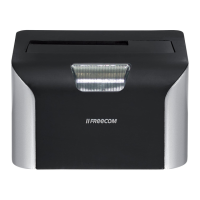
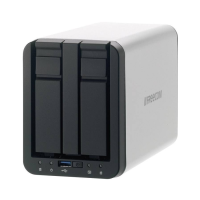
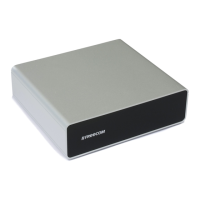
FREECOM DESKTOP HARD DRIVE
Chapter: Hardware Installation
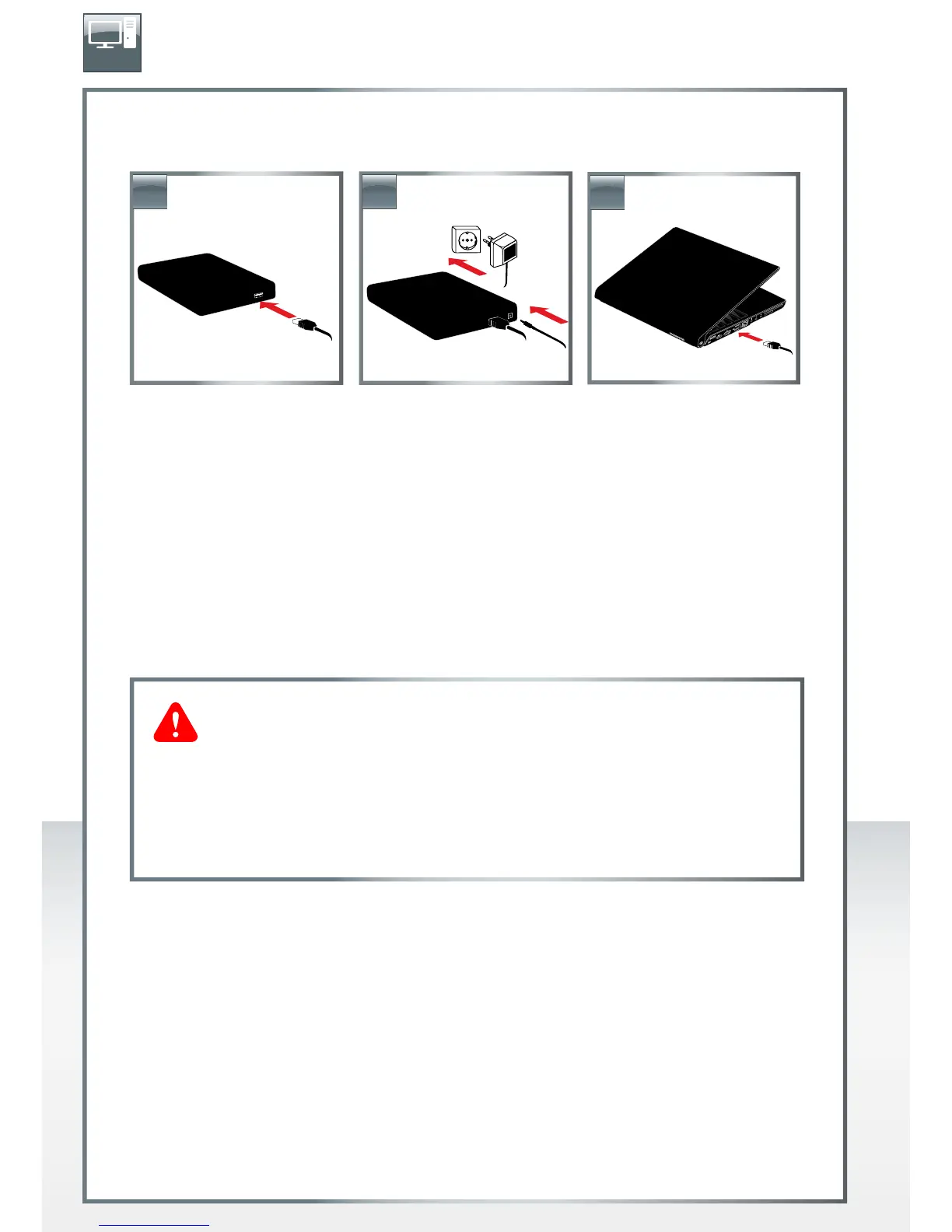
1. Connect the interface cable* to the Freecom Mobile Hard Drive / Desktop Hard
Drive.
2. Optional: Connect the cable of the power supply to the Freecom Mobile Hard Drive
/ Desktop Hard Drive and the power supply itself to the socket.
3. Connect the interface cable* to the interface port of your computer.
4. Optional: if your device comes with a power switch, switch on the device before
using it.
* Please use the interface cables that come with your device (e.g. USB, eSATA, Firewire, LAN) for
connecting the device to your PC/Mac.
Chapter: Driver Installation
Under Windows XP / Vista / 7 and Mac OS X a separate Freecom driver is not required.
The drivers will be installed automatically by the operating system after plugging in
the Freecom Mobile Hard Drive / Desktop Hard Drive into the interface port of the
computer.
Since USB 2.0 is backwards compatible with USB 1.1, the Freecom Mobile
Hard Drive / Desktop Hard Drive can be connected to all USB ports.
When connected to a USB 1.1 port, however, the performance (data
transfer rate) of the Freecom Mobile Hard Drive / Desktop Hard Drive
will be much lower than when the drive is connected to a USB 2.0 port.
For optimum performance the Freecom Mobile Hard Drive / Desktop
Hard Drive should always be connected to a USB 2.0 interface.
3.
1.
2.
EN




 To Next Page