15
GB
5
Important: We recommend to leave the function "Start program on Win-
dows start" activated under all circumstances in order to be able to use all
the functions of the Freecom Personal Media Suite (e.g. "Autorun", "SYNC
on Freecom device plug-in")!
5.2 Autorun
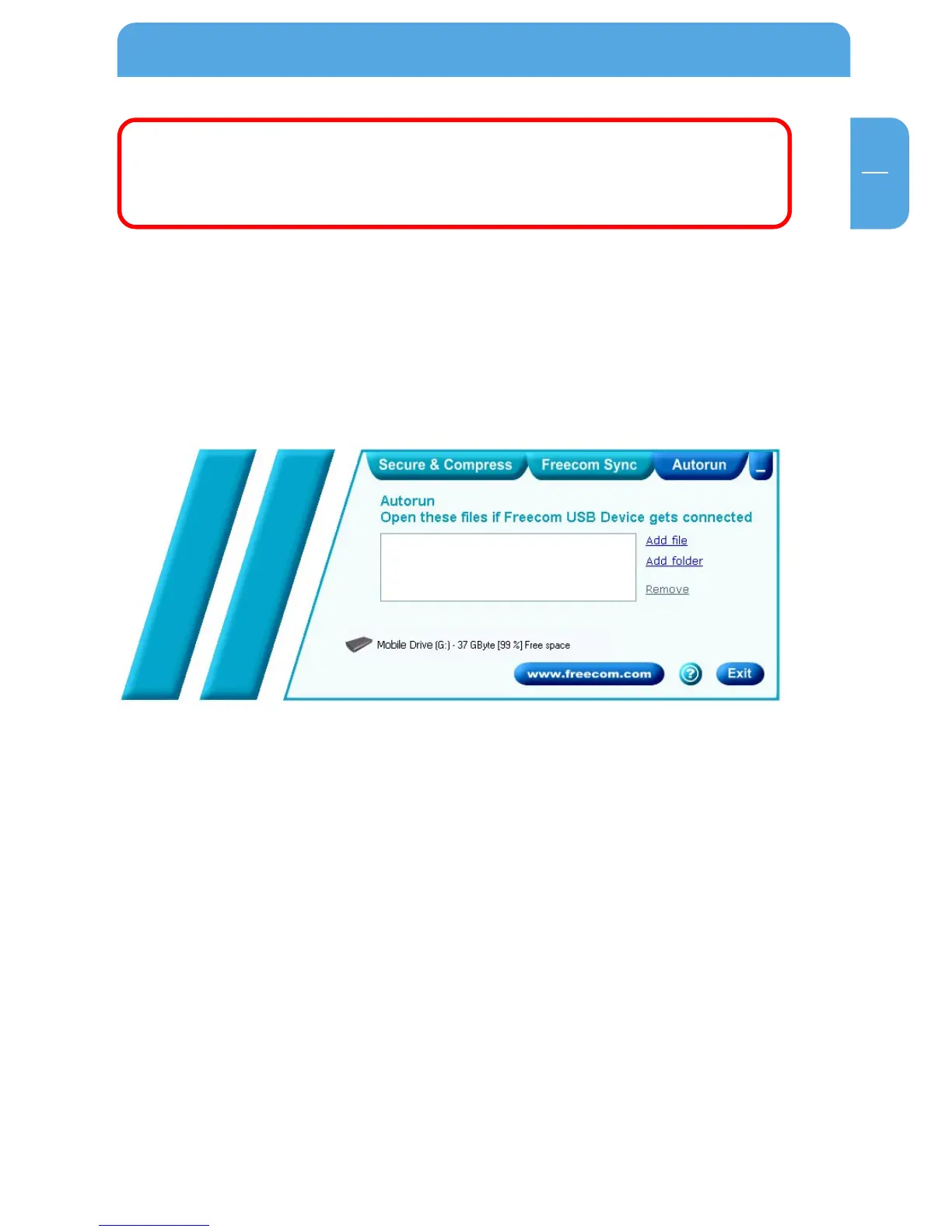
The "Autorun" function enables you to open or start documents, files or programs
automatically when your Freecom Mobile Drive is connected to your PC.
Automatically start, for example, the last document you were working on, MP3 play lists,
your favourite film and much more. These files do not have to be on your Freecom Mobile
Drive for this.
5.2.1 Adding files / folders
1. Open the Freecom Personal Media Suite and select the "Autorun" tab.
2. Add files, folders and programs to the Autorun list by either clicking on "Add file" and
selecting the corresponding file or by pulling the files into the Autorun list field using
drag&drop.
3. For folders, please select "Add folders" or pull a folder into the Autorun list field using
drag&drop.
4. Alternatively, you can create a new folder on your Freecom Mobile Drive using the
"Add folder" function by clicking on "Create new folder", naming the folder and
selecting it.
The User Interface of the Freecom Personal Media Suite



 To Next Page