43
GB
7
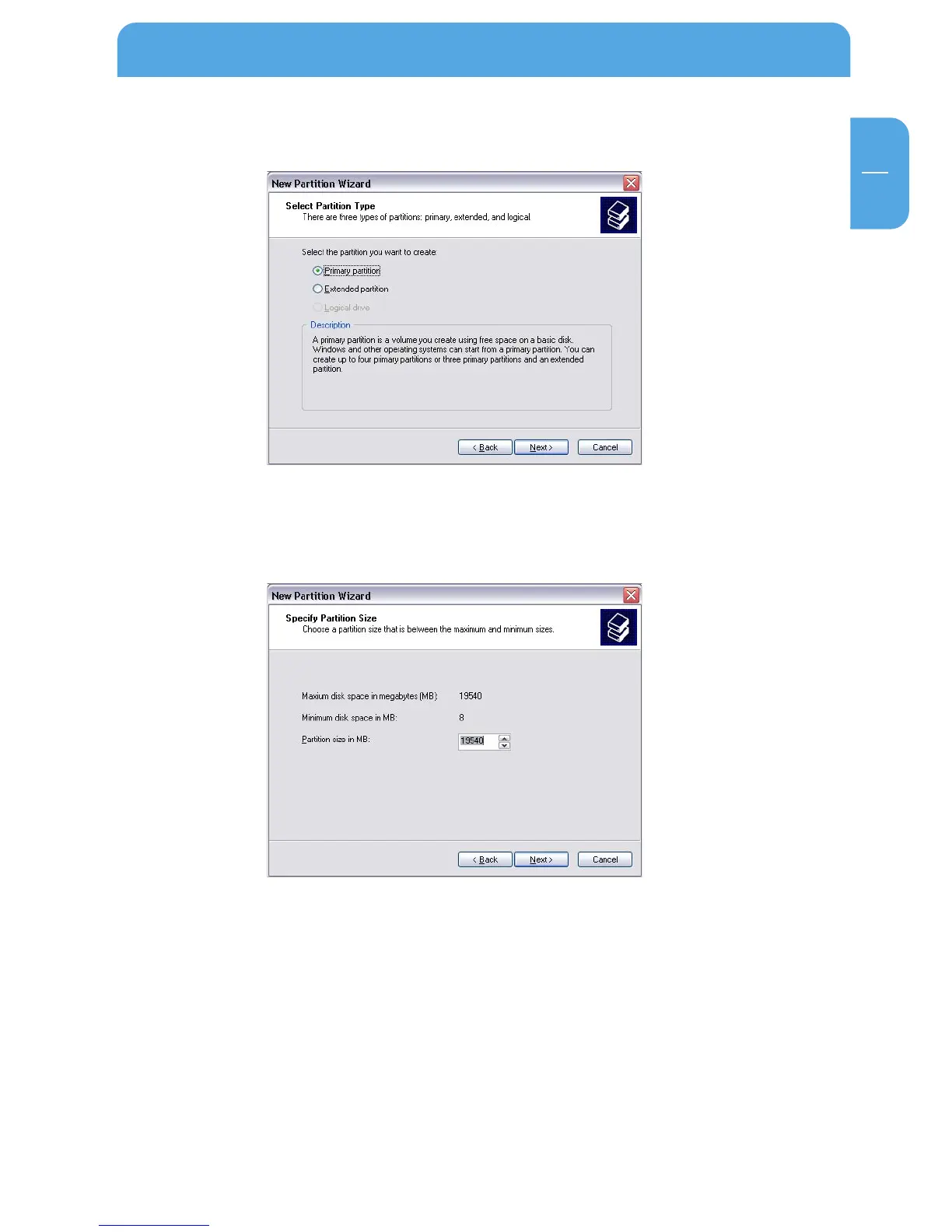
6. Select "Primary partition" and click on "Next".
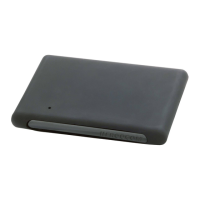
7. Now you can adjust the size of your partition. Click on "Next" if only one partition is
to be created. See next chapter (Creating two or more partitions on the Freecom
Mobile Drive under Windows XP/2000) how to create more than one partition.
8. Assign a drive letter to your hard disk. Normally you can use the default options. Click
on "Next".
Partitioning your Freecom Mobile Drive



 To Next Page