45
GB
7
7.3.3 Creating two or more partitions on the Freecom Mobile Drive
under Windows XP / 2000
1. Repeat the steps from the previous chapter (Creating a partition on the Freecom
Mobile Drive under Windows XP/2000) for creating the first partition.
2. Click with the right mouse button on the "My Computer" icon on your desktop.
3. Select the option "Manage".
4. Select the option "Storage" -> "Disk Management".
5. Right-click on the unallocated space of your Freecom Mobile Drive and select the
option "New partition" (Windows 2000: "Create partition"). The "New Partition
Wizard" (Windows 2000: "Create Partition Wizard") opens. Click on "Next".
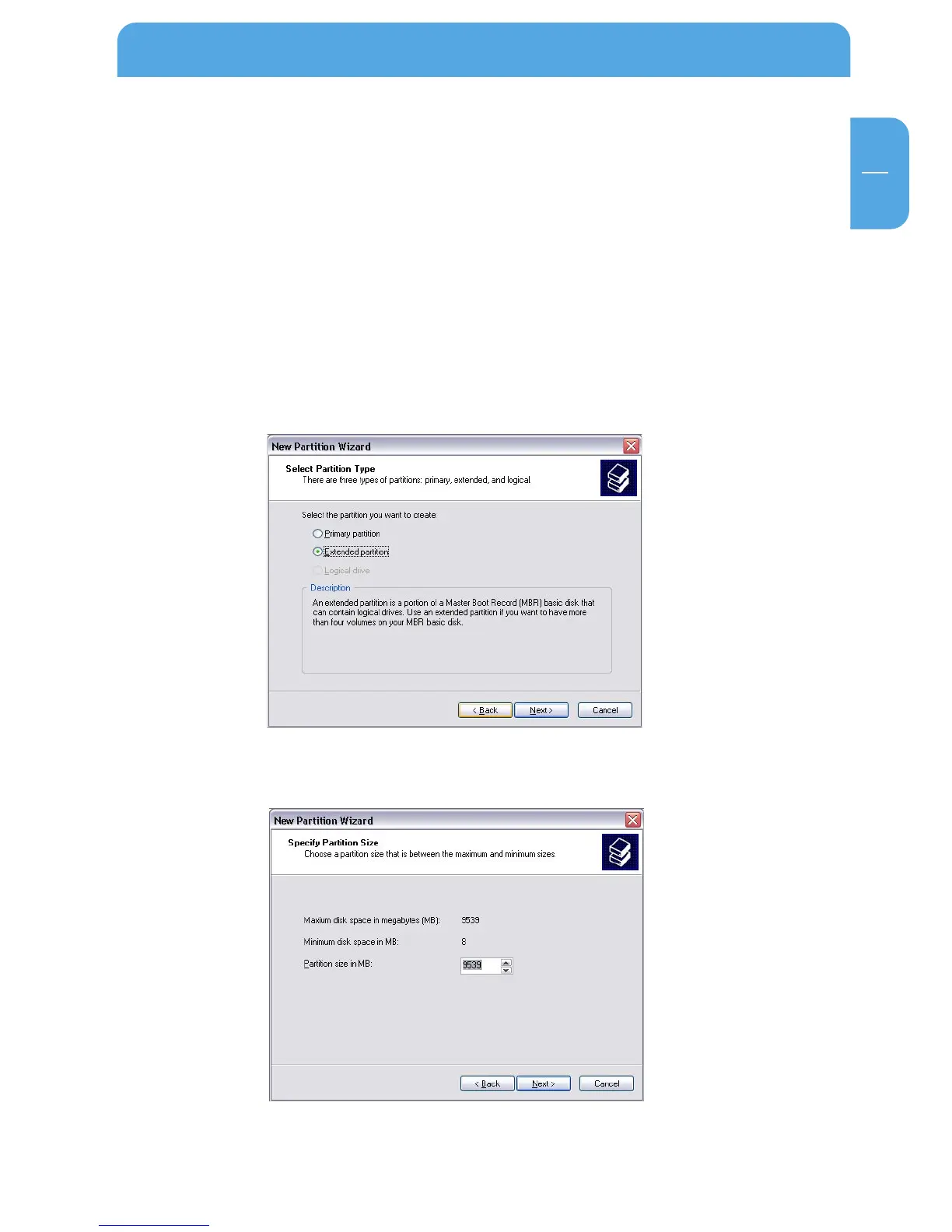
6. Select "Extended partition" and click on "Next".
7. Now you can adjust the size of your partition. Enter the size and click on "Next".
Partitioning your Freecom Mobile Drive



 To Next Page